
WhatsApp Auto Reply Bot: How to Set Up Automatic Replies in 2026
Set up a WhatsApp auto reply bot that answers clients 24/7 with AI. Per-contact rules, group replies, and Google Calendar — no code, live in 30 seconds.
A WhatsApp auto reply bot replies to messages for you the moment they arrive — no button presses, no "I'll get back to you later." For a freelancer juggling five clients or a shop owner who closes at 10 pm, that is the difference between winning a job and losing it to whoever replied first.
This guide covers what an auto reply bot actually does, why the no-code approach has overtaken the old API route, and exactly how to set one up in under a minute. If you also want the broader picture, read our WhatsApp business automation guide alongside this one.
Watch the 60-second setup
What is a WhatsApp auto reply bot?
An auto reply bot is software connected to your WhatsApp number that reads incoming messages and sends a reply automatically. The simplest ones fire a fixed "I'm busy" message. The modern ones — like the one this guide builds — understand the message, follow your business rules, and reply as if you had typed it yourself.
There are two ways to build one. The traditional route is the official WhatsApp Business API, which requires Meta approval, template message approval, and per-message fees. The faster route, used by BotFast, links to your number the same way WhatsApp Web does — no approval, works on any number, replies are free.
Key difference: the Business API is built for enterprises sending marketing blasts. The linked-device approach is built for people who just want their inbox handled. For most small teams, the second route is the better fit.
It is worth being precise about what "auto reply" covers here, because the term gets used loosely. A true auto reply bot does not just fire a canned "thanks for your message." It reads the incoming text, decides whether a stock answer applies, and either answers in your voice or flags the thread for you. That judgement is what makes it safe to leave running overnight against real paying customers — a keyword responder cannot tell the difference between a pricing question and a complaint, so it eventually sends the wrong thing and damages trust.
Why use an auto reply bot
The case is rarely about saving time — it is about not losing opportunities. Here is where an auto reply bot pays for itself:
- Response speed. Studies repeatedly show that replying within the first minute raises conversion significantly. A bot replies in seconds, at any hour.
- After-hours coverage. Clients message at midnight. The bot answers, books the lead, and you wake up to a scheduled call instead of a cold inquiry.
- Consistency. The bot never forgets to mention your pricing link, never gives a wrong address, never skips the intake question you always ask.
- Language. A multilingual bot replies in the client's language without you hiring anyone.
- Inbox triage. Routine questions get answered; the bot can privately notify you when something unusual needs your attention.
Who this is for: freelancers, consultants, local service businesses (clinics, salons, repair shops), e-commerce sellers on WhatsApp, and any solo operator who cannot hire a receptionist. See more patterns in our WhatsApp customer support bot walkthrough.
How to set up a WhatsApp auto reply bot
The setup is four short steps. You will have a live, replying bot before your coffee is cold.
Step 1 — Connect your number
Go to botfast.co, enter your WhatsApp number with the country code (for example +8801712345678), and click Get my bot. A QR code appears instantly — no account creation, no email confirmation.
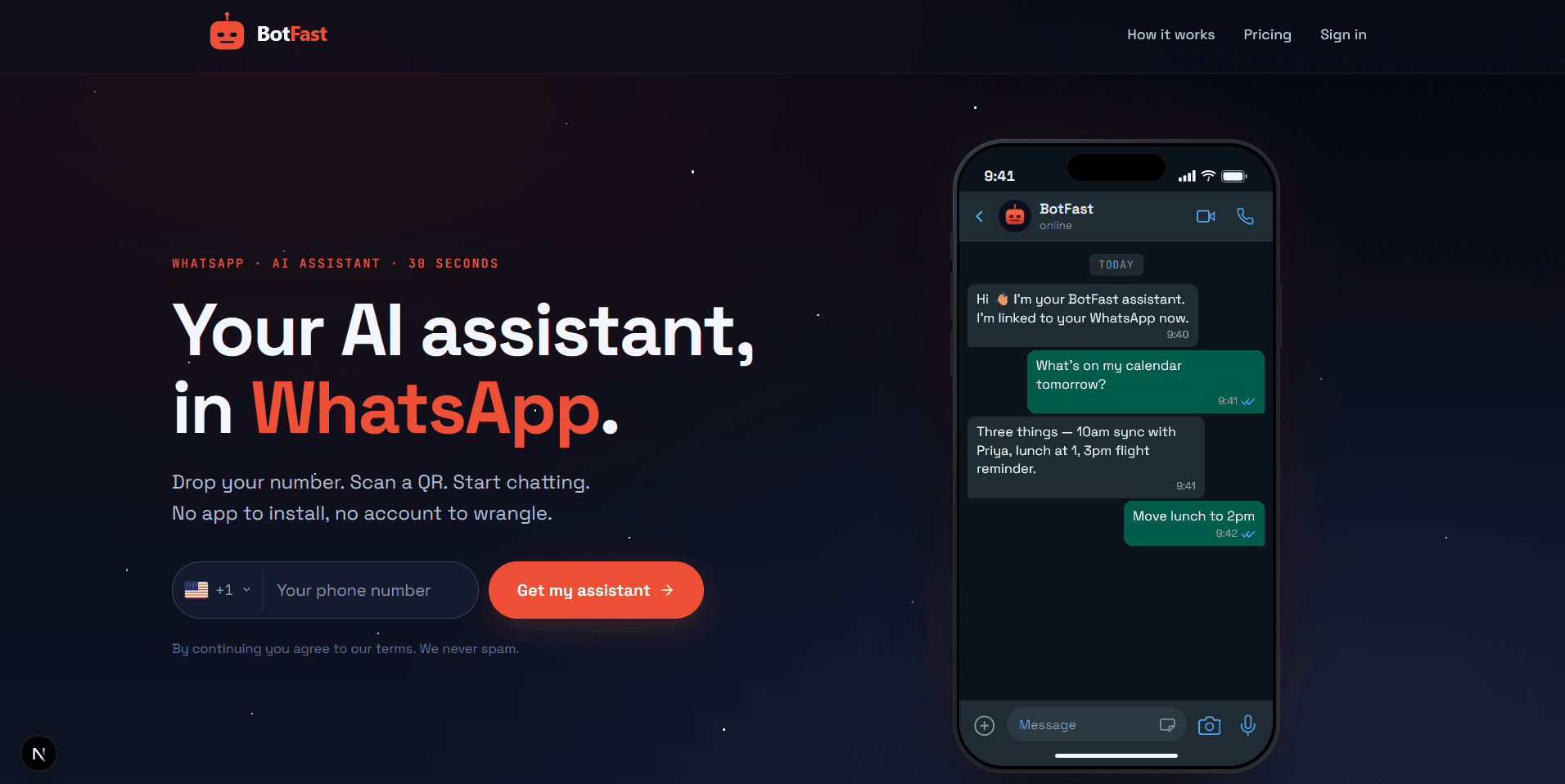
Enter your number on the BotFast homepage to start building your WhatsApp auto reply bot
Step 2 — Scan the QR code
On your phone open WhatsApp, tap the menu (or Settings on iPhone), choose Linked devices, then Link a device. Point the camera at the QR code. It links in a few seconds and your messages stay end-to-end encrypted.
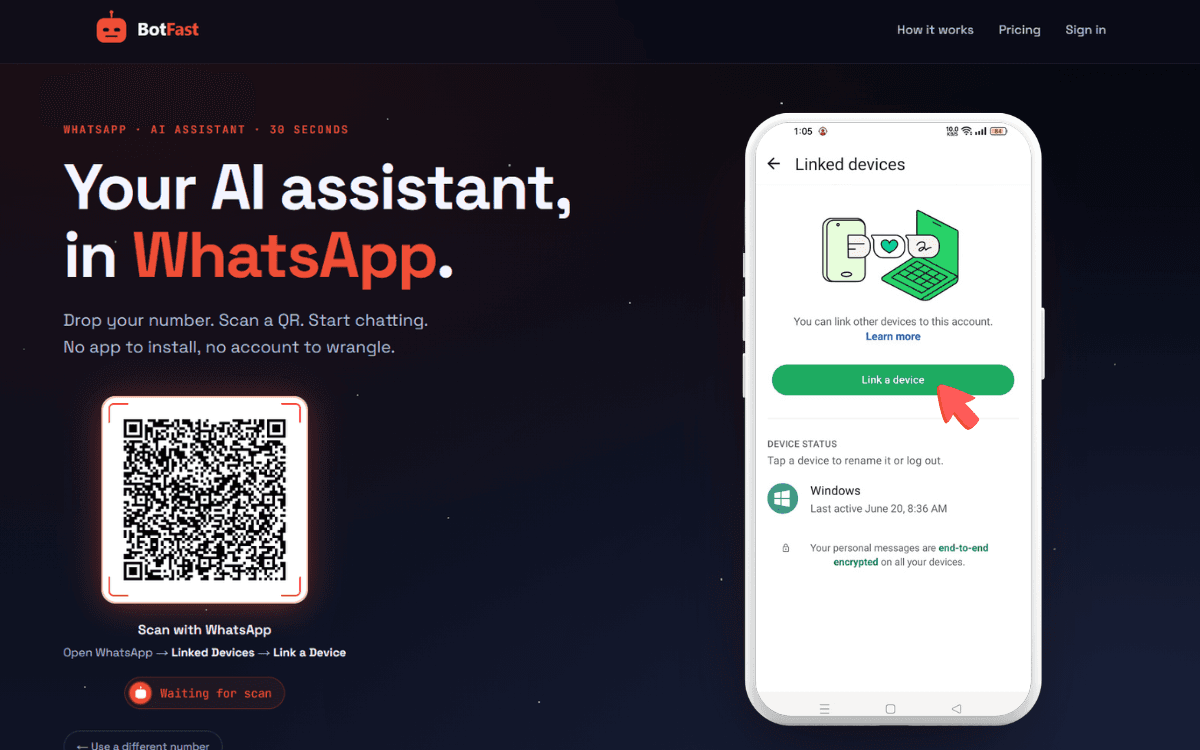
Scan the QR code from WhatsApp → Linked Devices → Link a device to activate your auto reply bot
Step 3 — Write your global reply rule
Open the chat with your own number in WhatsApp — this is your control panel. Type something like:
Reply to every client message within 2 hours. Be warm, use my business name "Acme Studio", and always end by asking if they want to book a call.That is a skill — a standing instruction the bot follows on every matching message. You write it once and it runs forever. If you want the full tour, our how to build a WhatsApp chatbot guide walks through every option.
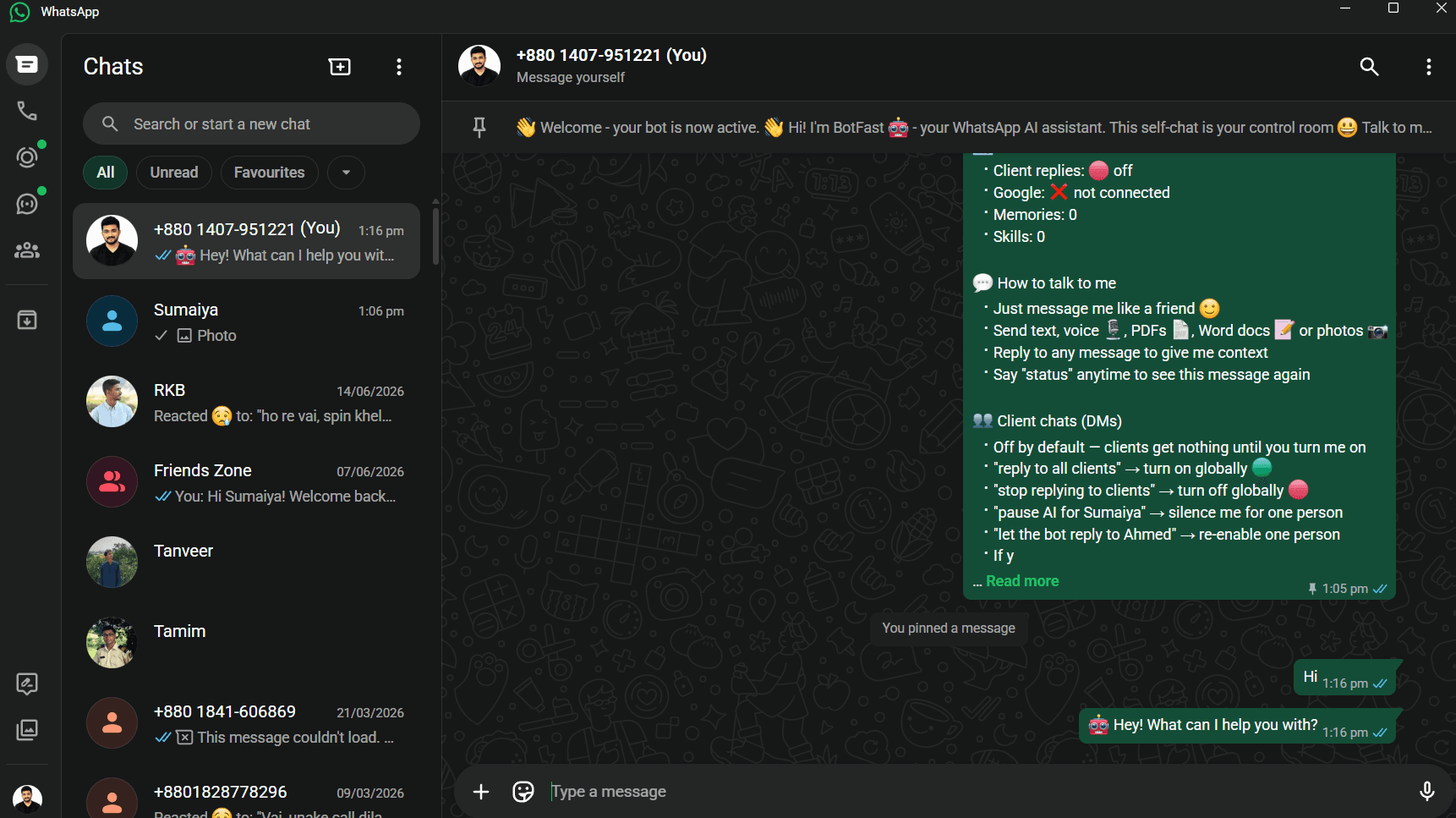
Configure your auto reply bot by typing instructions into the chat with your own number
Step 4 — Turn it on
AI replies are on by default for new conversations. You can flip them globally or per-contact anytime by saying pause replies for this contact in the chat or via the dashboard. That is the entire setup.
Per-contact rules and overrides
A single global rule is a great start, but most businesses need nuance. BotFast lets you scope skills:
| Scope | Example use |
|---|---|
| Global (all clients) | Default tone, business hours, signature |
| Per-contact | "Ahmed always gets the monthly report link" |
| Per-group | A bot in your team group that summarizes tasks |
| Owner-only | Personal commands no client ever sees |
Per-contact rules take priority, so you can give VIP clients a completely different experience without touching anyone else.
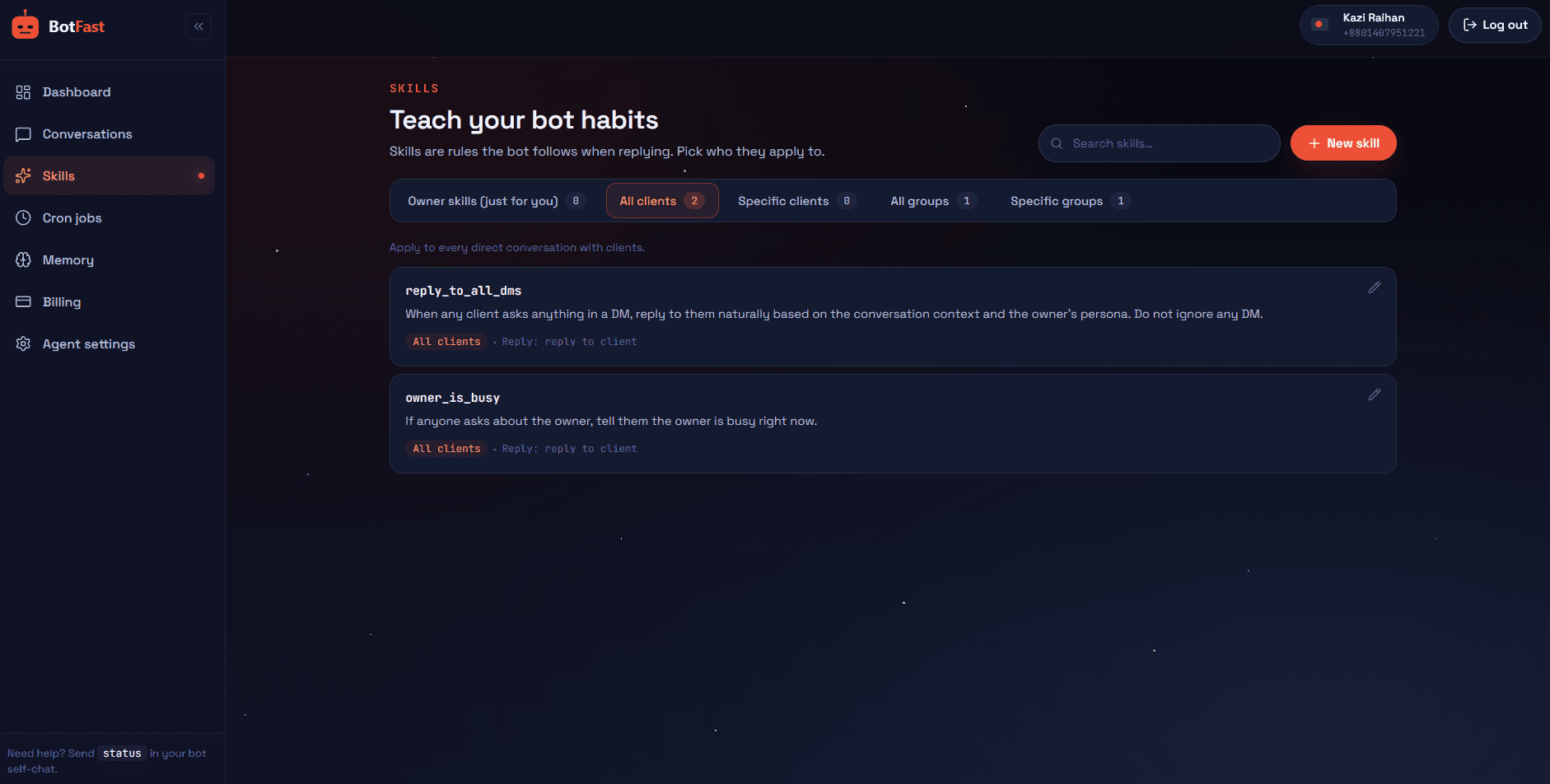
Every skill for your auto reply bot is visible in one table — global, per-contact, and per-group
A pattern worth copying: keep your global skill deliberately short and defensive (tone, business hours, a fallback), then push the specific stuff — pricing links, booking flows, per-client quirks — into scoped skills. That way a bad instruction only affects one contact instead of every conversation at once, and it is far easier to debug when something feels off.
Groups and mentions
Auto reply in groups is trickier — you do not want the bot jumping into every conversation. BotFast handles this two ways:
- By default, reply only when @mentioned or replied to. The bot stays quiet unless someone taps it directly.
- Always-reply mode for specific groups where you want the bot active on every message (a support group, for example).
Full details are in our WhatsApp group bot guide, including how to set group-specific skills.
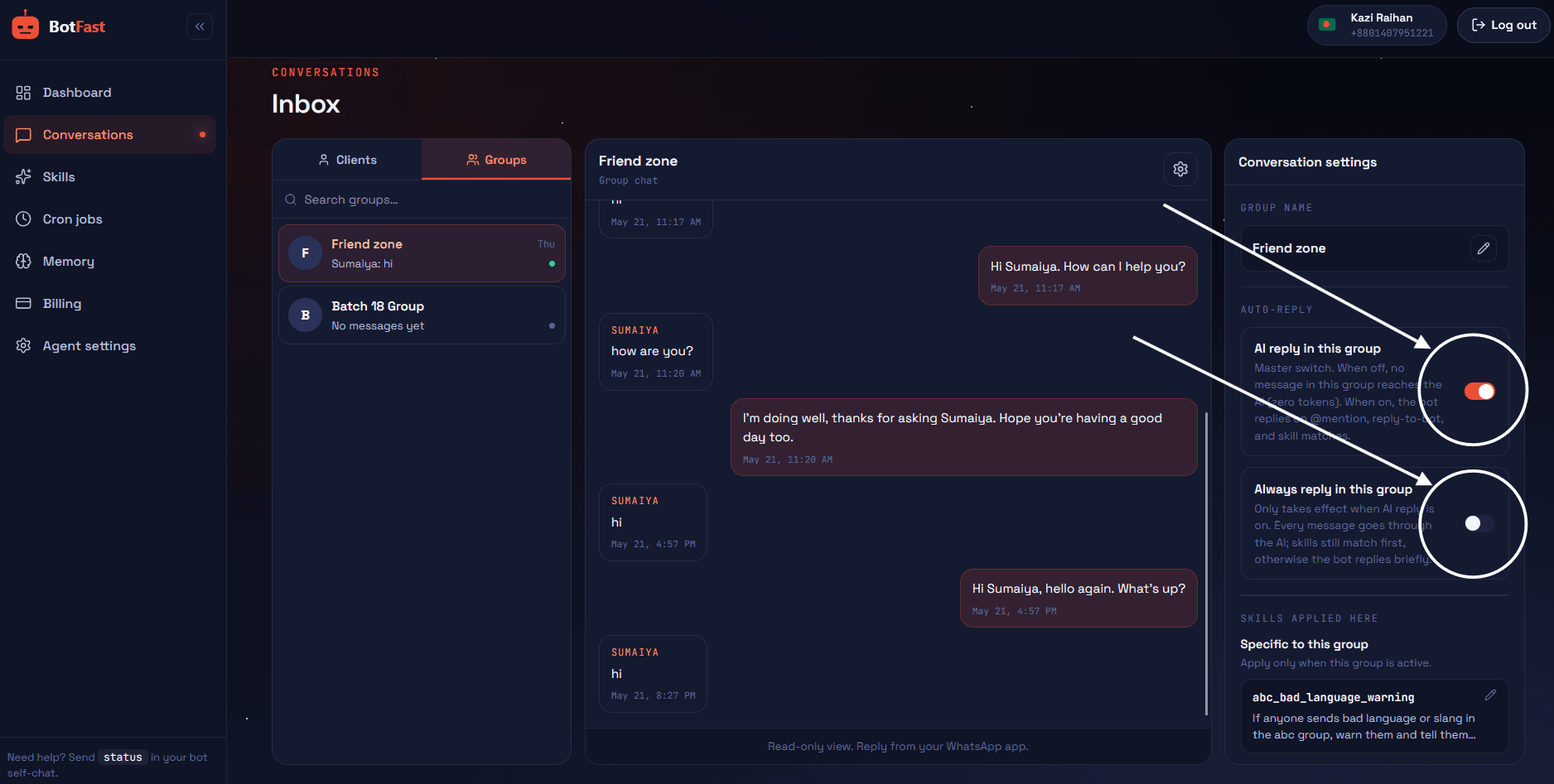
Review every group and 1:1 conversation your auto reply bot is handling from one view
A word of caution on always-reply mode: in a busy group it can quickly flood the chat and annoy members. Reserve it for groups with a clear purpose — a support channel, a class cohort, an internal team — and stick to mention-only everywhere else. You can always flip a group's mode from the conversations view without touching the skills themselves.
Best practices for auto replies
- Be honest. If the reply is automated during off-hours, a light touch of honesty ("bot here, I'll personally follow up by 9 am") builds trust rather than breaking it.
- Keep it short. WhatsApp is a chat app, not email. One to three sentences beat a wall of text.
- Always move toward an action. Every reply should nudge the client toward booking, calling, or clicking — not just acknowledge.
- Test the edge cases. Send yourself messages as a client would and see how the bot reacts before going live with paying customers.
- Review conversations weekly. The dashboard shows every reply; prune skills that produce awkward answers.
Advanced auto-reply patterns
Once the basics are running smoothly, a WhatsApp auto reply bot can do considerably more than greet and deflect. These are the patterns that separate a toy setup from one that genuinely runs a chunk of the business while you sleep.
Multi-language replies
The bot detects the language a contact writes in and replies in kind, so a single number can serve customers across regions without you hiring translators. This is a skill, not a setting — you describe the behaviour in plain English and the bot follows it on every message.
Silent skills that execute without replying
Not every automation should produce a visible reply. A silent skill runs in the background — logging a lead to a sheet, tagging a contact, notifying you privately — without sending anything to the customer. Useful when you want the human follow-up to feel personal rather than automated.
Escalation-to-owner
Give the bot a clear rule for when to stop answering and hand off. Detect anger, high-value requests, or anything outside the FAQ skills, then capture the details and ping you privately. This is the single biggest trust safeguard on any auto reply bot.
Daily summary cron jobs
Pair your reactive auto replies with a scheduled job that sends you a 9 am digest of overnight messages and flags anything urgent. You wake up to a summary instead of scrolling through 40 unread threads. See our WhatsApp reminder bot guide for the exact cron patterns.
Voice note handling
Customers love voice notes; most businesses hate transcribing them. Incoming audio is transcribed automatically, so the auto reply bot can understand and answer a spoken question just like a typed one — no "please type that" friction.
Copy-paste skill examples
Paste any of these straight into your self-chat and tweak the details. Each one is a single skill.
Detect the language the contact writes in and always reply in that same language. Keep the tone consistent with my global persona.If a message sounds angry, frustrated, or mentions a refund, a lawyer, or cancelling, stop replying immediately, capture their order number and a one-line summary, and message me privately with the details so I can take over personally.Every day at 9am, summarize the overnight WhatsApp messages I have not read yet, flag any that mention "urgent" or "refund", and list today's first 3 calendar events. Keep the whole summary under 150 words.These layer cleanly on top of the basics covered in our WhatsApp business automation and WhatsApp customer support bot guides — start with one, watch it for a day, then add the next.
Frequently asked questions
How do I set up an auto reply bot on WhatsApp?
Enter your number at botfast.co, scan the QR code from WhatsApp Linked Devices, then type your reply rules in plain English in your self-chat. The bot starts replying within 30 seconds.
Can WhatsApp send automatic replies without the Business API?
Yes. The linked-device approach works on any number, needs no Meta approval, and sends replies free of per-message fees.
Is it safe to use an auto reply bot?
Yes with the linked-device method. Messages stay end-to-end encrypted and the bot shows as a linked device in your account. Avoid unofficial modified WhatsApp apps.
Can I set different replies for different contacts?
Yes — per-contact skills, global skills, and group skills all coexist. You can also turn AI replies off for any individual contact.
How much does it cost?
BotFast has a free trial with credits and no credit card. Paid plans start at $9/month. See the full WhatsApp chatbot pricing breakdown.