
WhatsApp Business Automation: A 2026 Guide for Small Teams
Automate WhatsApp for your business — AI replies, scheduling, contact memory, and Google Workspace without the WhatsApp Business API. Full 2026 guide.
WhatsApp business automation means letting software handle the repetitive parts of running a business on WhatsApp — answering the same ten questions, sending reminders, following up after a sale, booking appointments — so the humans can focus on the work that actually pays.
In 2026, automation has moved past the old keyword bots. A modern WhatsApp automation setup understands natural language, remembers your clients, and can reach into your calendar and inbox. This guide is the complete picture: what to automate, how to set it up, and how to measure whether it is working.
See it handle a whole business
What WhatsApp business automation actually means
There is a common misconception that "automation" means a dumb auto-responder firing the same reply to everyone. That was the 2018 version. Today the bar is higher:
- Conversational replies. The bot understands the message and writes a reply in your voice — not a canned template.
- Memory. It remembers that Sarah is your bookkeeper and Ahmed prefers Arabic, so the next reply already has context.
- Action, not just words. It can actually book a slot on your calendar or pull a file from Drive, not just talk about it.
- Proactive work. Beyond reacting to messages, it runs scheduled jobs — daily summaries, weekly reports, follow-ups.
If you only need the reactive side (instant replies), our WhatsApp auto reply bot guide is the short version. This article covers the whole surface.
What to automate — real use cases
Not everything should be automated. The rule of thumb: automate the predictable, escalate the unusual. Here are the patterns that deliver the most value:
| Use case | What the bot does | Best for |
|---|---|---|
| Lead capture & qualification | Replies instantly, asks 2–3 intake questions, books a call | Agencies, consultants, clinics |
| Appointment booking | Checks Google Calendar, proposes slots, confirms | Salons, tutors, repair services |
| Order & shipping updates | Answers "where is my order" with tracking info | E-commerce, local delivery |
| FAQ deflection | Handles pricing, hours, location, returns | Every business with repeat questions |
| Reminders & follow-ups | Sends appointment reminders, re-engages cold leads | Service businesses, sales teams |
| Internal team coordination | Summarizes a group chat, surfaces action items | Small teams on a shared group |
A practical way to prioritise: rank your repeat tasks by how often they happen and how little judgement they require. The high-volume, low-judgement ones — "what are your hours", "where is my order", the booking request — are your first three automations. Reserve anything that needs a real human call (a negotiation, a sensitive complaint) for escalation, and the bot will quietly handle the rest.
Setting up automation in 4 steps
Step 1 — Connect your WhatsApp number
Go to botfast.co, enter your number, and scan the QR code from WhatsApp → Linked Devices. Your bot is live in under a minute on the same number your clients already use.
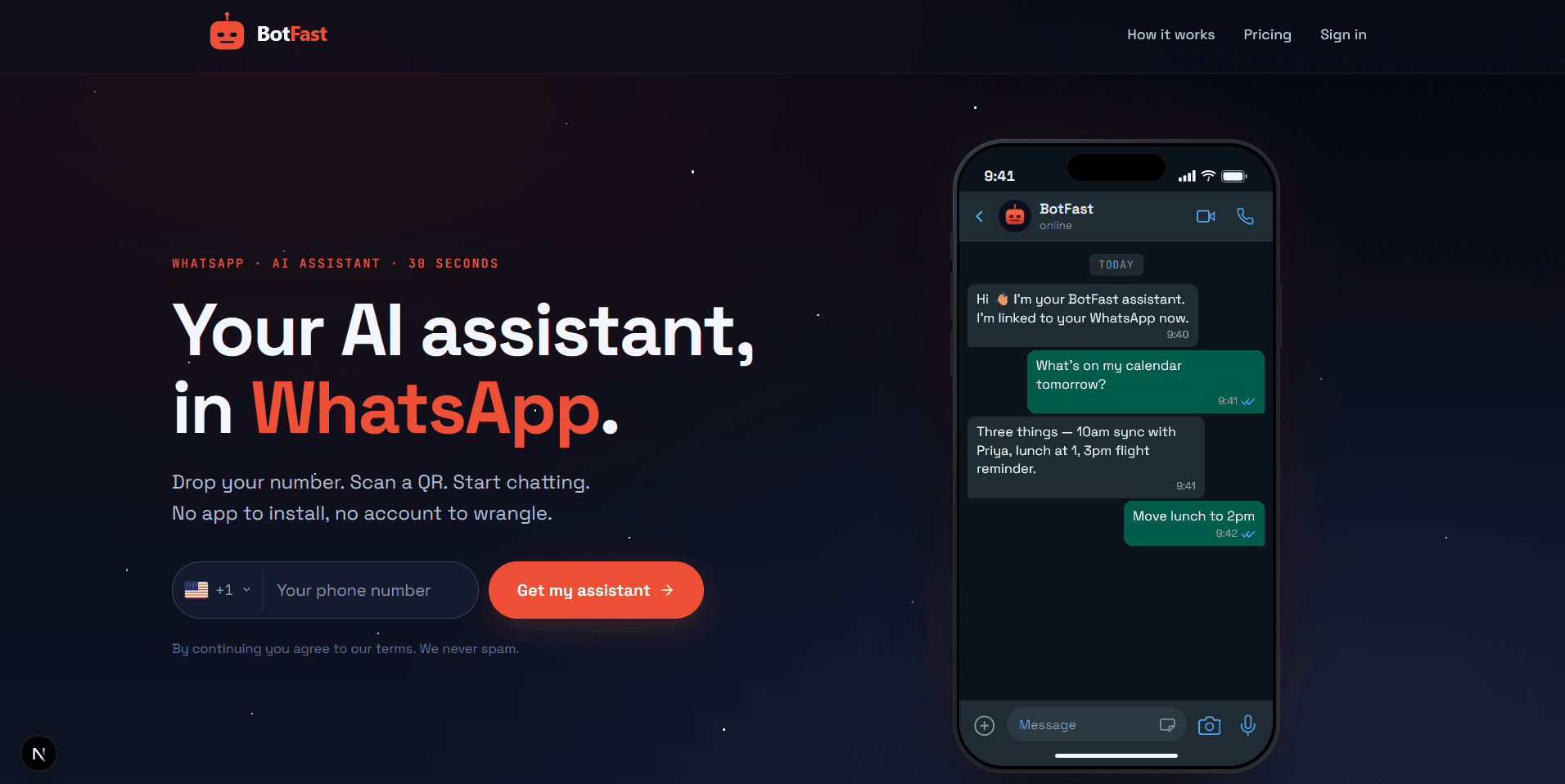
Enter your number on the BotFast homepage to kick off your WhatsApp business automation
Step 2 — Define your skills
Skills are the building blocks of automation. Each is a short plain-English instruction. A good starter set:
1. "Reply to all new contacts within 5 minutes. Ask what they need and offer to book a call."
2. "When someone asks about pricing, send the link to botfast.co/pricing."
3. "During 9pm–9am, tell clients I'll reply in the morning but still capture their request."
Skills can be global, per-contact, per-group, or owner-only. Start broad, then refine per-contact as you learn what each client needs.
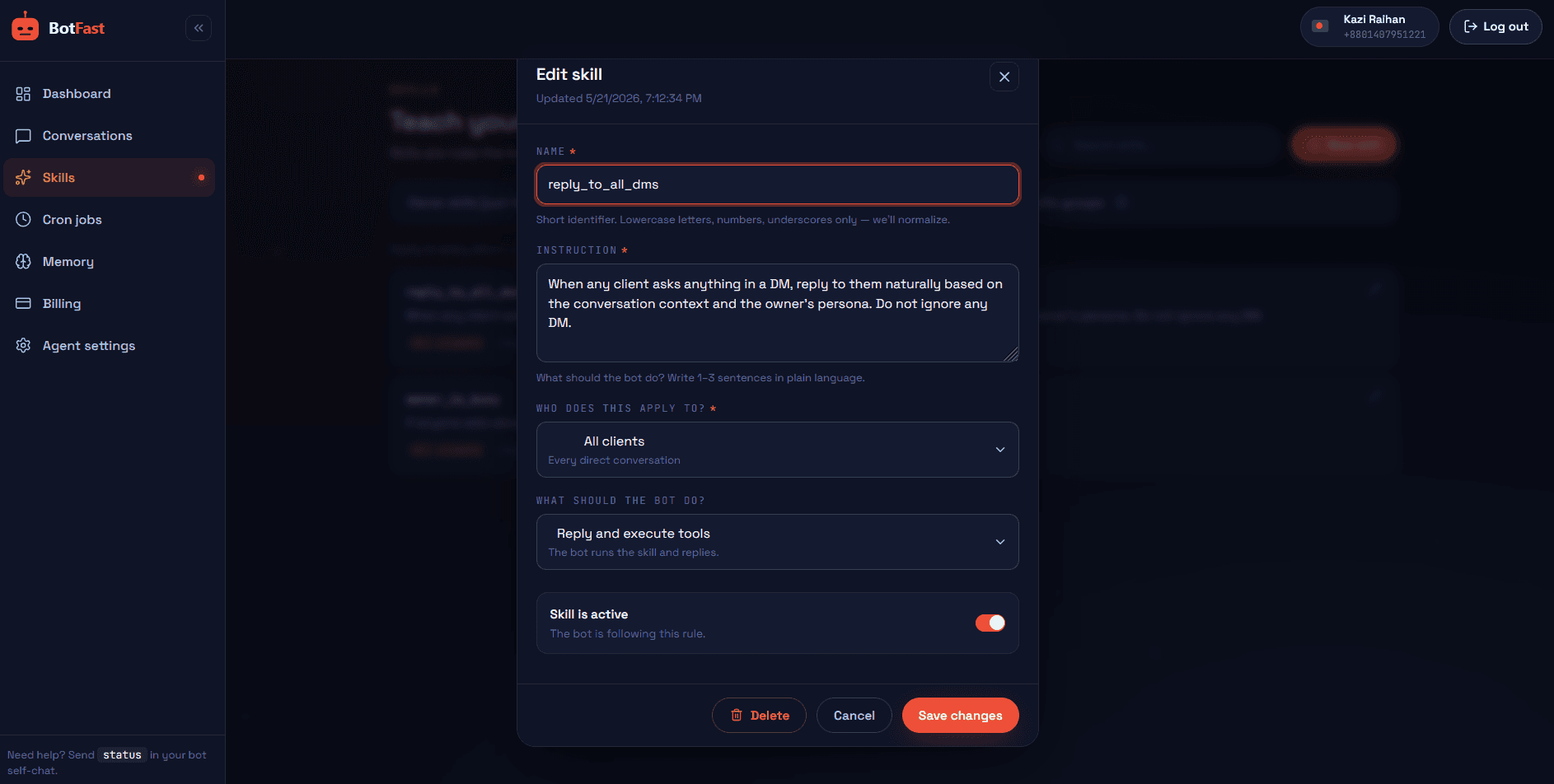
Write each automation as a focused skill — scope it globally, per-contact, or per-group
Step 3 — Connect Google Workspace
Type connect my Google in your self-chat and tap the OAuth link. Once connected, the bot can check availability, create calendar events, read your inbox, and upload files — turning chat into real action. See the deep dive in our WhatsApp appointment booking bot guide.
Step 4 — Set schedules and reminders
Automation that only reacts still leaves gaps. Add recurring jobs: a 9am daily summary of overnight messages, a weekly report on Friday, or a one-off reminder in two hours. Our WhatsApp reminder bot guide has the exact patterns.
Skills, memory, and why they matter together
Skills tell the bot what to do. Memory tells it who it is doing it for. Without memory, every conversation starts from scratch; with it, the bot remembers that this client always pays on the 15th or that one hates phone calls.
BotFast stores long-term memory you can edit, plus a daily activity log the bot reads for context. Combined with skills, this is what separates a real WhatsApp AI assistant from a glorified answering machine.
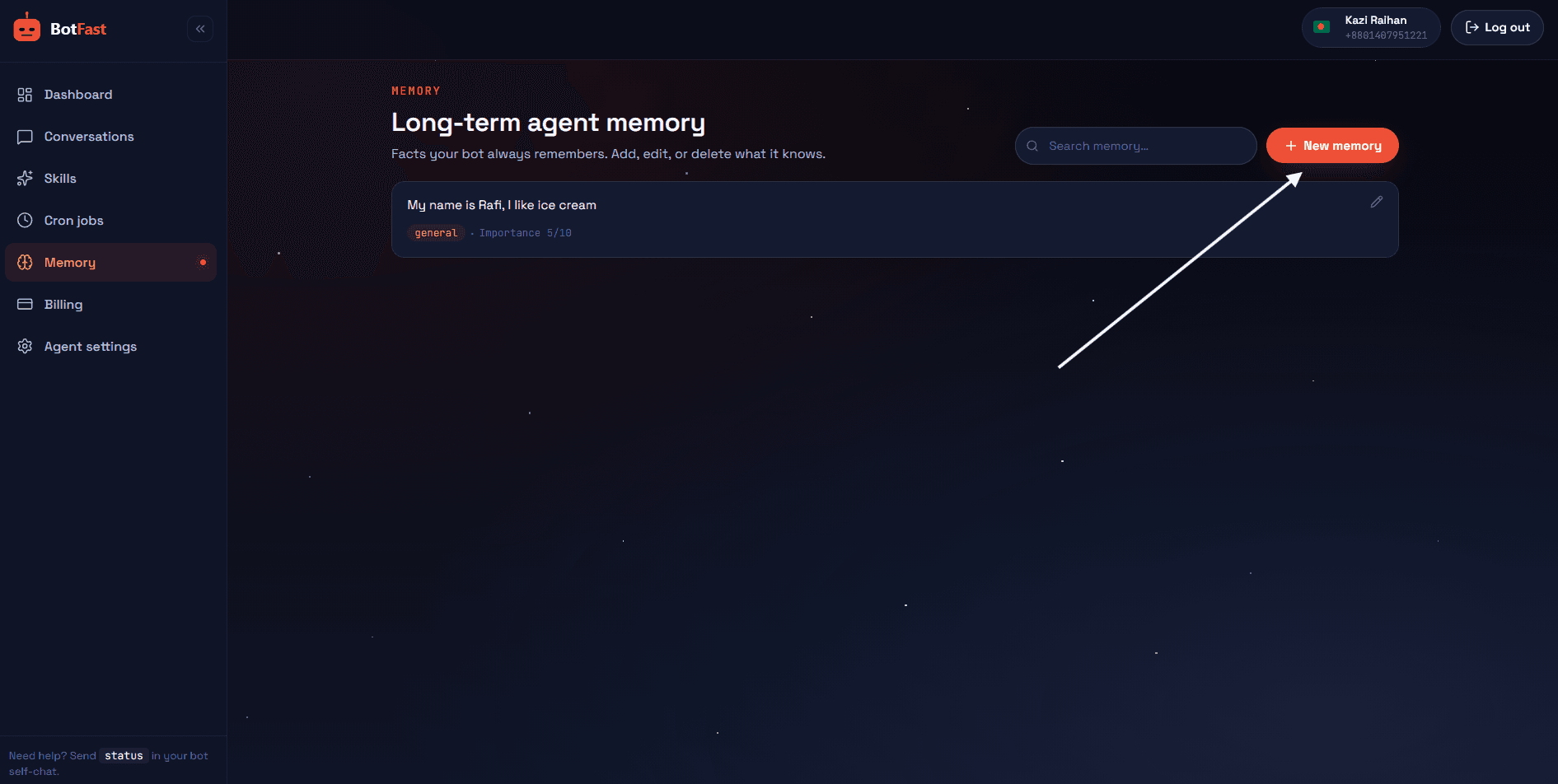
Long-term memory your automation reads on every message — so it remembers each client's preferences
Treat memory like a notepad a new hire would read on their first day. Keep entries short, factual, and specific — "Ahmed pays net-15, prefers Arabic, hates phone calls" is gold; "Ahmed is a nice client" is noise. The cleaner the memory, the sharper every automated reply becomes.
Google Workspace as the automation backbone
Once Google is connected, your WhatsApp becomes a front desk that can reach the rest of your business software:
- Calendar — check availability, book, reschedule, cancel.
- Gmail — summarize today's client emails, find a specific thread.
- Drive — save incoming files to the right folder, fetch a contract.
- Sheets — log an order, look up a customer row.
- Docs — draft a proposal from a template.
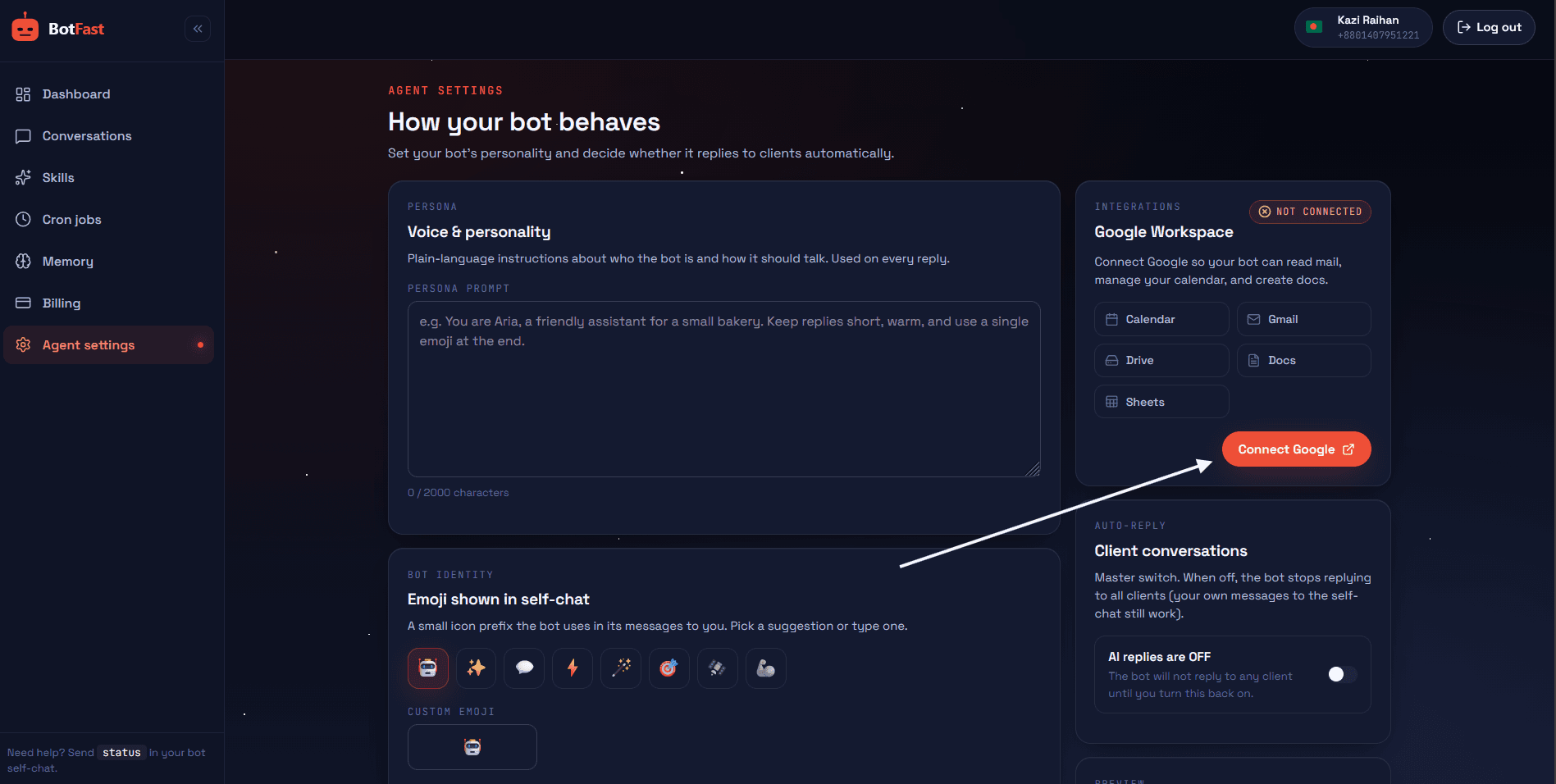
Connect Gmail, Calendar, Drive, Sheets, and Docs with one OAuth tap — your automation can then take real actions
This is the part that turns WhatsApp business automation from a clever autoresponder into something that actually does work. A message like "book Sarah in for next Tuesday at 3" no longer means you have to open your laptop and find a slot — the bot checks your calendar, creates the event, and confirms back in the chat, all in a few seconds. Multiply that across bookings, lookups, and follow-ups and the hours add up fast.
Measuring ROI
Automation that does not move a number is a toy. Track these:
- Response time — should drop from hours to seconds on automated conversations.
- Lead-to-booking rate — more inquiries should convert when the bot qualifies and books instantly.
- After-hours captures — count leads that arrived and were handled outside business hours.
- Hours saved per week — the dashboard's usage chart gives you a rough token/message count to estimate this.
Review these monthly rather than daily — automation payoff compounds as the bot learns your patterns and your contacts get used to instant replies. The businesses that see the biggest lifts are usually the ones that pair reactive replies with a scheduled daily summary, so nothing falls through the cracks overnight.
Automation playbook by industry
Different businesses get value from different automations. Here is the "set these up first" shortlist for the most common WhatsApp business automation use cases — the three skills that deliver the fastest payback in each industry.
| Industry | Top 3 automations to set up first |
|---|---|
| Clinics | Appointment booking via Calendar · FAQ for hours & location · 1-hour-before reminder |
| E-commerce | Order-status lookup from a Sheet · returns & refund intake · shipping-ETA FAQ |
| Agencies | Lead qualification (2 questions) · discovery-call booking · weekly status digest |
| Real estate | Listings / availability FAQ · viewing slot booking · lead capture with budget intake |
| Tutors | Session booking · night-before prep reminder · reschedule & cancel handling |
These map directly onto the building blocks in this guide — booking flows live in our appointment booking bot guide, reminders in the reminder bot guide, and the support side in the customer support bot walkthrough. Mix and match the three that fit your industry.
Common automation mistakes
- Automating everything on day one. A wall of skills written before you have watched real conversations tends to miss how customers actually phrase things. Start with two or three, observe, then expand.
- Writing one mega-skill instead of focused ones. A 500-word instruction is hard for any model to follow consistently. One skill per situation is far more reliable and easier to debug.
- No escalation path. Automation with no way to hand off to a human frustrates customers the moment something unusual happens. Always include an owner-notify fallback for sensitive or unclear cases.
- Ignoring after-hours. A large share of leads arrive outside business hours. An after-hours skill that captures and acknowledges them is often the single highest-ROI automation you can build.
- Using the Business API when you do not need to. Unless you are sending marketing broadcasts at scale, the API's approval process and per-message fees are overhead you do not need — the linked-device route is simpler and cheaper.
- Never reviewing conversations. The dashboard shows every reply. Five minutes a week pruning skills that produce awkward answers keeps the automation sharp and trustworthy.
Frequently asked questions
What is WhatsApp business automation?
Using software to handle conversations, reminders, scheduling, and follow-ups on WhatsApp automatically — with modern setups using AI to reply naturally rather than canned keyword responses.
Do I need the WhatsApp Business API?
No. Linked-device automation works on any number, needs no Meta approval, and has no per-message fees.
Can it integrate with Google Calendar and Gmail?
Yes. BotFast connects to Google Workspace for Calendar, Gmail, Drive, Sheets, and Docs.
Is WhatsApp automation allowed by the terms?
Yes when using the official linked-device feature. Modifying the WhatsApp app or using unofficial protocols violates the terms.