
WhatsApp Group Bot: Add an AI Assistant to Any Group Chat
Add an AI bot to a WhatsApp group that answers when @mentioned, follows group rules, and runs on every message. Setup in under a minute — no admin approval.
WhatsApp groups are where real work and real communities happen — and also where messages go to drown. A WhatsApp group bot brings an AI assistant into the group that can answer when tapped, follow group-specific rules, post scheduled summaries, and keep the conversation moving without spamming it.
This guide covers how group bots behave, how to add one in under a minute, and how to control exactly when it speaks.
Watch the setup
What this WhatsApp group bot is capable of
Before the setup and the skills, here is the honest capability list — everything below is what a BotFast group bot can do inside your WhatsApp groups today, running from your own number.
| # | Capability | What it means inside your group |
|---|---|---|
| 1 | Sends from the owner’s number | The bot is linked to your WhatsApp number as a device, so every message it posts comes from your number — not from a foreign bot number or a faceless business account. Members already know and trust the sender. |
| 2 | Replies when mentioned | @mention the bot (or reply to one of its messages) and it answers within seconds — with full context of the conversation around the mention. Everything else, it ignores. |
| 3 | Analyzes images and documents | Turn on media analysis for the group and the bot reads whatever is posted — receipts, invoices, bank statement PDFs, DOCX files, screenshots, photos — then answers questions about it or extracts the data into a table or Google Sheet. |
| 4 | Views every message and reacts | The bot sees the whole conversation, so it follows context instead of answering blind — and it can react to messages with an emoji, like a ✅ on a finished task or a 👍 on a good update. |
| 5 | Keeps quiet in the group | Silence is the default. Unless mentioned, replied to, or tripped by a skill you wrote, the bot says nothing — it never injects itself into conversations uninvited. |
| 6 | Notifies the owner in any case | When something needs a human — an angry member, an overdue task, a spam wave, a question it can’t answer — the bot sends you a private DM instead of cluttering the group. |
| 7 | Add and removes members (if the owner is admin) | If your number is an admin of the group, the bot can add and remove participants on your behalf — ideal for paid communities and team groups where membership changes constantly. |
| 8 | Does anything the owner can do | The bot operates your number, so whatever you can do in a WhatsApp group — send, reply, react, add members, share files — the bot can do too, on your instruction, around the clock. |
Everything else on this page — task boards, deadline reminders, receipt extraction, daily digests — is built from these eight primitives plus group skills: plain-English standing instructions that tell the bot what to watch for and what to do.
One bot, every group. The same assistant — same linked number, same subscription — works in all your WhatsApp groups at once, with a different reply mode and different skills per group: task manager for the team, moderator for the community, receipt logger for finance. The multi-group setup guide covers the full pattern.
What is a WhatsApp group bot?
It is the same AI assistant you would put in a direct chat, but configured for the very different dynamics of a group. In a DM the bot should reply to everything; in a group, speaking on every message is usually noise. So the group bot has three modes:
- Mention / reply only — the default. The bot stays quiet unless someone @mentions it or replies to one of its messages.
- Always reply — for support-style groups where the bot should engage with every message.
- Skills-driven — the bot only speaks when a group skill matches, even without a mention.
Why add a bot to a WhatsApp group
- Instant answers. Members ask, the bot answers — no waiting for the one expert who is offline.
- Summaries. A daily or weekly digest of what was discussed saves members from scrolling 400 messages.
- Moderation cues. The bot can flag FAQs, link the pinned rules, or collect new-member intros.
- Always-on support. For customer communities, the bot deflects repeat questions before they reach you.
- Scheduled posts. Reminders, standup prompts, weekly digests — posted automatically.
Pair this with scheduled reminders and a group becomes a self-running community.
How to add a bot to a WhatsApp group
Step 1 — Connect your number
Go to botfast.co, enter your number, and scan the QR code from WhatsApp → Linked Devices.
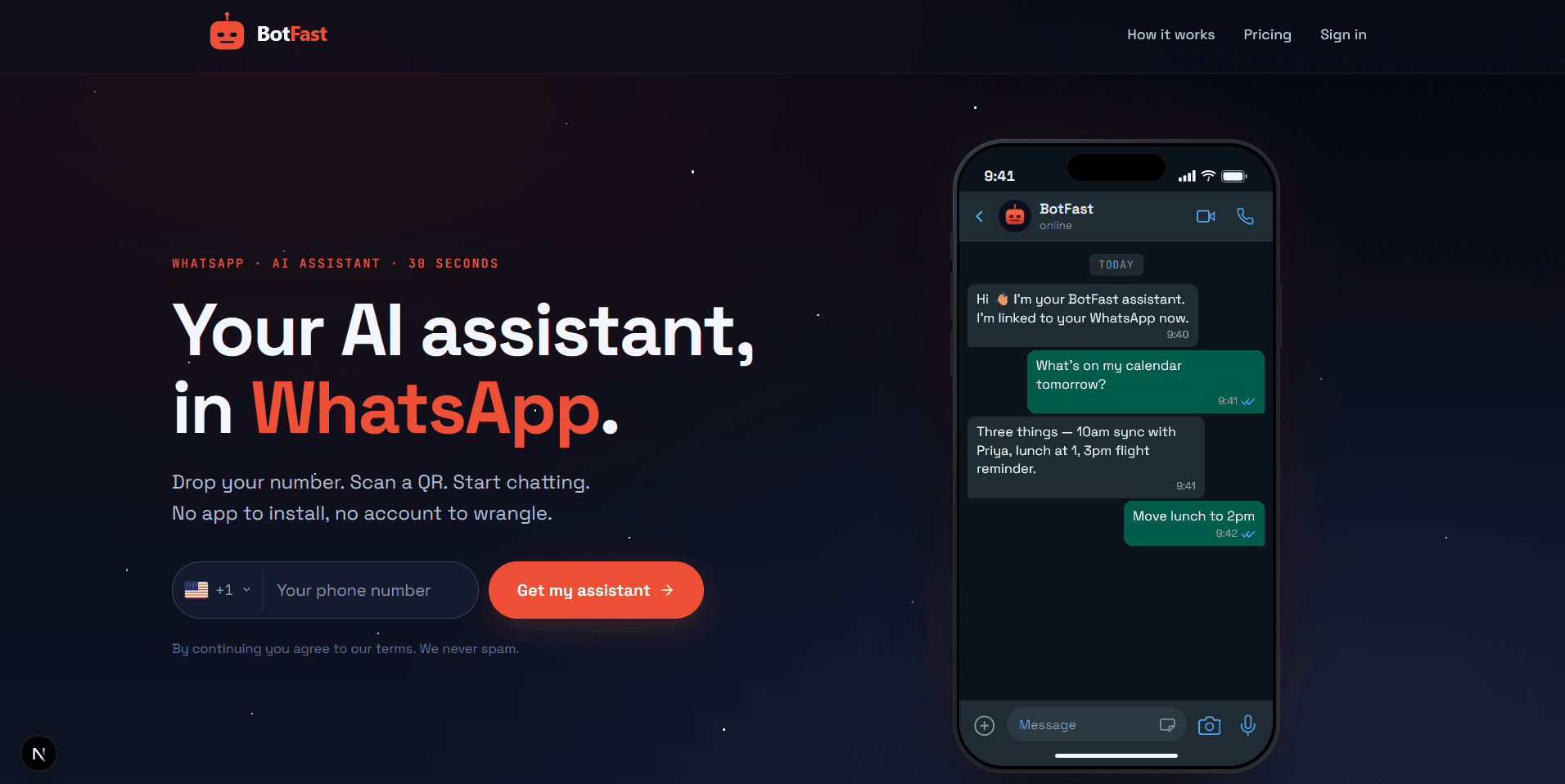
Enter your number on the BotFast homepage to start setting up your WhatsApp group bot
Step 2 — Add your number to the group
Your linked number is just a regular member. Add it to any group you are in via the normal "Add participant" flow. No admin rights needed.
Step 3 — Tell the bot how to behave
In your self-chat, say something like:
For the group "Design Team", always reply when someone mentions you or replies to you. Keep answers short. Don't jump into every conversation.The bot resolves the group name automatically — you never need to paste a group ID.
Step 4 — Add group-specific skills (optional)
Scope skills to one group so the bot behaves differently there:
In "Customer Support", when someone asks for a refund link, reply with the returns URL and ask for the order number.Skills scoped to one group never leak into your DMs or other groups.
Controlling when the bot replies
The single biggest difference between a helpful WhatsApp group bot and an annoying one is the reply mode. Get this right and members barely notice the bot is there until they need it. Get it wrong and people mute the group. You manage every group from the conversations view, where each group thread shows its current mode at a glance.
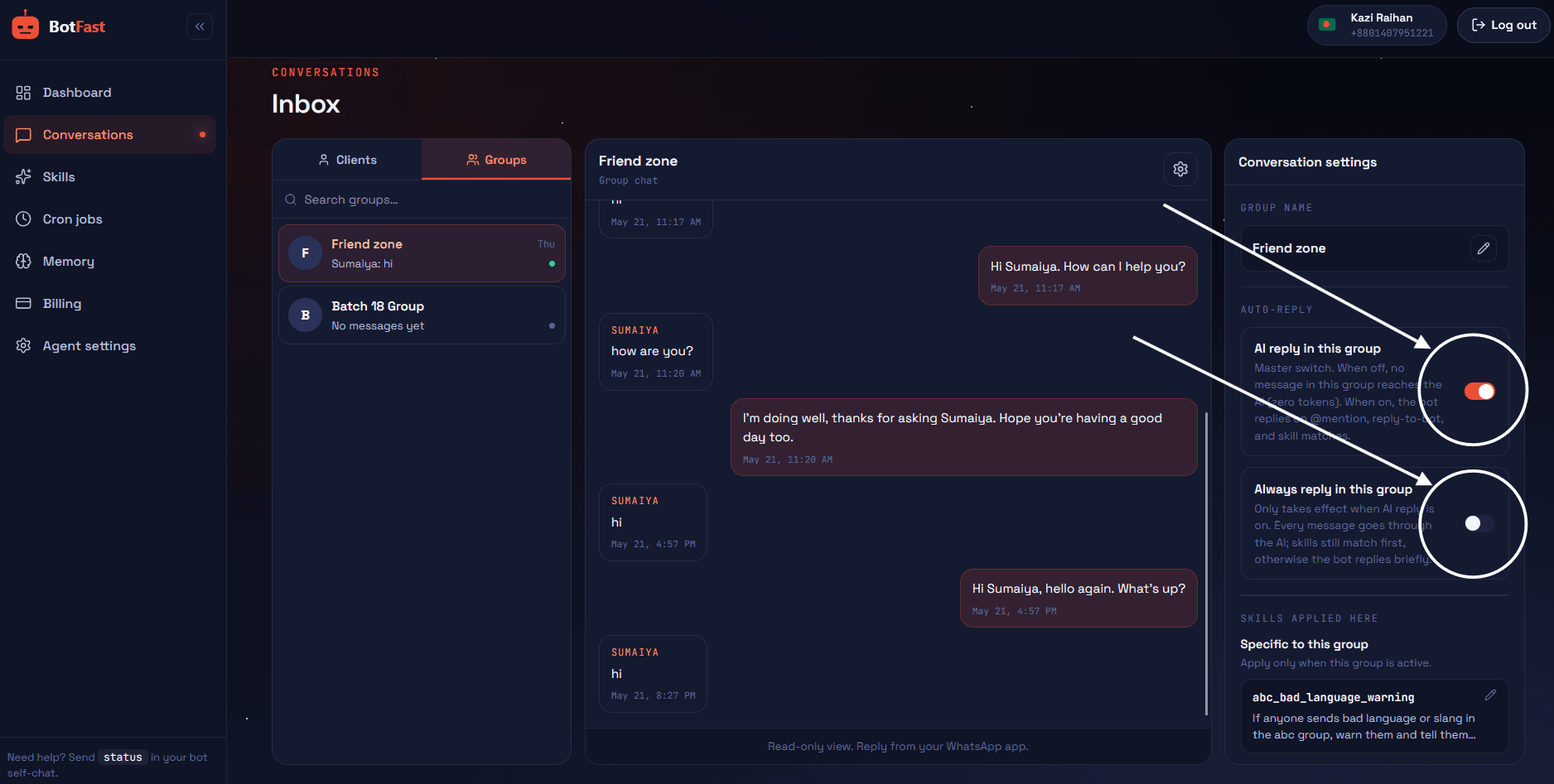
Each WhatsApp group shows its reply mode in the conversations dashboard — switch modes per group
| Setting | Behavior | Best for | When to use it |
|---|---|---|---|
| Reply on mention/reply | Quiet unless directly tapped | Most groups — default | General and social groups where the bot should help only when explicitly asked, and stay out of normal conversation |
| Always reply | Responds to every message | Support / Q&A groups | Dedicated help or support groups where every question is meant for the bot and members expect an instant answer |
| Skills only | Speaks only on matching skills | Communities with specific rules | Large communities where the bot should handle set tasks (FAQs, daily summary) but never chime in unprompted |
| Paused | Silent, no AI | Off-hours, sensitive threads | During a heated discussion, a live event, or after hours when a human should clearly take over |
Group skills in practice
Group skills are scoped instructions — the bot follows them only inside the group they belong to, and they never leak into your DMs or other groups. You write them the same way you write any skill: in plain English, in your self-chat, naming the group. The skills editor below is where you can later review and refine what you set from chat.
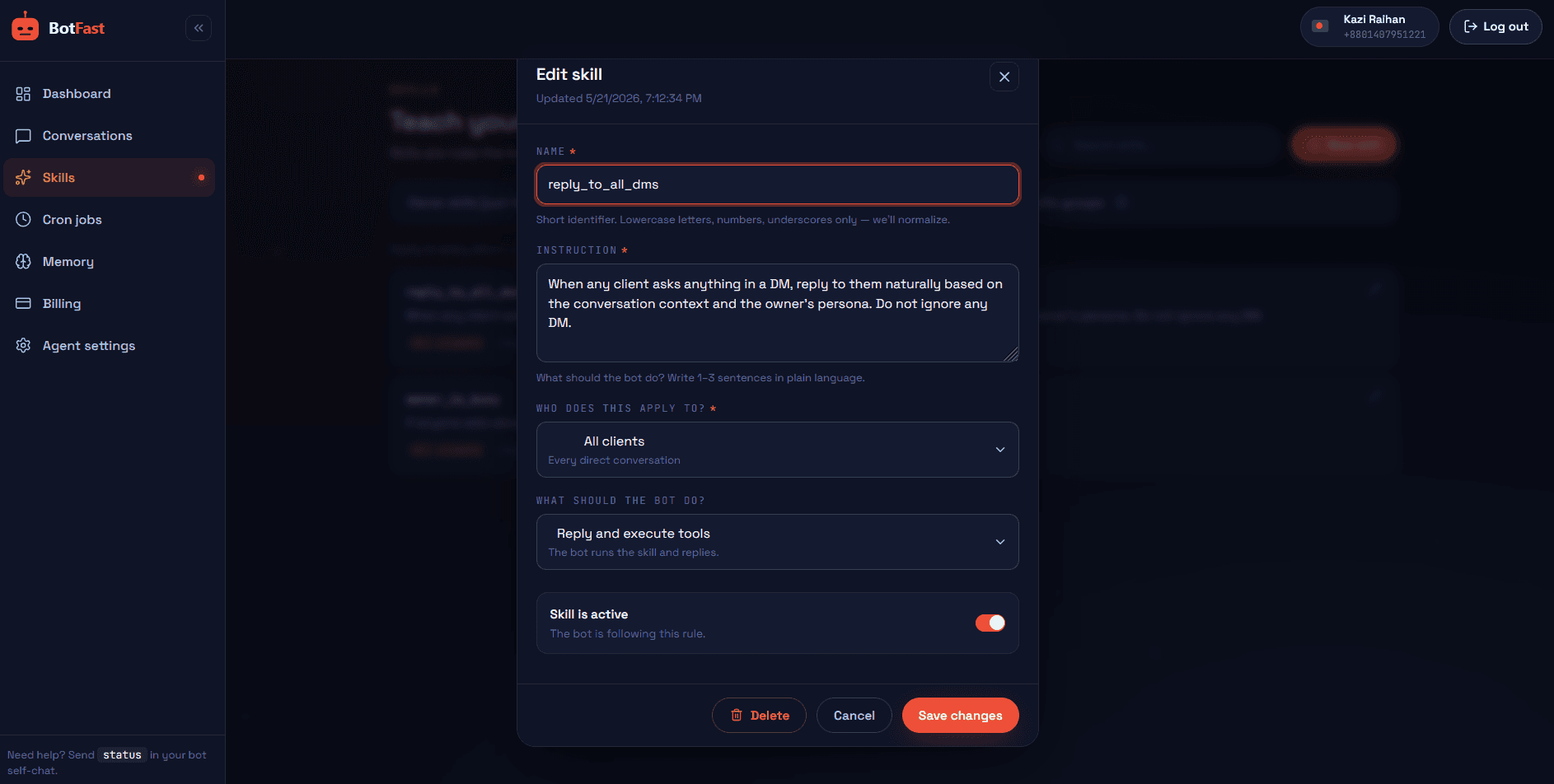
Scope and edit group skills from the dashboard — each skill belongs to one WhatsApp group
Customer community. A skill answers "how do I..." questions with the docs link, and escalates complaints to the support team group via the patterns in our customer support bot guide.
Team group. A daily 9am summary of overnight messages plus a Friday recap of the week's decisions — both posted automatically.
Course / cohort group. A skill that links the syllabus when someone asks "what's next", and a reminder that posts the live session link 10 minutes before start.
Group skill recipes
Here are three copy-paste group skills you can drop into your self-chat. Each one references a group by the name you see in WhatsApp — the bot resolves the name automatically, so there is no group ID to paste. Adjust the wording and the group name to fit yours.
Customer community FAQ
In the group "Acme Customers", when someone asks a how-to question about setup, billing, or refunds, reply with a concise answer and the relevant help article link. Keep it under 4 lines. If it looks like a complaint or a bug, ask them to DM me and notify me privately with a summary.Team standup prompt
In the group "Engineering Team", every weekday at 9:30am post: "Morning! Drop your standup: what you did yesterday, what you're doing today, any blockers." Then at 10am, summarize everyone's replies into a single bullet list under a "Today's standup" heading. Don't post anything else.Course cohort syllabus link
In the group "Cohort 7 – Growth Marketing", when someone asks what's next, this week's topic, or where the recording is, reply with a link to the syllabus pinned at the top and tell them which module is current this week. If they ask about a specific lesson, give the direct link.Notice that each recipe keeps the bot tightly scoped: it does one job in one group and nothing else. That restraint is what makes a WhatsApp group bot feel useful instead of noisy. For the broader skill system — scopes, silent skills, scheduling — see the business automation guide.
Group bot deep dives
This page covers the fundamentals — adding the bot and controlling when it speaks. We’ve written full guides for the specific jobs a group bot ends up doing, each with copy-paste skills:
- Task management — assign tasks to members, track done/undone/due, auto-remind deadlines
- Data extraction — receipts, invoices, and bank statements posted in chat → straight into Google Sheets
- Group management — add/remove members, auto-welcome newcomers, scheduled announcements
- Moderation — catch spam and scams, warn once, escalate to your DM
- Summaries — daily digests, on-demand “what did I miss?”, weekly recaps
- Team standups — async standup prompt, collection, and one consolidated summary
- Customer communities — FAQ deflection, onboarding, feedback collection, escalation
- Class groups — attendance, homework tracking, and deadline reminders for teachers
- Event planning — RSVPs, checklists, reminders, and expense splitting
- Multi-group setup — one bot running every group with per-group behavior
Group bot etiquette
A group bot lives or dies by how it behaves when no one asked for it. These are the rules that separate a bot members are glad to have from one they mute within a week:
- Don't reply to every message by default. Default to mention/reply mode. Always-reply belongs in dedicated support groups, not in a group where humans are mostly talking to each other.
- Respect @mentions and replies. Treat a direct mention or a reply to the bot as a clear signal to engage. Treat everything else as background the bot should not interrupt.
- Keep replies short. In a group, a wall of text pushes real conversation out of view. Aim for a few lines; offer to go deeper in DM if needed.
- Avoid marketing blasts. A WhatsApp group bot is not a broadcast channel. Promotional messages get members to leave groups faster than almost anything else.
- Introduce the bot to members. When you add the bot, post one message explaining what it does, how to summon it (mention it), and that a human still owns the group. Sets expectations immediately.
- Have a human fallback. Always leave a path to a real person. If a message looks upset, sensitive, or outside the bot's scope, it should say so and flag you — covered in detail in our customer support bot guide.
Frequently asked questions
Can I add an AI bot to a WhatsApp group?
Yes — add your linked number to any group and configure when it replies. No admin approval required.
How does the bot decide when to reply?
By default on @mention or reply; you can switch to always-reply or skills-only per group.
Do I need to be a group admin?
No. The bot runs through your linked number and works in any group you are a member of.
Can a group bot run scheduled tasks?
Yes — daily summaries, weekly digests, and reminders can be posted into the group automatically.