
BOTFAST DOCS
Everything your bot can do
A practical guide to using BotFast from WhatsApp self-chat and the dashboard. Every feature has both paths — pick whichever is faster for you.
01 · Introduction
What BotFast does
BotFast is a WhatsApp AI assistant that replies on your behalf. It connects to your own WhatsApp number, learns your business and preferences, and handles client conversations while you focus elsewhere.
Two ways to control it
Every feature in this guide can be controlled in two ways: by chatting with the bot in your own WhatsApp self-chat (the conversation with your own number), or from the web dashboard. Use whichever is faster for the moment — typing pause replies for Ahmed on your phone is often quicker than clicking, but the dashboard is better when you want to see everything at a glance.
What you get on signup
- 50 free trial credits — enough to test all features. No card required.
- Full Google Workspace access once you connect — Gmail, Calendar, Drive, Docs, Sheets.
- Memory, skills, reminders, and group automation — every plan, including the trial.
Tip: open the chat with your own numberon WhatsApp — that's your bot's control panel. Anything you type there is a command for the bot, not a message anyone else sees.
02 · Get started
Connecting your WhatsApp
Pairing takes about a minute. You scan a QR code with the WhatsApp app, the bot logs in as you, and you confirm with a one-time verification code.
- Enter your phone number on the landing page and click Get started.
- Scan the QR code shown on screen — in WhatsApp, go to Settings → Linked devices → Link a device.
- Verify — the bot sends a 6-digit code to your number. Type it on the page to finish.
- Read the pinned welcome in your self-chat — it's a one-page tour of every command.
Lost the welcome message? Type status in your self-chat and a fresh pinned copy will appear in its place.
03 · Bot behavior
AI reply to clients
Decide whether the bot answers people who DM you. There are two layers: a master switch for all clients, and a per-contact override for one specific client.
The master switch
When off, the bot stays silent in everyclient DM. Group rules and your self-chat are unaffected. Turn it back on whenever you're ready to delegate again.
Type either of these in your self-chat:
turn off auto replies resume auto replies
The bot confirms with a short reply like “Auto replies are paused for all clients.”

Toggling the master switch from your WhatsApp self-chat.
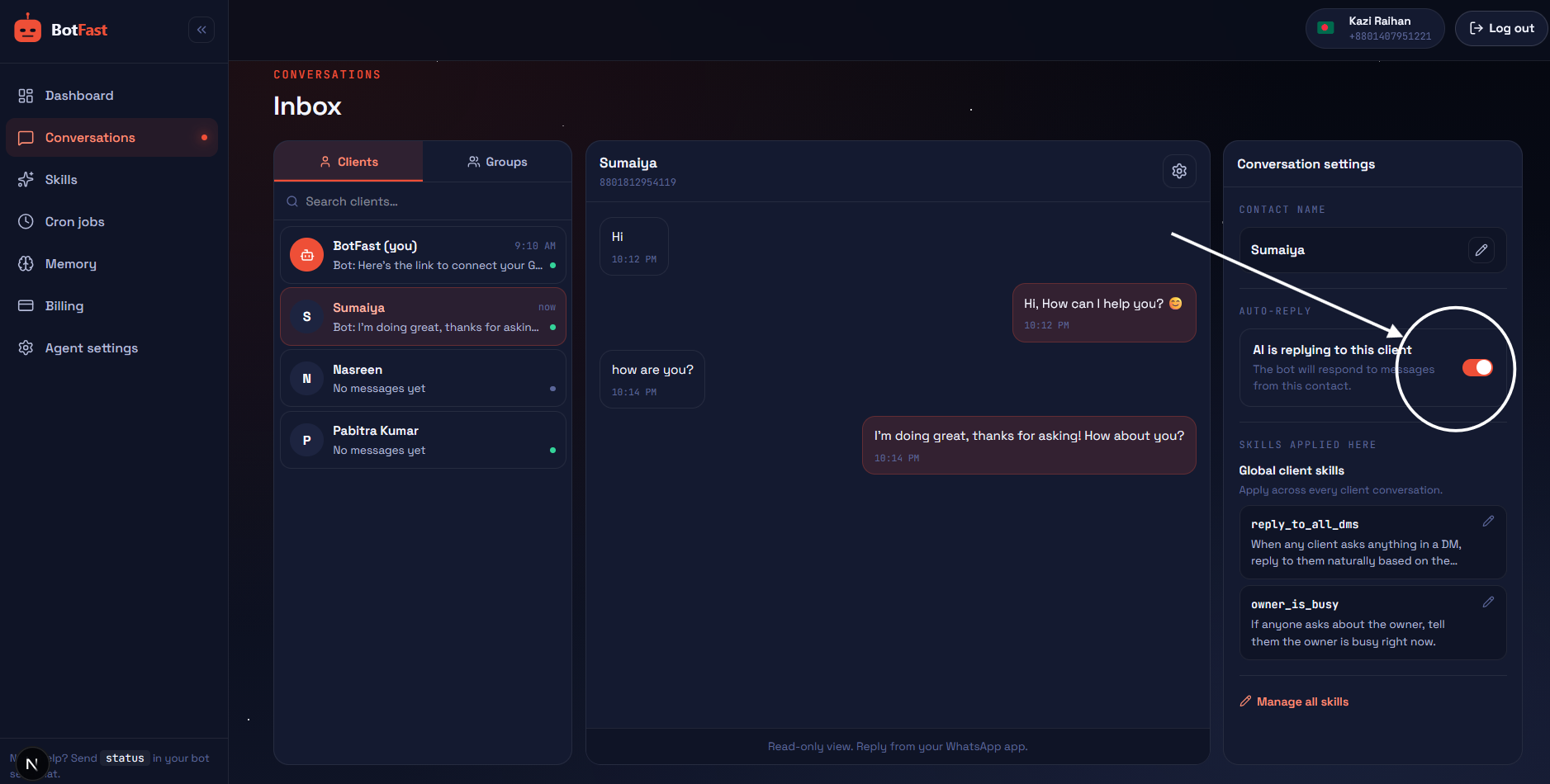
Open Dashboard → Conversations, pick a client, and toggle AI reply in the settings rail on the right.
Pausing one contact
Sometimes you want the bot to handle everyone except one person — or vice versa, enable replies just for a specific client. You can override the master switch per contact, in either direction.
Tell the bot the person's name (it looks them up in your contact book):
enable replies for John stop replying to Sumaiya
To undo: “resume replies for Sumaiya”.
Enabling one client, pausing another — both names are looked up in your contact book.
How it decides: if the contact has its own setting (paused or active), that wins. Otherwise the master switch decides. New contacts inherit the master switch at the time of the first message.
04 · Bot behavior
AI reply in groups
Groups have stricter defaults than DMs — the bot stays silent unless you opt that group in. There are three states per group, and they stack from quietest to loudest.
The three states
- Off (default) — the bot ignores every message in this group. Zero credits spent.
- On mention only — the bot replies only when someone @mentions it or replies to one of its messages. Skills targeting this group also run.
- Always reply — the bot answers every message in the group. Useful for a dedicated support or community group.
Tell the bot the group's name — it resolves the name to the right group automatically:
enable replies in group Family
always reply in group Support
stop replying in group Family
If the name matches more than one group, the bot lists them and asks which one.
Turning groups on, upgrading one to always-reply, and turning another off.
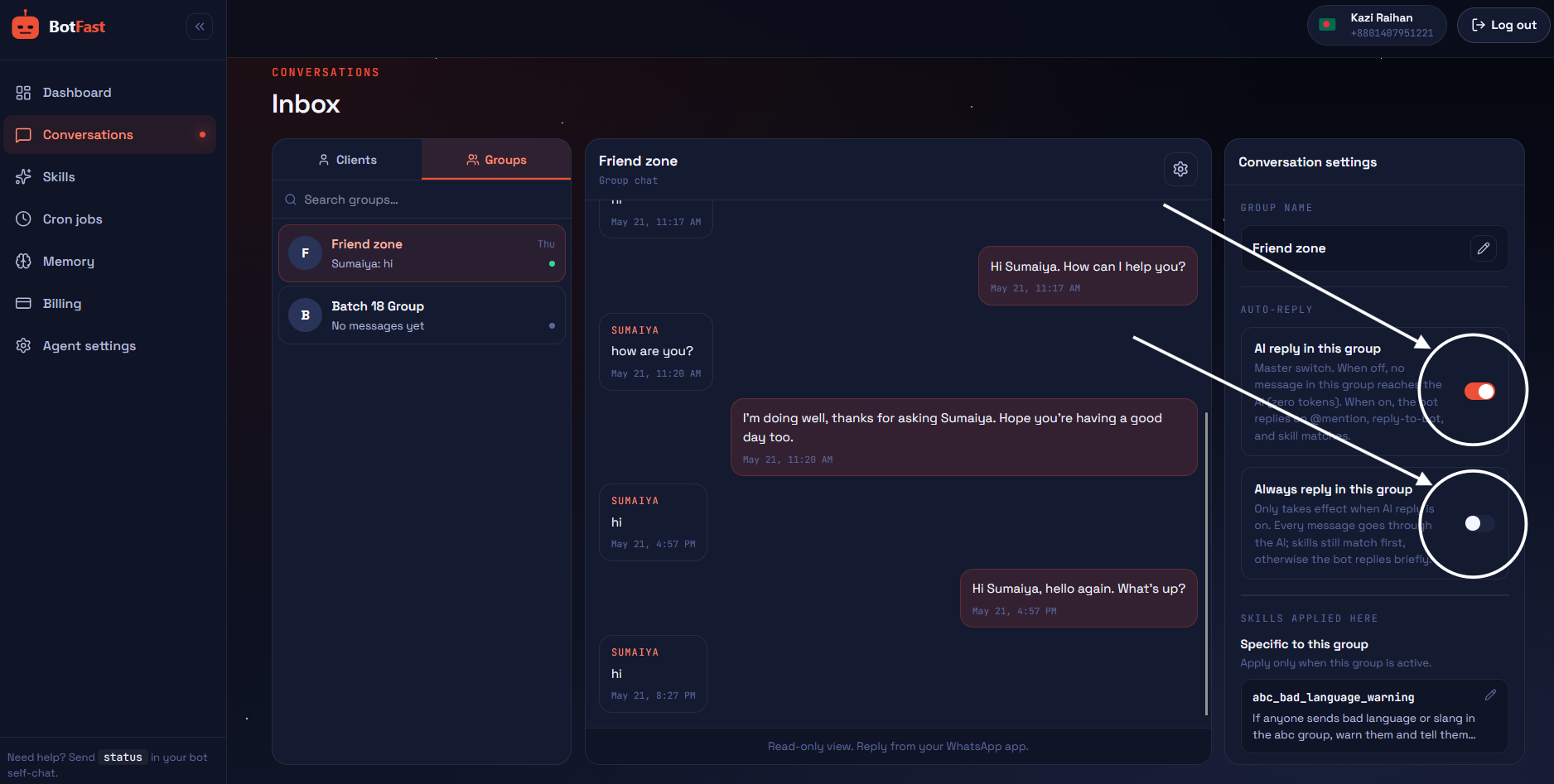
Open Dashboard → Conversations → Groups, pick a group, and flip the two toggles in the right rail:
AI reply turns the group on; Always reply upgrades it from mention-only to every-message.
Mention detection: the bot recognizes both your phone-number JID and your @lid, so it picks up @mentions whether the sender has the bot saved or not. Replies to any of the bot's previous group messages also count as "directed at the bot".
Group skills override the rules
If any active skill is scoped to a group (or all groups), that group flips into "listen to every message" mode automatically — even with Always reply off — so the skill has a chance to match. When no skill matches and the message isn't directed at the bot, the bot stays silent. See Skills for details.
Your own messages in a group are never replied to. You can use a group as your own command surface without the bot answering you. “I'm an admin in this group”doesn't earn any special treatment — the rules above are the only thing that decide.
05 · Bot behavior
Voice, persona, and emoji
Shape how the bot talks. The persona prompt is plain language — describe the character, tone, language, and any phrases it should use or avoid. It applies to every client and group reply.
The persona prompt
Up to 2000 characters. Keep it short and direct — the bot reads it on every message, so long personas slow replies down without making them noticeably better.
Tell the bot how to behave in plain language:
set persona to: friendly bakery assistant, short replies, one emoji at the end
The bot saves it and confirms.
Setting the persona in plain language from self-chat.
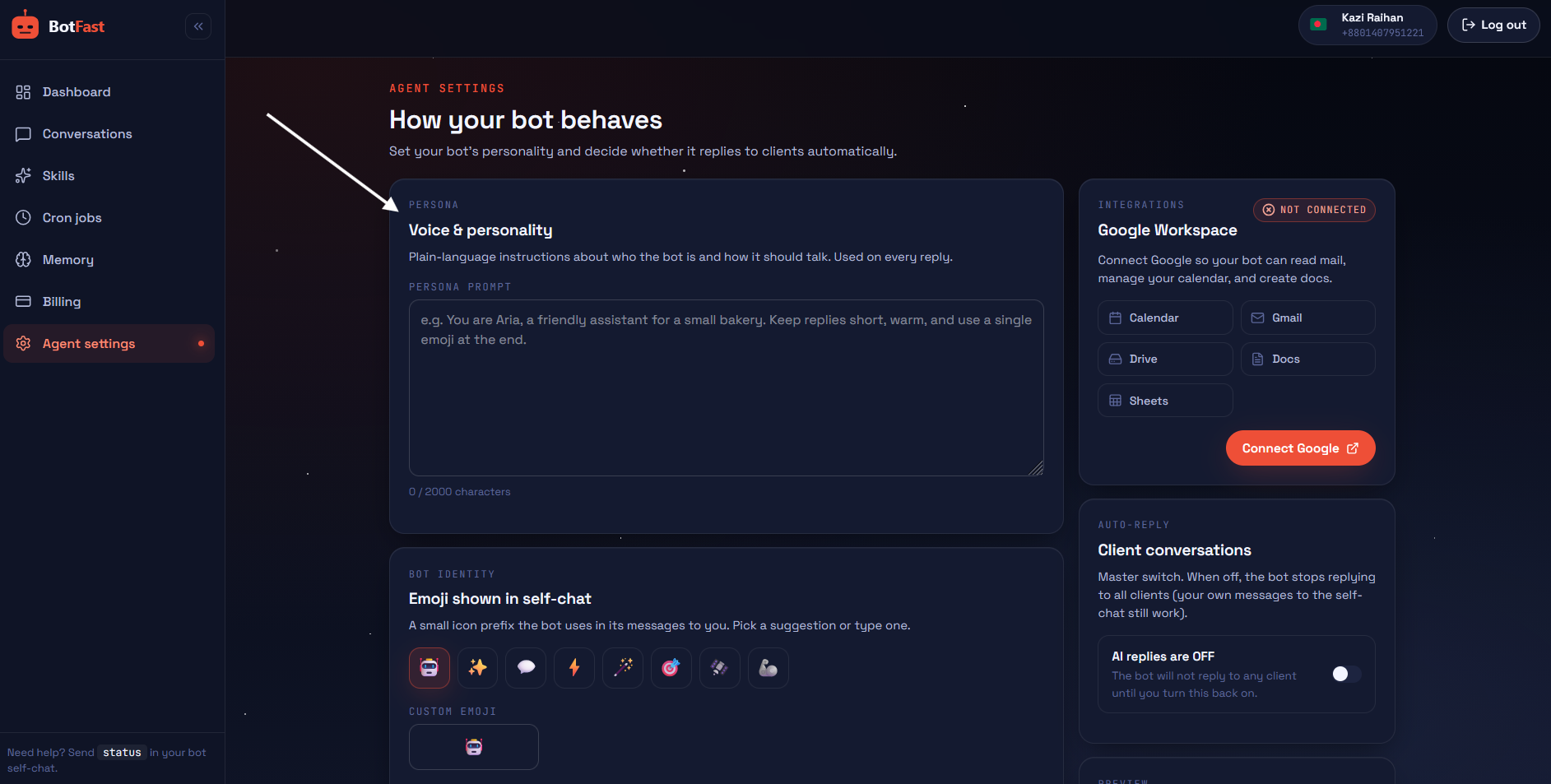
Open Dashboard → Settings and edit the Persona prompt field. The character counter on the right shows you how much room is left.
Bot emoji
A small icon the bot prefixes to messages in your self-chatonly (so you can tell "bot speaking" from your own typing at a glance). Clients and groups never see it. Pick one from the suggestions or type your own.
change bot emoji to ⚡
Swapping the self-chat bot emoji.
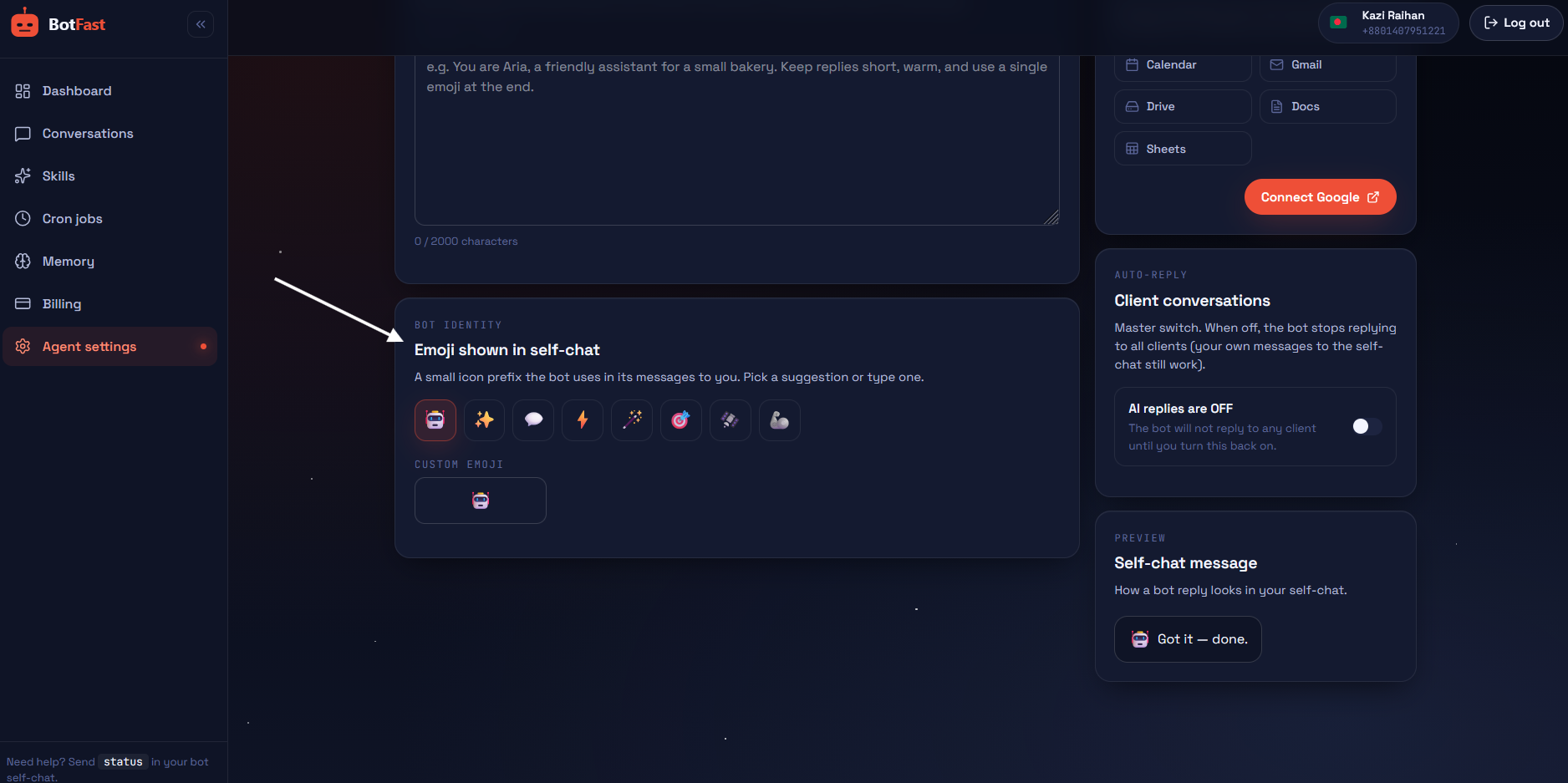
In Settings, the Bot identity card has eight suggested chips plus a free-text field.
06 · Knowledge & automation
Skills — teach the bot specific behaviors
A skill is a small instruction with a target (who it applies to) and a reply mode. The bot checks active skills before writing a free reply, so a matching skill always wins.
The five scopes
- Owner — runs only in your self-chat. Personal shortcuts ("every time I say brief, summarize my last email").
- All clients (global DM) — applies to every client conversation.
- One contact — only when a specific person messages you.
- All groups — applies to every group the bot replies in.
- One group — only inside a specific group.
Priority: contact-specific beats global-client; group-specific beats all-groups. If multiple skills match, the bot follows the most specific one.
Reply mode: reply vs silent
Every skill is either reply (run the action and send a message back) or silent(run the action without speaking). Use silent for behaviors like "always log this to a Sheet" or "forward this to me" — the bot performs the action but doesn't answer the sender.
Just describe what you want — the bot picks the right scope:
when a client says price, reply with our menu link: example.com/menu
in group Support, summarize any complaint to me silently
To change later: “show my skills” or “delete skill price”.
Saving two skills and listing them — the bot picks the right scope from how you describe it.
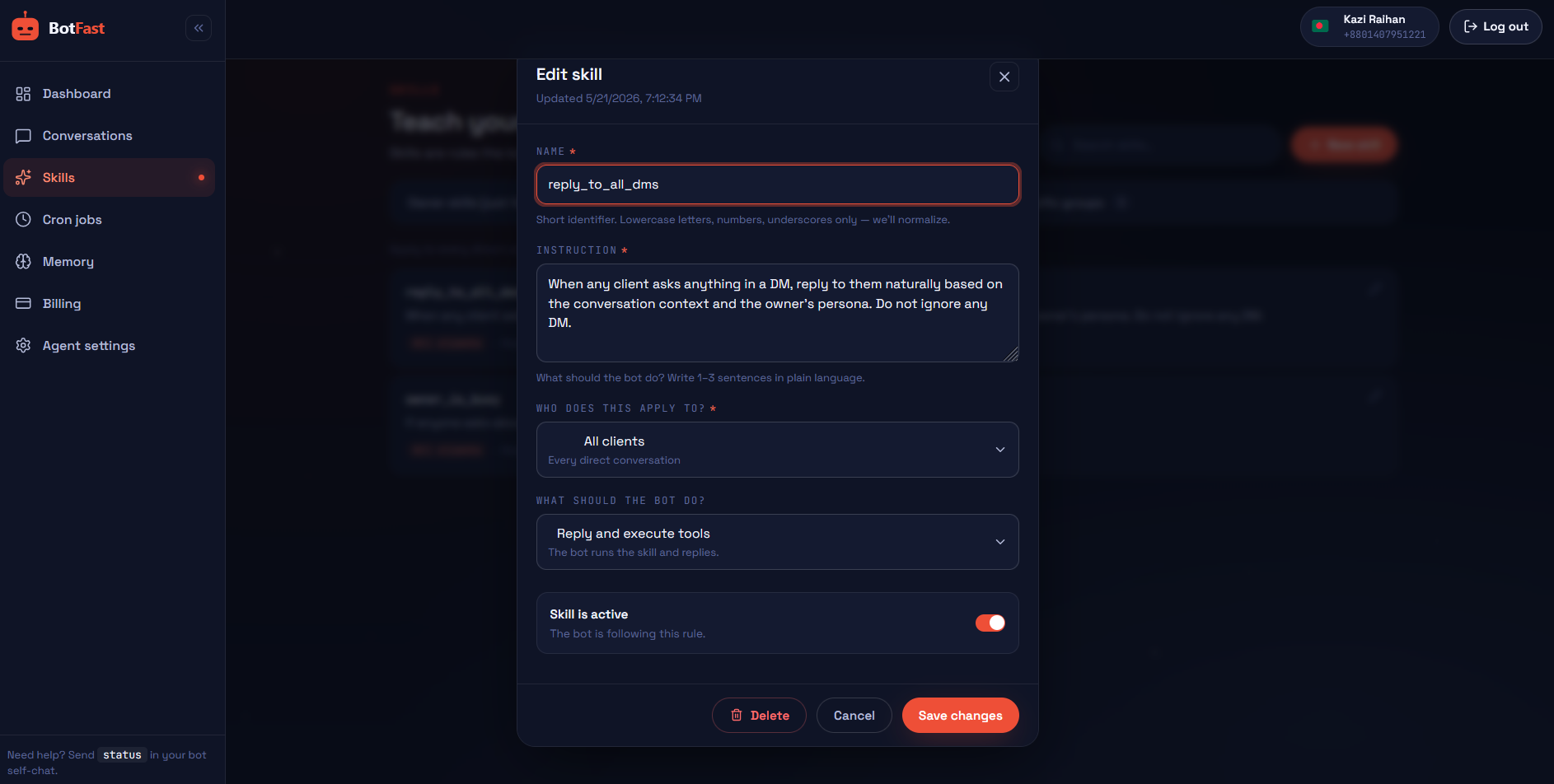
Open Dashboard → Skills and click New skill. The form has a scope picker (with contact/group autocomplete), a reply-mode toggle, and a free-text instruction.
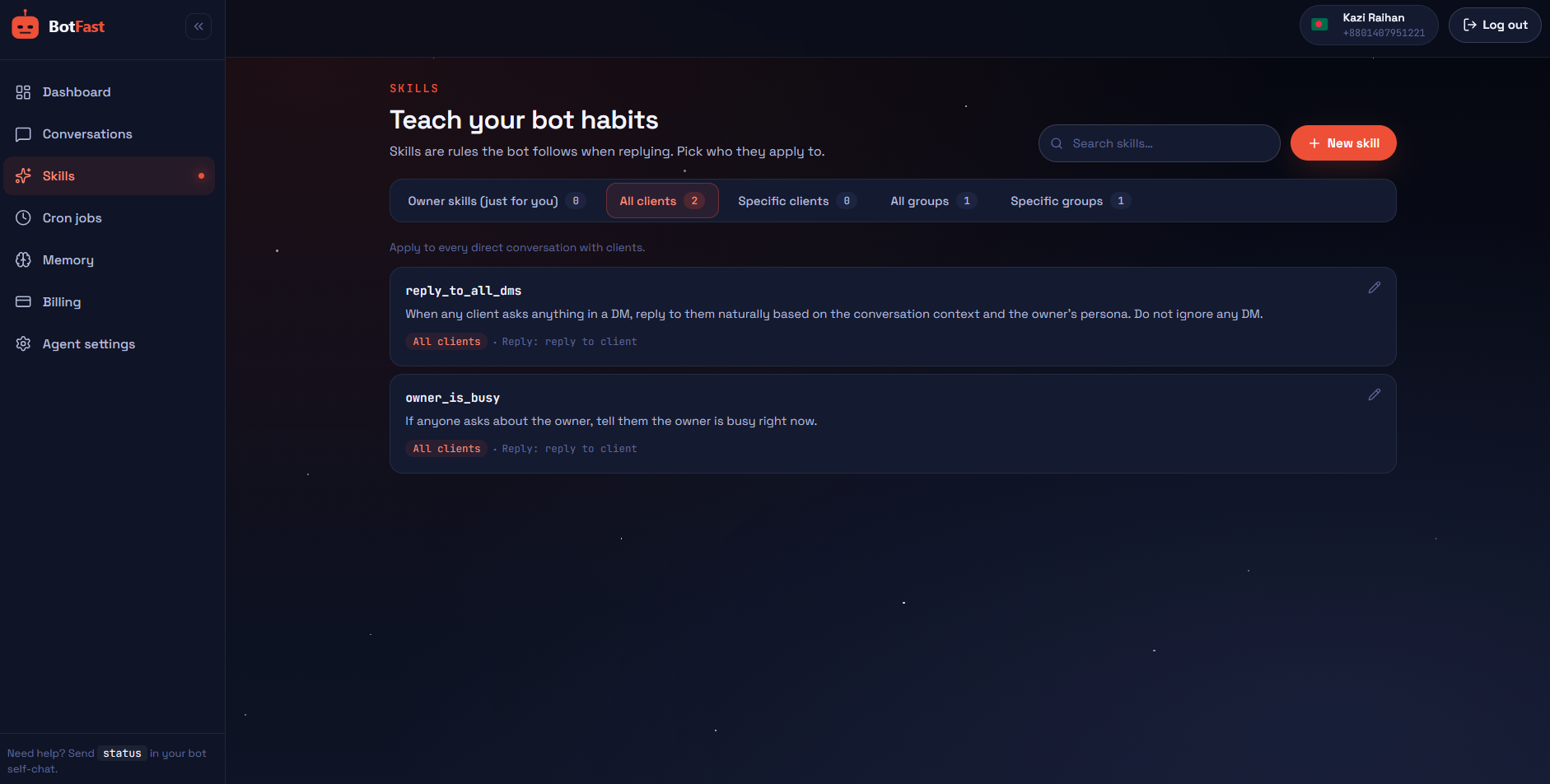
The Skills page lists every active skill grouped by scope, so you can audit which behaviors apply to whom in one glance. Click a row to edit; toggle the switch to disable without deleting.
Good skill instructions
- One or two sentences. Short skills are loaded on every message — keep them lean.
- Be specific about the trigger. "When a client asks for prices" is clearer than "sometimes".
- Spell out the action. "Reply with X" or "forward the question to me silently".
07 · Knowledge & automation
Memory — facts the bot keeps
Anything you tell the bot to remember is saved to a long-term memory file the bot consults on every reply. Useful for preferences ("I'm closed Fridays"), facts ("our return policy is 30 days"), and relationships ("Sumaiya is my accountant").
What gets stored
- Content — one or two sentences. Short is best.
- Category — preference, fact, instruction, business, relationship, skill, or general.
- Importance — 1 to 10. Higher-importance memories appear in more prompts.
Just say “remember…” and the bot saves it:
remember that I'm closed on Fridays
remember our return policy is 30 days, original receipt only
To browse: “show my memories”. To remove: “forget that I'm closed on Fridays”.
Saving two memories and listing them back.
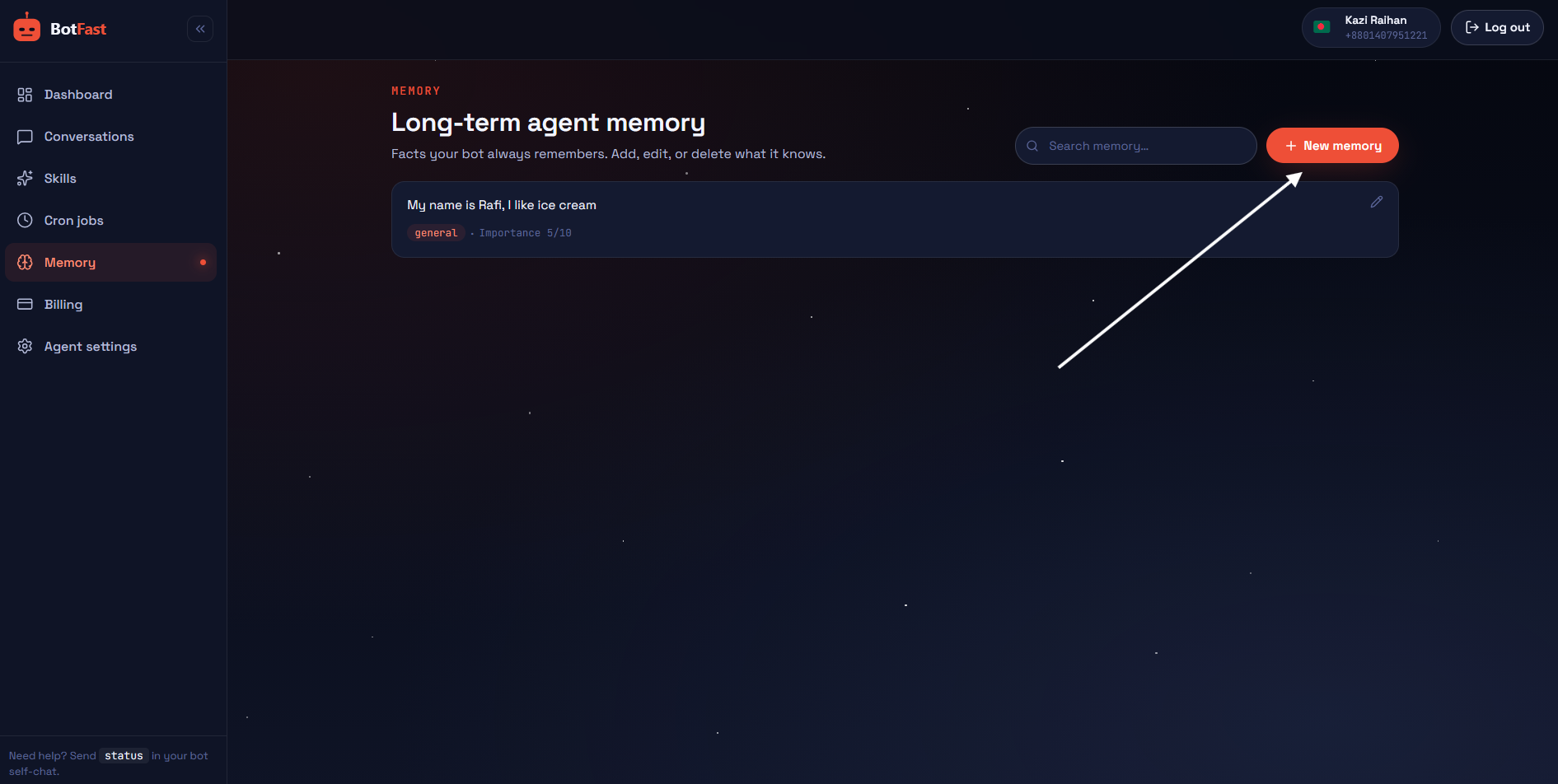
Open Dashboard → Memory for a searchable list. Click any row to edit its content, category, or importance, or click New memory to add one directly.
08 · Knowledge & automation
Reminders & recurring jobs
Schedule the bot to do something later — once or on a repeating schedule. There are two kinds: reminders (one-time) and heartbeats (recurring).
Reminders (one-time)
Fire once at the time you pick, then automatically deactivate. Best for "remind me to call Ahmed tomorrow at 4pm" or "send the invoice to Sumaiya on Friday morning".
Say it however you'd say it to a person:
remind me to call Ahmed tomorrow at 4pm
send the invoice to Sumaiya on Friday morning
The bot resolves names to phone numbers up front, so the reminder still works even if a contact is renamed later.
Two one-time reminders. The bot resolves contact names up front so the reminder still works later.
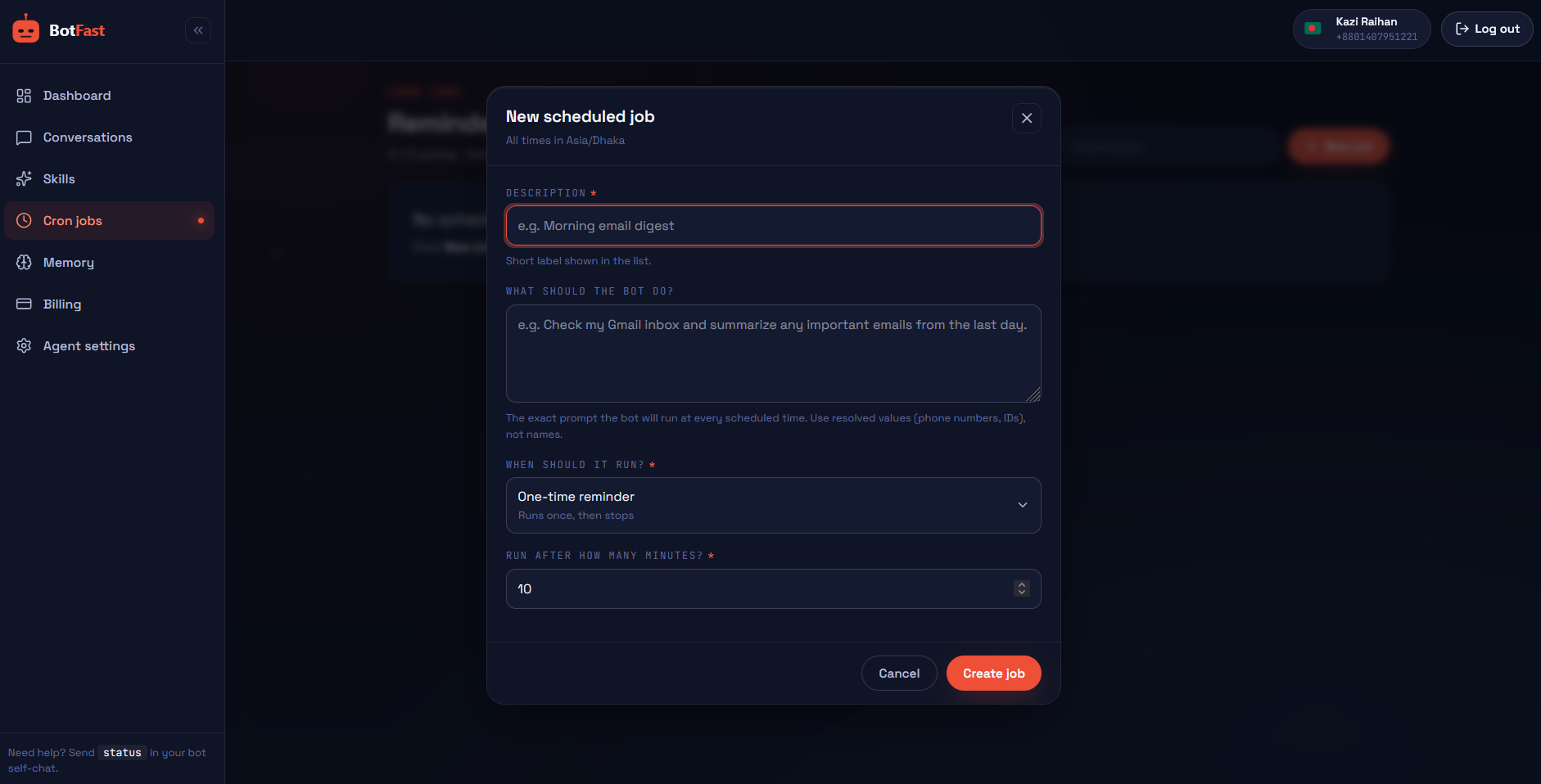
In Dashboard → Cron jobs, click New job and choose a preset (one-time, every N minutes, hourly, daily at HH:MM, weekly, or custom). The form shows your timezone so times mean what you expect.
Heartbeats (recurring)
Fire on a fixed interval forever, until you pause or delete the job. The bot re-runs the same instruction each time with full access to your tools — so you can build things like “every morning at 9, check unread mail and reply with a summary” or “every 30 minutes, look for new orders in the Sheet”.
every morning at 9 summarize my inbox
every 30 minutes check the orders sheet for new rows
Two recurring jobs — a daily morning summary and a 30-minute Sheet poll.
The cron list shows next-run time, last-run status, and a 5-row execution history per job. Pause a job without deleting it via the row toggle.
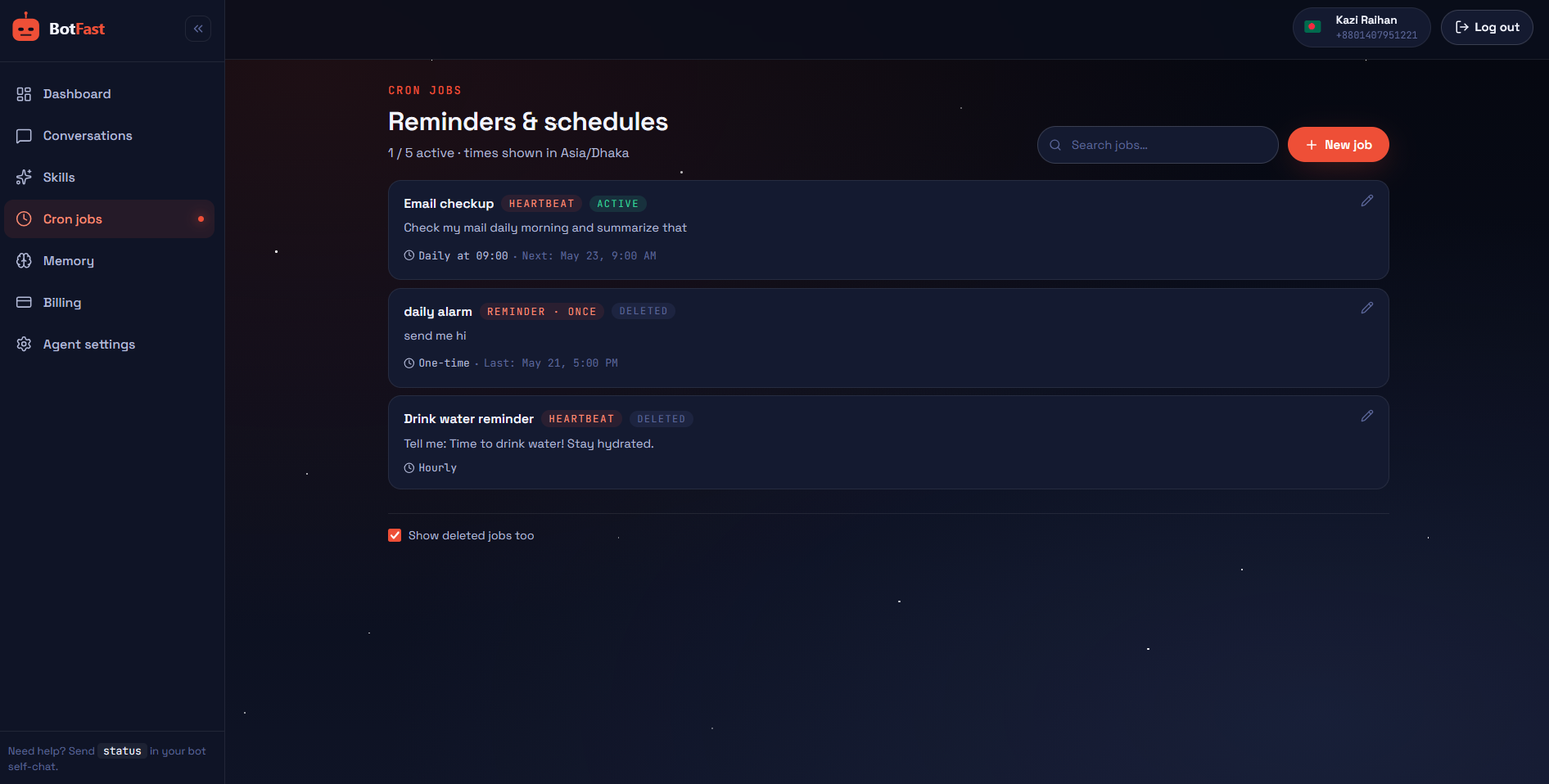
Timing details: minimum interval is 1 minute. Times like "daily at 9am" are interpreted in your timezone(resolved from your phone number when you signed up). Each scheduled run costs 5 credits upfront when you create it — failed runs aren't refunded.
09 · Tools the bot uses
Media handling
The bot can read voice notes, PDFs, Word documents, and images you send it. Media is handled in your self-chat only (your bot doesn't read client media yet) and the bot can also save anything you send to Google Drive.
What the bot understands
- Voice notes — transcribed automatically. Up to 25 MB per clip.
- PDFs — text extracted from any PDF you send.
- DOCX — Microsoft Word documents are read as text.
- Images — read on demand with words like read, describe, extract, ocr, or translate. Max 10 MB. Available in your self-chat only.
Images are intent-gated: the bot only spends credits to lookat an image when you ask it to ("what does this say?", "extract the date"). Just sending an image with a caption like "save this" doesn't trigger a vision read.
Saving media to Drive
Send any file in self-chat, then say save to drive as name. The bot uploads it to your Google Drive and remembers the name so you can fetch it back later with send me the name file.
Two flows shown on the right: a voice note that the bot transcribes and acts on, and a PDF saved to Drive with a name you choose.
A voice note is transcribed, then a PDF is uploaded to Drive with a custom name.
Drive uploads are capped at 100 MB per file. When the bot sends a Drive file back to a chat, anything under 20 MB is sent as the file itself; larger files are sent as a Drive link.
10 · Tools the bot uses
Google Workspace
One click connects all five services at once — you authorize the bot in your Google account, and it can immediately read mail, manage your calendar, and create docs. Disconnect any time.
Connecting Google
Just ask for something that needs Google — the bot offers the link automatically:
what's on my calendar today?
If not connected, you'll see "Connect Google: <link>". Click, approve, done.
First request triggers a connect link. Once approved, every Google service is live.
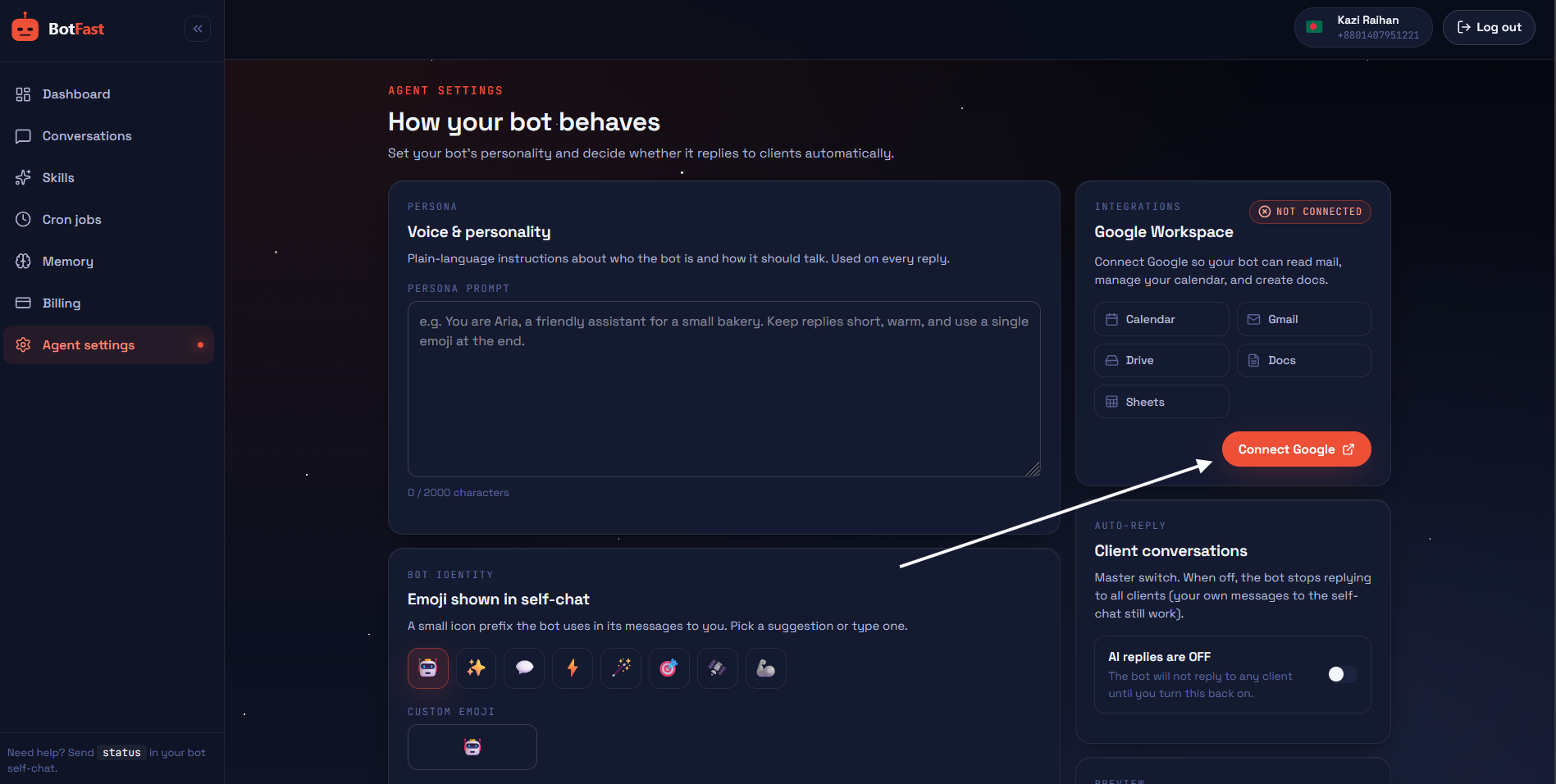
Open Dashboard → Settings. The Google Workspace card on the right shows connection status, lists the five services that activate, and has a Connect Google button. Disconnect with the ghost button when connected.
What the bot can do per service
BotFast requests these scopes once during the connect flow. The lists below describe what your bot can actually do with each — useful to know what to ask for, and what to expect.
Can do
- Read your inbox and search by sender, subject, date, or keyword
- Summarize unread or recent threads on demand
- Send new messages from your address
- Mark messages as read, archive, label, or move to trash
Cannot do
- Permanently delete (only trash, recoverable for 30 days)
- Change your account settings, signature, or filters
Can do
- List events across all your calendars for any date range
- Create new events with attendees, location, and reminders
- Update or reschedule existing events
- Cancel events and notify attendees
Cannot do
- Change calendar sharing or who can see what
- Create, rename, or delete entire calendars
Can do
- Search files by name, type, or content
- Upload media you send in WhatsApp (voice, photos, PDFs, docs)
- Send a Drive file back to any chat — DM or group
- Rename, move, or delete files the bot can see
Cannot do
- Change org-wide sharing policies or team drives access
- See files explicitly hidden from your account
Can do
- Create new Google Docs with a title and starting content
- Read the text of any doc you own or have access to
- Append, replace, or rewrite text in existing docs
- Share back the document link in chat
Cannot do
- Format with complex tables, drawings, or embeds
- Change document permissions beyond the link
Can do
- Create new sheets with headers and starter rows
- Read any range from sheets you have access to
- Append rows to a log or table
- Update specific cells or ranges with new values
Cannot do
- Write or edit Apps Script bound to the sheet
- Add new sharing entries to the sheet
Privacy:the bot reads only what your request implies — it doesn't scan your inbox in the background. Each read is logged against your credit balance so you can see exactly what was used.
11 · Tools the bot uses
WhatsApp toolkit
Beyond replying for you, the bot can take actions on WhatsApp itself — send messages to contacts, manage groups, update your profile, and search the web or YouTube. All driven from your self-chat.
Messaging
- Send a message to a contact by name.
send hi to Ahmed— the bot looks Ahmed up in your contact book and sends. - Send to a group by name.
tell the Family group I'll be late. - Reply on your behalf automatically in any client DM where ai reply is on.
Groups
- Create a group with a name and starting members:
create a group called Project X with Ahmed, Sumaiya, and Raihan. - Add or remove members from existing groups:
add Faisal to the Project X group. - List your groups: “show my groups”.
Three common actions in one self-chat session. The bot resolves names to numbers and group IDs itself.
Sending a DM, creating a group, and adding a member — all by name.
Contacts
- Auto-saved. Anyone who DMs you is added to your contact book automatically (existing names aren't overwritten).
- Save manually.
save Sumaiya's number 0171…. - Find & list. “what's Sumaiya's number?” · “list my contacts”.
Profile
The bot can update your WhatsApp display name, about (status text), and profile picture. Send a photo with a caption like “use this as my profile picture”, or just type change my WhatsApp about to: away until Monday.
Web & YouTube search
Ask anything that needs current info — the bot uses web search to answer and cites sources. YouTube searches return video titles, channels, and links you can forward.
Each web search costs 250 credits flat (covers the search call and the synthesis). YouTube search is cheaper (folded into the chat token cost).
Platform limits to know: the bot replies in plain WhatsApp text — no markdown headers, no *bold*formatting, no GIFs or stickers (WhatsApp's API doesn't support them for sending). Emojis work as plain characters. Files over 64 MB can't be sent inline and will come through as Drive links.
12 · Account & limits
Plans & credits
Everything the bot does — chatting, searching, listening, looking — converts to credits against a monthly budget. Plans differ only in how many credits you get; every feature is available on every plan, including the free trial.
Plans
- Trial — 50 credits, no card. Renewed only by upgrading.
- Starter — $9 / month, 5,000 credits.
- Pro — $30 / month, 25,000 credits.
- Business — $99 / month, 100,000 credits.
How credits convert
- Chat — ~1 credit per 1,000 tokens of conversation (input + output).
- Web search — 250 credits per search call.
- Voice transcription — 1 credit per minute of audio.
- Image vision — 150 credits per image read.
Soft warning at 85%. When you cross 85% of your monthly budget, the bot sends you a one-time WhatsApp notice and automatically pauses client replies so you can decide whether to upgrade. Self-chat keeps working.
Hard cutoff at 100%.At the limit, the bot stops processing every incoming message — no replies, no transcription, no vision. You'll get a single "⛔ Out of credits" notice that won't repeat for 24 hours. Replies resume the next billing cycle or when you upgrade.
Managing your subscription
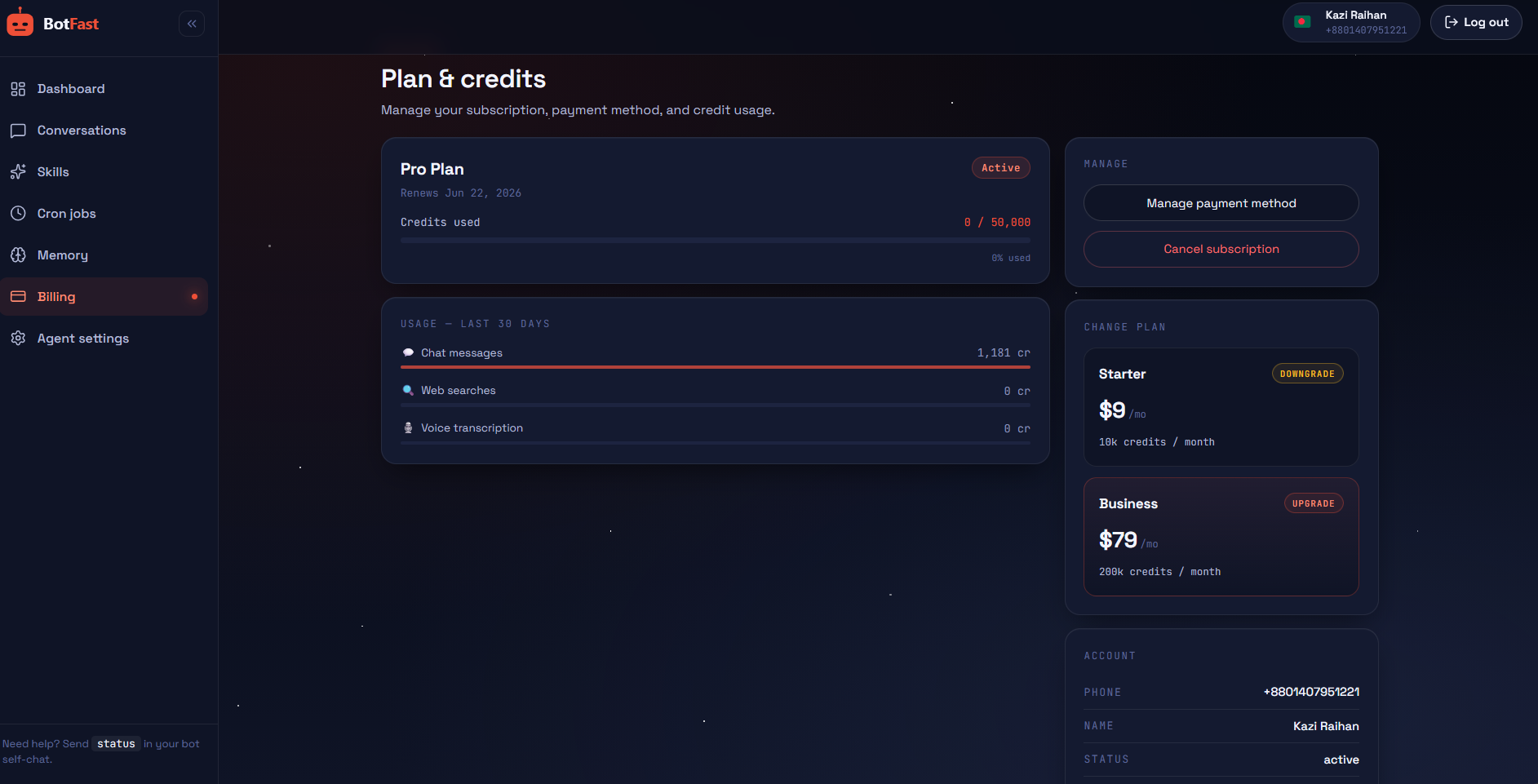
Open Dashboard → Billing to see your current plan, credit usage chart, and renewal date. From there you can change plan, manage your card, or cancel. Subscriptions are processed through Creem; cancellations take effect at the end of the current billing period.
Heads up — reading still costs credits. Whenever a message reaches the AI, it spends credits to read and understand it, even if it decides not to reply (because of your persona, a skill set to silent, or instructions telling it to stay quiet). If you want zero spend on a contact or group, switch its ai reply off entirely — that drops the message at the gate before the AI ever sees it.
13 · Account & limits
FAQ & troubleshooting
Three things to check, in order:
- Is the master switch on?
Settings → Client conversations. - Did you pause that contact? Open the conversation in the dashboard or type
resume replies for <name>. - Are you out of credits? Check
Dashboard → Billing. At 85% the bot auto-pauses; at 100% it goes fully silent.
Groups are off by default. Type enable replies in group <name> in your self-chat, or toggle the master switch in Conversations → Groups. By default it replies only on @mentions; flip Always reply if you want it to answer every message.
Your Google access can expire if you revoked it from your Google account or didn't use the bot for a long time. Open Settings → Google Workspace and click Connect Google again — re-authorizing takes 10 seconds and won't affect anything else.
Daily context is summarized to keep prompts small. Anything you want the bot to remember permanently should be saved as a memory — see the Memory section. Memories show up in every reply.
Type status in your self-chat. The bot unpins the previous welcome and pins a fresh copy in its place.
No. The bot replies from your number using the persona you wrote. Nothing in the reply identifies it as automated unless your persona says so. Be transparent with clients about how you use AI — that's up to you, not us.