
WhatsApp Appointment Booking Bot: Let Clients Self-Book (2026)
Build a WhatsApp appointment booking bot that checks your Google Calendar and confirms slots automatically. No code, no scheduling links to send.
Booking appointments over WhatsApp is how most service businesses actually operate — not through a sleek booking page, but through a back-and-forth chat. The problem is the back-and-forth itself: it eats your time, happens at all hours, and falls through the cracks when you are busy.
A WhatsApp appointment booking bot ends that. The client messages your number, the bot checks your live calendar, proposes open slots, and confirms — all in seconds, with no scheduling link to send and no app for the client to install.
Watch a 1-minute build
What is a WhatsApp appointment booking bot?
It is a bot connected to your calendar that handles the entire booking conversation on WhatsApp for you. Concretely it can:
- Read your real-time calendar availability.
- Propose open slots that match the client's preferred time.
- Create a calendar event the moment the client confirms.
- Reschedule or cancel on request and keep your calendar in sync.
- Send a reminder before the appointment to cut no-shows.
How it works behind the scenes
The bot connects to two things: your WhatsApp number (via the linked-device feature) and your Google Calendar (via OAuth). When a client asks to book, the bot:
- Calls Google Calendar to list your free slots for the requested day.
- Picks two or three good options and proposes them in natural language.
- Waits for the client to pick one.
- Creates the event on your calendar with the client's details.
- Optionally schedules a reminder to fire before the appointment.
You see the whole thread because it is your number — but you did not have to type a single message. Pair this with automated reminders and no-shows drop dramatically.
Under the hood the calendar sync is two-way and live, not a cached copy. Every booking request triggers a fresh free/busy lookup against your Google Calendar, so a slot that was open a minute ago but just got filled by a colleague never gets double-booked. When the client confirms, the bot writes the event back to the same calendar using the Google Calendar API, attaches the client's name and phone number, and sets a reminder popup that fires on your phone too.
Rescheduling works the same way in reverse: the bot finds the existing event by the client's phone number, checks the new requested window for conflicts, moves the event if the slot is clean, and replies in chat with the updated time. Because the source of truth is always your calendar, you can also move an event manually in Google Calendar and the bot's next availability proposal will reflect that change immediately — no re-sync step needed.
Set up a booking bot in four steps
Step 1 — Connect your WhatsApp number
Go to botfast.co, enter your number, scan the QR code from WhatsApp → Linked Devices. Live in under a minute.
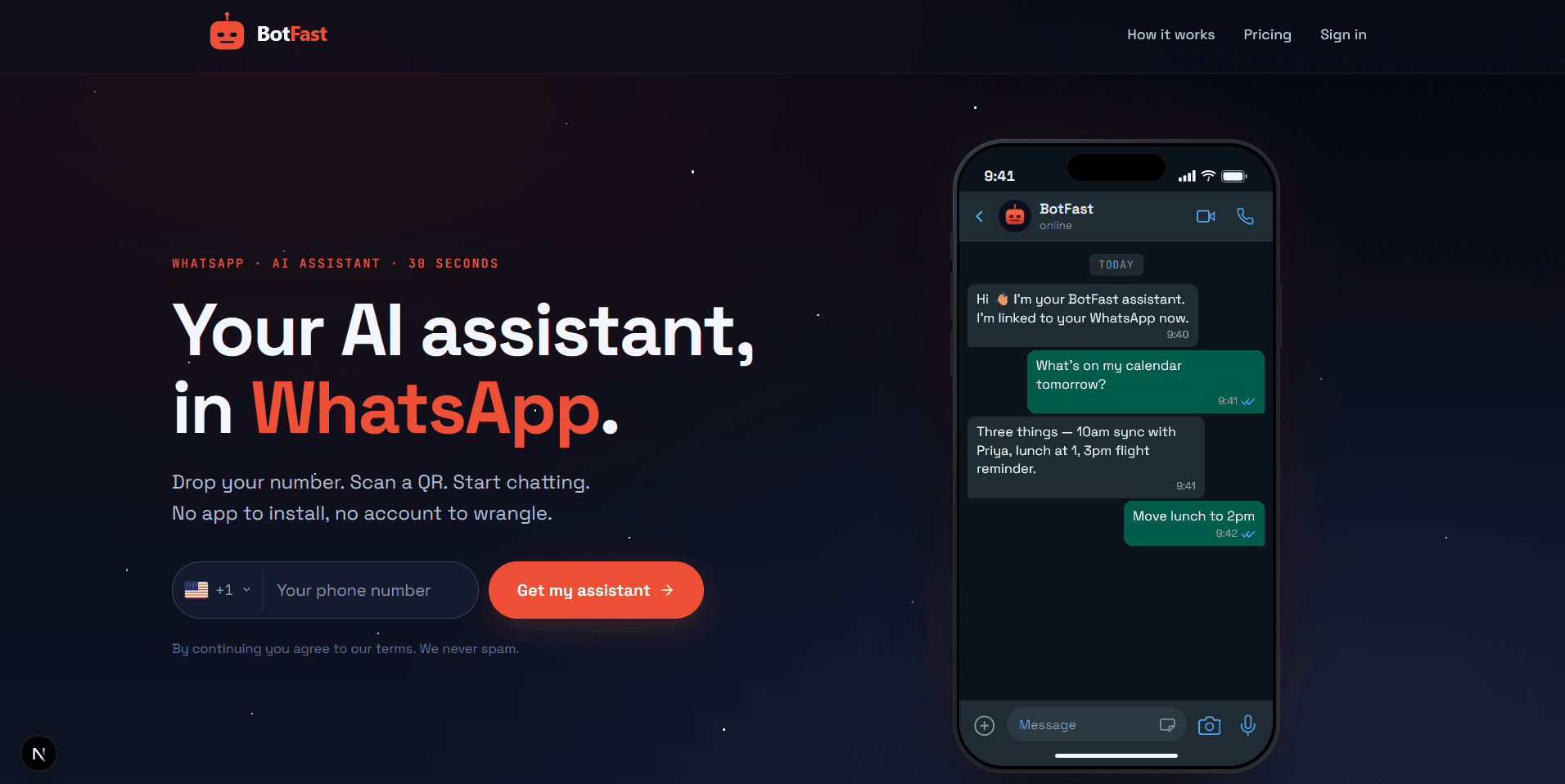
Enter your number on the BotFast homepage — your WhatsApp appointment booking bot starts here
Step 2 — Connect Google Calendar
In your WhatsApp self-chat, type connect my Google and approve the OAuth link. This grants the bot permission to read and create events on your calendar.
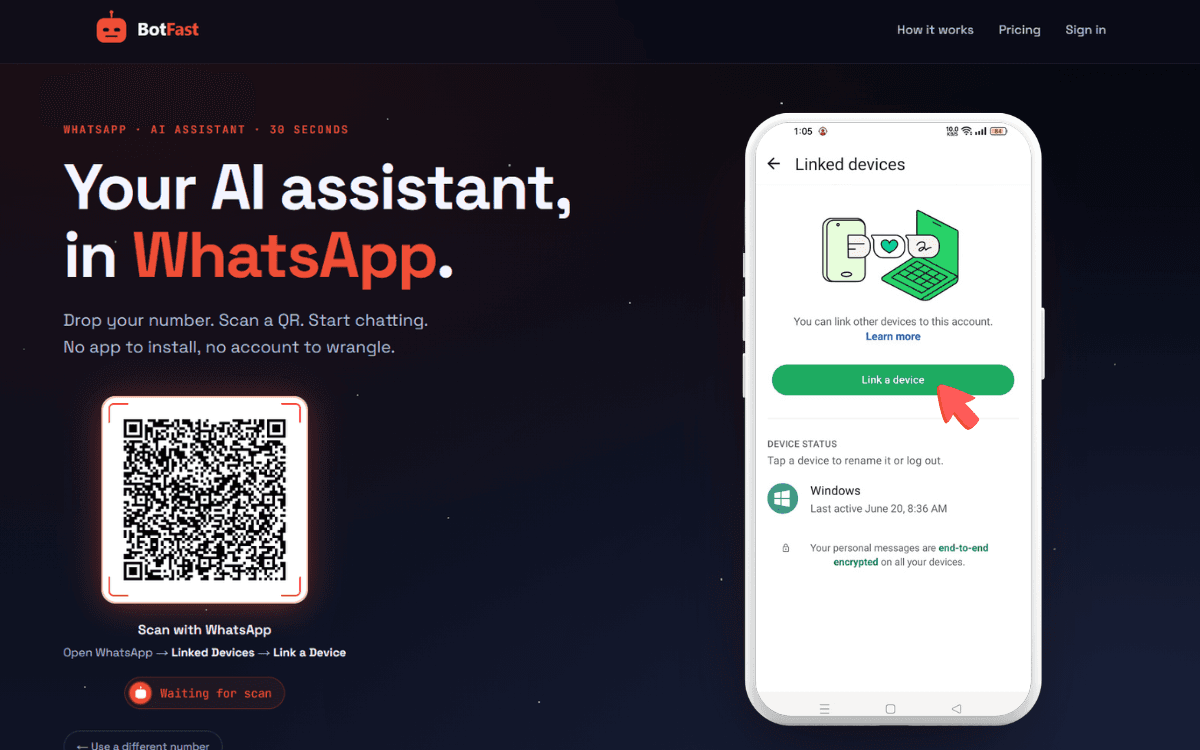
Scan the QR code from WhatsApp → Linked Devices to connect your number
Step 3 — Add a booking skill
Tell the bot how to handle bookings in plain English:
When a client asks to book, check my Google Calendar for the next 3 open 30-minute slots this week. Propose them in the client's timezone. Once they confirm, create the event with their name and phone number, then confirm back with the date and time.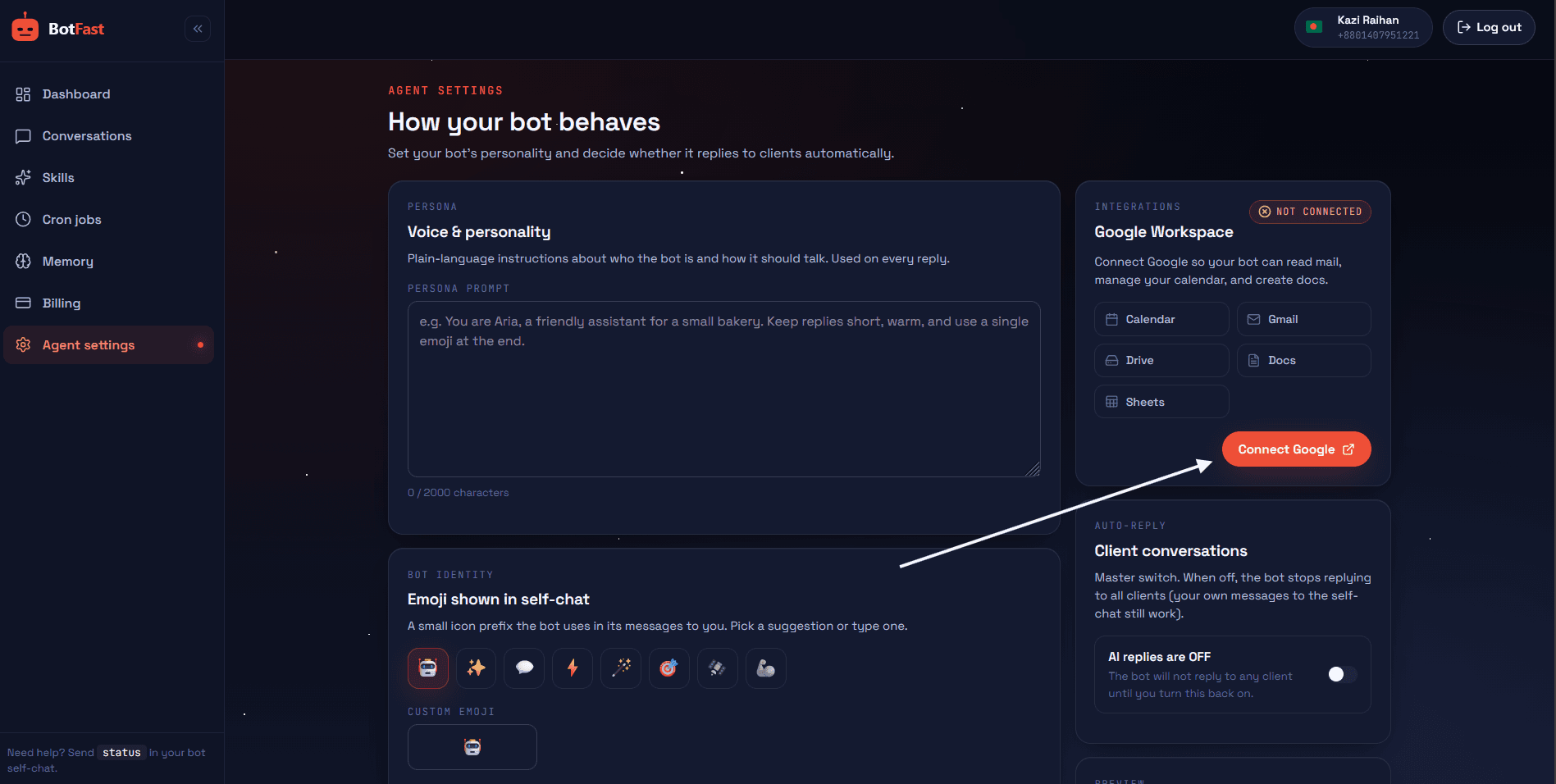
Connect Google Calendar so the booking bot can read live availability and create events
Step 4 — Add reminders
Reduce no-shows by telling the bot to remind clients before the appointment:
After booking, schedule a reminder 1 hour before the appointment telling the client we're looking forward to seeing them.Booking examples by industry
| Business | What the bot does |
|---|---|
| Clinic / dentist | Books consults, sends reminders, handles reschedules |
| Salon / spa | Proposes stylist slots, confirms, blocks the calendar |
| Tutor / coach | Books sessions, sends a prep reminder the night before |
| Repair / home service | Schedules a visit window, sends a "technician on the way" reminder |
| Consultant | Qualifies the lead, books a discovery call, sends a calendar invite |
| Real estate agent | Books a property viewing, sends the address and a 15-min window, reschedules around showings |
| Photographer | Books a shoot slot, asks for the location and headcount, sends a "bring a friend" reminder |
| Fitness trainer | Books a session, asks which package it counts against, sends a "bring water and a towel" reminder |
Why bookings over chat beat a booking page
Booking pages are great — until you remember your clients are already on WhatsApp and would rather just message you. A chat-based booking:
- Removes friction. No new tab, no form, no account.
- Converts higher. The client never leaves the conversation where their intent is highest.
- Handles nuance. "Can I bring my kid?" or "I'll be 10 minutes late" get answered naturally instead of breaking a rigid form.
- Works after hours. The bot books at midnight; you wake up to a full calendar.
This is one piece of the broader WhatsApp business automation stack — bookings plus reminders plus follow-ups is where most of the ROI lives.
Booking skill templates
A booking skill is just a plain-English instruction that tells the bot how to handle appointments. Here are three ready-to-paste templates that cover the most common service-business flows. Drop each one into your WhatsApp self-chat and tweak the details to match your business.
Standard 30-minute booking
When a client asks to book, check my Google Calendar for the next 3 open 30-minute slots in the next 7 days, skipping weekends. Propose them in plain text with day, date, and time. Once they reply with a choice, create the event titled "Appointment – [client name]", add their phone number, and confirm back with the final date, time, and my address.Consultation with intake questions
When a new client asks for a consultation, first ask two questions: what they need help with, and whether they prefer a phone or video call. Then check my Google Calendar for the next 3 open 45-minute slots this week, propose them, and once they confirm create a 45-minute event with their answers in the description. Send them a calendar invite if they picked video.Recurring weekly session
When a client asks to set up weekly sessions, propose the same weekday and time for the next 4 weeks from my Google Calendar. Confirm the series with them, then create 4 repeating 60-minute events on my calendar, each titled "Weekly – [client name]". Ask them to message me if they ever need to skip or move a week.These are starting points — the bot understands natural nuance, so feel free to add specifics like buffer time, blackout dates, or which calendar to write to. Combine them with a reminder skill (below) and the AI assistant persona so the tone matches the rest of your chats.
Reducing no-shows
A booked appointment that the client never shows up to is worse than no booking at all — it is a slot you could have given to someone else. The good news is that on WhatsApp, the same channel that took the booking can quietly nudge clients toward showing up. Here is what actually moves the needle:
- Time reminders well. A reminder 24 hours out lets people plan; a second one 1 hour out catches the ones who forgot on the day. Reminding only once, too early, is the most common mistake.
- Ask for a quick confirmation. "Reply 1 to confirm, 2 to reschedule" turns a passive reminder into a commitment. People who reply are dramatically more likely to show up.
- Make rescheduling frictionless. Offer it in every reminder. A client who can reschedule in two taps rarely no-shows — they just move the slot instead of ghosting it.
- Use warm, specific language. "See you tomorrow at 3 pm for your haircut with Maria" outperforms a generic "Appointment reminder". Specificity makes the appointment feel real.
- Send the practical details. Address, parking, what to bring — the fewer open questions, the fewer reasons to skip.
Put it together as a two-step reminder sequence and you have covered almost every failure mode:
After a booking is confirmed, schedule a reminder 24 hours before: "Hi [name], confirming your appointment tomorrow at [time]. Reply 1 to confirm or 2 to reschedule." Then schedule a second reminder 1 hour before: "Hi [name], see you at [time]. Need the address or to push by 30 min? Just reply."This is exactly the pattern covered in depth in our reminder bot guide — the booking bot handles the calendar, the reminder sequence protects the revenue.
Frequently asked questions
Can a WhatsApp bot book appointments?
Yes — it connects to Google Calendar, checks availability, proposes slots, confirms, reschedules, and sends reminders, all inside chat.
How does a WhatsApp booking bot work?
When a client asks to book, the bot reads your live calendar, proposes open slots, creates an event on confirmation, and can send a reminder before the appointment.
Do clients need to install anything?
No. Clients message your existing WhatsApp number as usual. No app, no form, no scheduling link.
Can it handle rescheduling and cancellations?
Yes. The bot can move or cancel events on request and notify you so your calendar always matches the chat.