
WhatsApp Data Extraction Bot: Receipts & Bank Statements to Sheets
Post receipts, invoices & bank statements in a WhatsApp group and the bot extracts the data into Google Sheets — no retyping. Copy-paste skills inside.
Every business runs the same broken loop: a receipt gets photographed on a phone, posted in a WhatsApp group, and then a human opens it, squints at it, and retypes the merchant, date, and amount into a spreadsheet. Multiply by 200 receipts a month and you have a full-time job nobody applied for.
A WhatsApp data extraction bot ends the retyping. Members keep posting receipts, invoices, and bank statements in the group exactly like before — the bot reads each document, extracts the fields, and appends a clean row to Google Sheets (or its built-in table store) within seconds, then confirms in one line. Bank statements become transaction rows. Receipts become expense entries. Nobody opens a spreadsheet.
Watch the full walkthrough
What this WhatsApp group bot is capable of
Extraction pages live or die on the bot's ability to actually SEE documents. Capability 3 in this table is the one doing the heavy lifting on this page — the other seven make it safe and usable in a real finance group:
| # | Capability | What it means inside your group |
|---|---|---|
| 1 | Sends from the owner’s number | The bot is linked to your WhatsApp number as a device, so every message it posts comes from your number — not from a foreign bot number or a faceless business account. Members already know and trust the sender. |
| 2 | Replies when mentioned | @mention the bot (or reply to one of its messages) and it answers within seconds — with full context of the conversation around the mention. Everything else, it ignores. |
| 3 | Analyzes images and documents | Turn on media analysis for the group and the bot reads whatever is posted — receipts, invoices, bank statement PDFs, DOCX files, screenshots, photos — then answers questions about it or extracts the data into a table or Google Sheet. |
| 4 | Views every message and reacts | The bot sees the whole conversation, so it follows context instead of answering blind — and it can react to messages with an emoji, like a ✅ on a finished task or a 👍 on a good update. |
| 5 | Keeps quiet in the group | Silence is the default. Unless mentioned, replied to, or tripped by a skill you wrote, the bot says nothing — it never injects itself into conversations uninvited. |
| 6 | Notifies the owner in any case | When something needs a human — an angry member, an overdue task, a spam wave, a question it can’t answer — the bot sends you a private DM instead of cluttering the group. |
| 7 | Add and removes members (if the owner is admin) | If your number is an admin of the group, the bot can add and remove participants on your behalf — ideal for paid communities and team groups where membership changes constantly. |
| 8 | Does anything the owner can do | The bot operates your number, so whatever you can do in a WhatsApp group — send, reply, react, add members, share files — the bot can do too, on your instruction, around the clock. |
Everything else on this page — task boards, deadline reminders, receipt extraction, daily digests — is built from these eight primitives plus group skills: plain-English standing instructions that tell the bot what to watch for and what to do.
What is a WhatsApp data extraction bot?
It is your BotFast assistant with two things switched on: media analysisfor the group (so it downloads and reads images and documents instead of just seeing “[photo]”) and an extraction skill (the standing instruction that says what to extract and where to write it). The pipeline looks like this:
| Step | What happens | Who does it |
|---|---|---|
| 1. Capture | A member posts a receipt photo, invoice PDF, or bank statement in the group | Human (as always) |
| 2. Read | The bot downloads the file and runs it through vision AI (images) or a PDF/DOCX parser (documents) | Bot |
| 3. Extract | The skill defines the fields — merchant, date, total, category, transaction rows… | Bot, per your skill |
| 4. Store | A row is appended to your Google Sheet or BotFast table | Bot |
| 5. Confirm | The bot replies with one line — what it saved and the total — so members can correct it on the spot | Bot |
| 6. Escalate (optional) | Unclear scans, missing totals, or suspicious amounts trigger a private DM to you | Bot → you |
What it can read — and what you get out
| Posted in group | Typical extracted fields | Where it lands |
|---|---|---|
| Receipt photo (shop, fuel, restaurant) | merchant, date, category, subtotal, tax, total, currency | Expenses sheet, one row per receipt |
| Supplier invoice (PDF or photo) | invoice no, vendor, date, due date, line items, total, GST/VAT | Payables sheet / approval flow |
| Bank statement PDF | account, period, opening/closing balance, one row per transaction (date, description, debit, credit) | Transactions sheet, appended per statement |
| Sales screenshot (POS, marketplace, dashboard) | order id, customer, items, amount, status | Sales log |
| Handwritten note / delivery challan | items, quantities, signatures noted, flagged as low-confidence | Log + DM to owner for review |
| ID / business document | name, document type, expiry — for KYC-style intake | Members/clients table |
Images are read by a vision model that handles crumpled paper, angled phone photos, and mixed-language receipts about as well as a tired accountant — which is why every extraction ends with a confirmation line in the chat: the person who posted the document sees exactly what was recorded and can reply “total is 540 not 450” and the bot corrects the row.
Where the data goes: Sheets, tables, or any API
You have three destinations, and you can mix them:
| Destination | Setup | Best for |
|---|---|---|
| Google Sheets | Connect Google once from the dashboard; the skill names the sheet and columns | Accountants, shared finance docs, anything you’ll chart or filter |
| BotFast Tables (built-in) | Zero setup — create the table on the dashboard, no Google needed | Fast starts, internal logs, teams that live in WhatsApp only |
| Any API via automation | Zapier / Make / n8n watches the sheet or table and calls your endpoint per new row | Pushing receipts into QuickBooks, a CRM, or your own backend |
Why the API hop goes through a sheet. The bot writes rows; your automation platform reads them and calls the API. That indirection is deliberate: API keys never sit inside WhatsApp, every record has an auditable row before it leaves, and a failed webhook can be replayed from the sheet instead of asking the customer to resend the receipt.
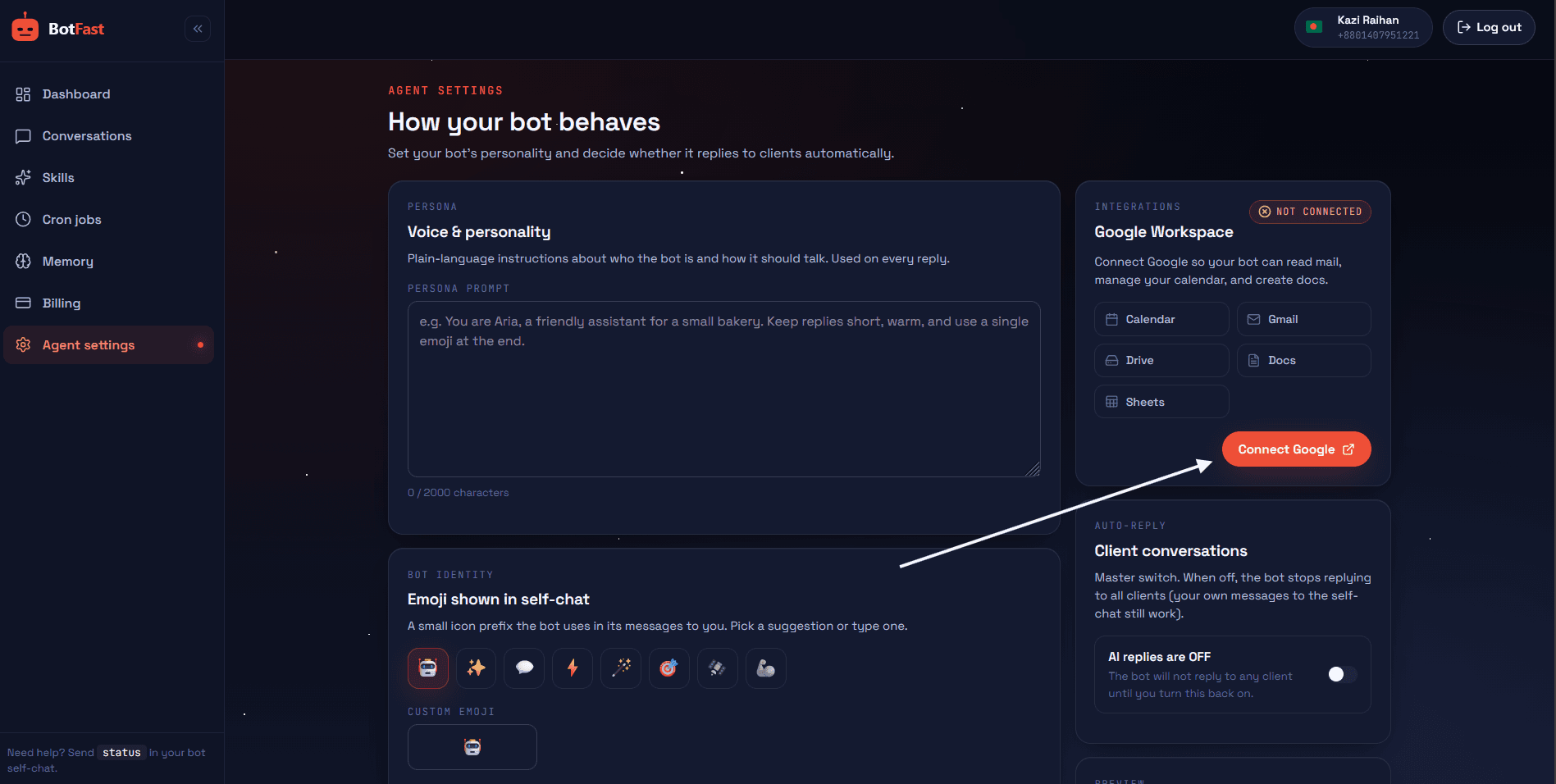
Connect Google once (dashboard → Settings) — after that the bot appends extracted rows straight into your Sheets
The one switch people forget: media analysis
By default the group bot sees only text — a posted photo shows up as a placeholder. To make extraction work you must enable media analysis for that group: dashboard → Conversations → open the group → switch on both AI reply and media analysis. This is a deliberate per-group switch, not a global one — your family group never analyzes photos just because your finance group does.
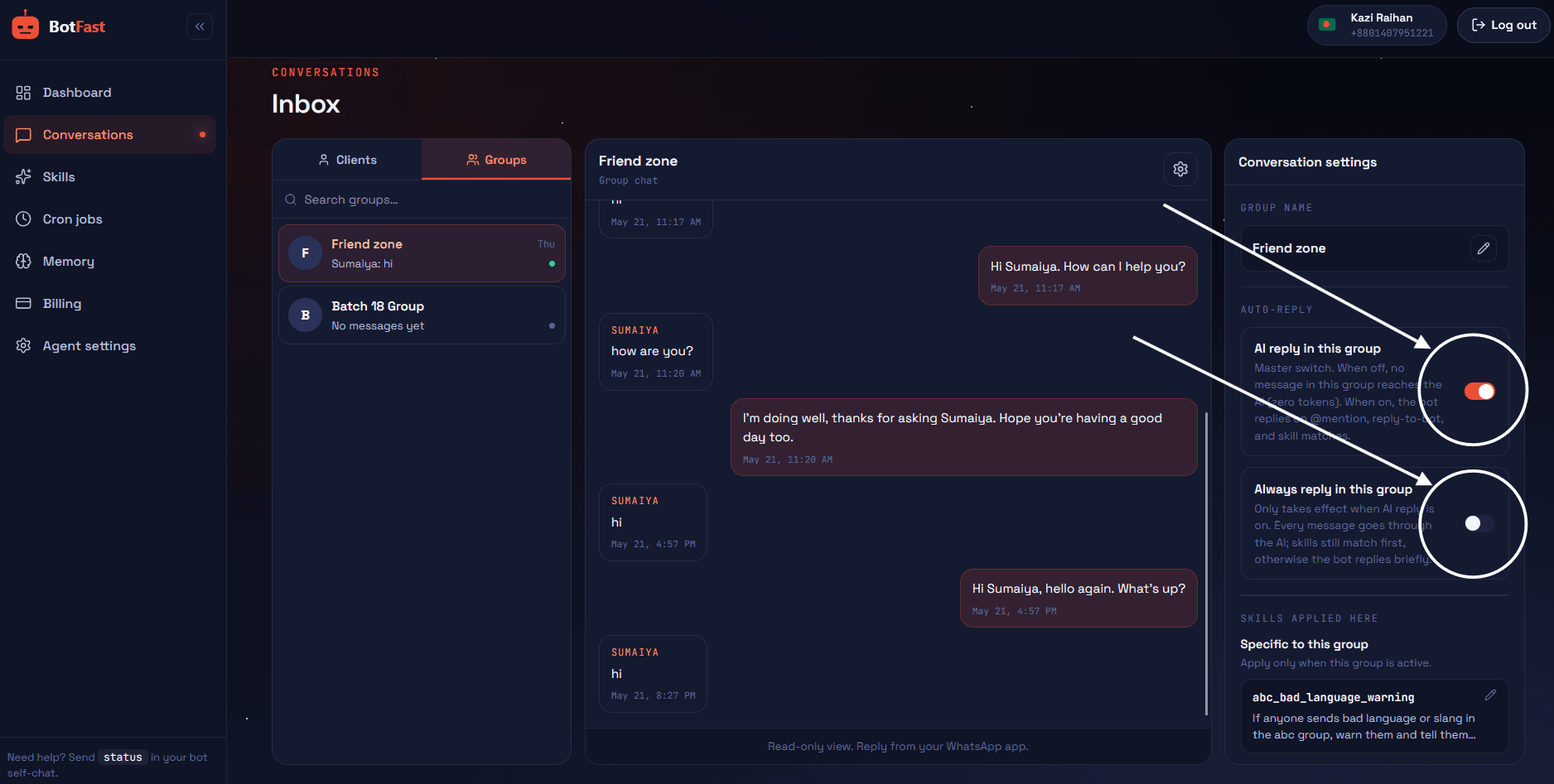
AI reply + media analysis, per group — extraction only works where you turned both on
Copy-paste extraction skills
Adjust sheet names, columns, and categories to yours. Skills 1 and 2 need Google connected (or swap the sheet for a BotFast table — same skill, table instead of sheet). Skill 3 works with no Google at all.
1. Receipt → expense sheet
For the group "Finance & Ops":
When anyone posts a photo or PDF of a receipt or invoice:
1. Read the document and extract: date, merchant/vendor, category (pick from: fuel, meals, supplies, travel, software, other), amount total, currency, and tax if shown.
2. Append one row to the Google Sheet "Expenses" (tab "expenses") with columns: date, merchant, category, amount, currency, tax, posted_by (the WhatsApp name of the sender).
3. Reply with ONE short line: "Logged: merchant — amount (category). Say 'fix' if wrong."
4. If someone replies "fix" to your confirmation, ask what to correct, update the last matching row, and confirm.
5. If the image is too blurry to read the total, or the total is missing, do NOT guess: reply "Can't read the total — please repost 🙏" and DM the owner a note.
6. Ignore photos that are clearly not receipts (memes, selfies, screenshots of chats).
2. Bank statement → transactions
For the group "Finance & Ops":
When anyone posts a bank statement PDF (or a photo of one):
1. Extract the bank name, account (last 4 digits only), statement period, opening and closing balance.
2. Append one row PER TRANSACTION to the Google Sheet "Bank Transactions" (tab "txns") with columns: date, description, debit, credit, balance (if shown), statement_period.
3. When finished, reply with a compact summary: "Statement Sep 1–30: 84 txns, in 412,300, out 388,150, closing 96,400. Rows appended." — numbers only, no lecture.
4. If the same statement (same period + closing balance) is posted twice, do not append again; reply "already logged".
5. Flag any transaction above 100,000 by DMing the owner a one-line notice with date + description + amount.
3. Lead / order capture (no Google needed)
For the group "Sales Inbox":
When anyone posts a customer order screenshot, a photo of a written order, or types order details:
1. Extract: customer name, phone (if visible), item(s), quantity, amount, delivery area.
2. Append a row to the table "orders" (columns: date, customer, phone, items, amount, area, status).
3. Confirm in one line with an order number like ORD-101 (increment yourself).
4. When someone says "ORD-101 delivered", update that row's status to delivered.
5. Every day at 8pm, post: "Today: N orders, total amount X. Undelivered: list order numbers + customers."
4. Validation rule (add-on for any of the above)
For the group "Finance & Ops":
Extraction quality rules, on top of your other duties:
- Never invent a value. Missing field = write "missing" in the row and mention it in your one-line reply.
- Round nothing silently: if the receipt says 499.99, log 499.99.
- If a total appears twice (subtotal vs grand total), use the grand total and put the subtotal in notes.
- Once a day at 9pm, DM the owner: "Today: N documents logged, M flagged for review" with the flagged list.
One bot, every group — extraction included
You do not need one bot per group. The same BotFast assistant — the same linked number, the same subscription — works in every WhatsApp group you are a member of, at the same time: your team group, your customer community, your class group, your family chat.
One bot, every group. Each group gets its own reply mode and its own set of skills, so the very same bot can be a task manager in your team group, a moderator in your community, a receipt logger in your finance group, and a quiet encyclopedia in your class group — all at once, all from your one number. Turn it off in one group and the others are untouched.
| Group | Reply mode | What the same bot does there |
|---|---|---|
| Engineering Team | Skills + mention | Standups, task tracking, deadline reminders |
| Acme Customers | Always reply | FAQ answers, onboarding, escalation to you |
| Finance & Ops | Skills + media analysis | Receipt and bank statement extraction into Sheets |
| Family | Off | Nothing — the bot stays completely silent here |
The full walkthrough of per-group modes, per-group skills, and global group skills is in one AI bot for all your WhatsApp groups.
How to get a WhatsApp group bot (5 steps)
The whole setup takes about two minutes and needs no coding, no Meta business verification, and no group admin approval — your linked number is just a regular member. Here is the exact path from zero to a working group bot.
Step 1 — Enter your phone number at botfast.co
Go to botfast.co and enter the WhatsApp number the bot should run on. This is the number members will see talking in the group — for most people, their own personal or business number.
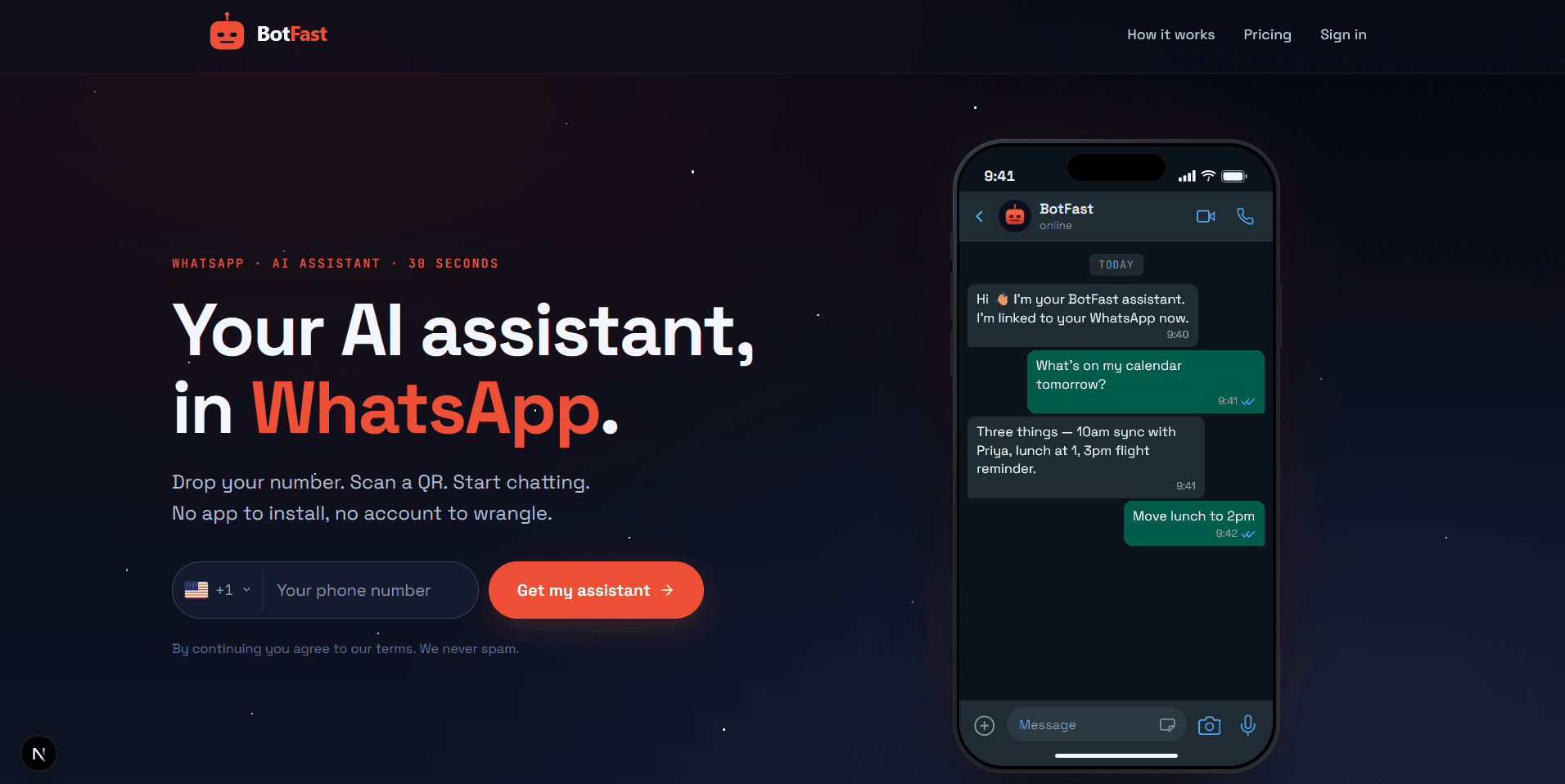
Enter your number on the BotFast homepage — this becomes the number your group bot speaks from
Step 2 — Scan the QR code from WhatsApp Linked Devices
On your phone, open WhatsApp → Settings → Linked Devices → Link a device, and scan the QR code BotFast shows you. That links the bot to your number — the same mechanism WhatsApp Web uses, nothing is installed on your phone and your phone keeps working normally.
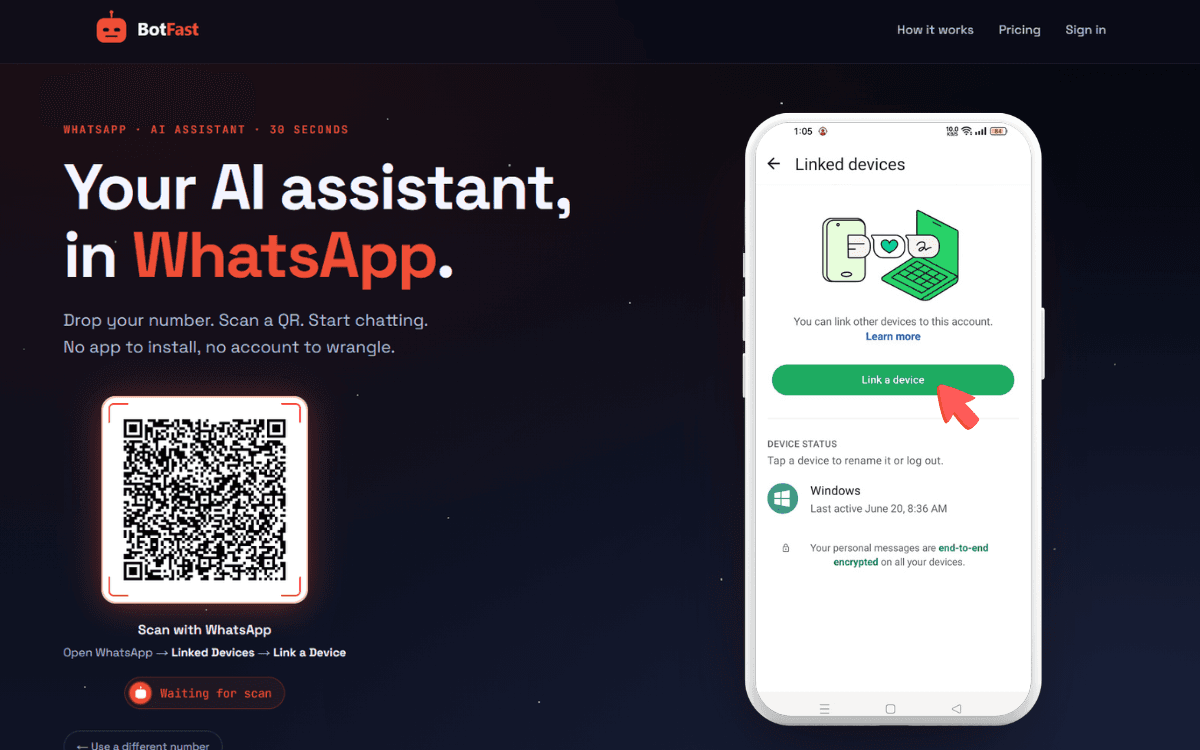
Scan one QR code and the bot is linked to your number — same flow as WhatsApp Web
Step 3 — Send a message in the group
Add your number to the group you want the bot in (via the normal “Add participant” flow — or use a group you are already in), then send any message in that group. The moment a message lands, the group appears on your BotFast dashboard, ready to configure. No admin rights are required.
Step 4 — Enable AI reply for that group
Open the dashboard, go to Conversations, find the group, and open its settings. Switch on AI reply — the default behavior is reply when mentioned: the bot answers only when someone @mentions it or replies to one of its messages. In the same panel you can optionally turn on always reply (for support-style groups) and media analysis (so the bot can read images and documents posted in the group).
Dashboard → Conversations → your group — enable AI reply (mention mode by default), always-reply, and media analysis here
Step 5 — Create the skill and paste it
For extraction, step 4 has a second toggle: while you're in the group's settings, also switch ON media analysis — without it the bot literally cannot see the documents. And if you're writing to Google Sheets, connect Google from dashboard → Settings first. Then paste skill 1 or 2 from this page scoped to the finance group.
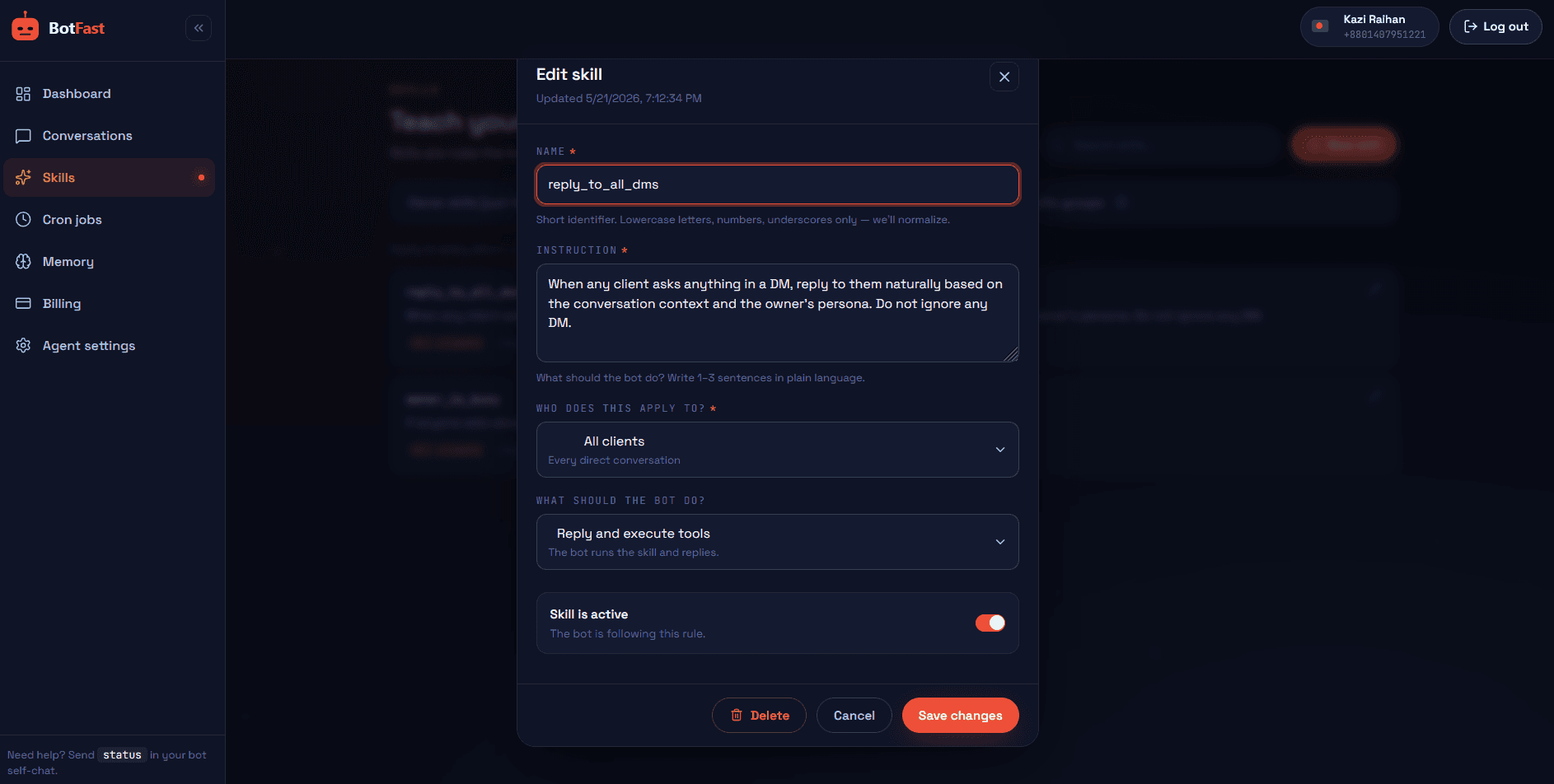
Dashboard → Skills → New — paste the skill, scope it to your group, save. Done
That’s the whole pipeline: number → QR → message → toggle → skill. The bot is now live in the group, from your number, following your instructions.
Accuracy, checks, and human-in-the-loop
Vision extraction is good, not magical. Plan for it the way you’d plan for a new intern:
| Situation | What the bot does | What you should do |
|---|---|---|
| Clean printed receipt | Extracts all fields confidently | Nothing — spot-check weekly |
| Crumpled / angled / dim photo | Best-effort read, flags low confidence | Ask for a repost when flagged |
| Missing total or date | Writes “missing”, never guesses | Fill manually or request a new photo |
| Duplicate post | Detects same merchant+amount+date, skips | Nothing |
| Amount above your threshold | DMs you before/after logging | Approve or correct in chat |
The one-line confirmation in the chat is your main quality control: the person who has the receipt in their hand is the cheapest validator in the pipeline. Over a typical month, teams report the sheet ends up cleaner than their manual one — because every entry is confirmed at capture time, not at month-end.
Handling bank statements safely
- Use a dedicated finance group. Only the people who must see statements. The extraction skill is scoped to that group alone — it does not run anywhere else.
- Data lands in YOUR storage. Rows go to your Google Sheet or your BotFast table — not to a third-party bookkeeping silo.
- Keep API keys out of the chat. Integrations attach at the sheet (Zapier/Make), so credentials never ride through WhatsApp.
- Prefer redacted statements. If your bank allows, export statements without the full account number; the skill only records the last 4 digits anyway.
- Review the flagged DMs. Large amounts and unreadable scans come to you privately — treat that inbox like a to-review queue.
Frequently asked questions
Does it work with photos of screens?
Yes — POS reports, marketplace order screens, and dashboard exports photographed off a monitor all extract; add “screenshots of chats are not receipts” to the skill so chat screenshots are ignored.
What file types and sizes are supported?
Images up to 20MB, PDFs and DOCX up to 20MB per document. Bank statement PDFs from every major bank parse cleanly; scanned photo-PDFs are read by the vision layer.
Can it handle multiple currencies?
Yes — the skill can record the currency per row and normalize if you give it a fixed rate, though for fluctuating rates it’s better to log the original currency and convert in the sheet.
Can members post in other languages?
Yes. Receipts in mixed-language formats (Arabic/English, Bangla/English and similar) extract with the same skill — just tell it which language to reply in.
How do I export everything later?
Google Sheets is already yours to export; BotFast Tables export from the dashboard — including to Excel — anytime.