
WhatsApp Group Summary Bot: Daily Digests & Automatic Recaps
Automatic daily digests, on-demand catch-ups, and weekly recaps for any WhatsApp group. One scheduled job and the bot summarizes the group for you.
The most common sentence in any busy WhatsApp group is “sorry, just catching up — what did I miss?” Active groups produce hundreds of messages a day; humans have meetings, sleep, and phone-battery limits. So everyone scrolls, or nobody does, and the group’s actual output — decisions, answers, links — gets buried under “haha” and thumbs-up reactions.
A WhatsApp group summary botreads so nobody has to. Every morning it posts a clean digest of what mattered. Anyone can ask “what did I miss?” and get a ten-line answer in seconds. Weekly recaps write themselves. The group keeps its energy — and you keep your evenings.
Watch the setup walkthrough
What this WhatsApp group bot is capable of
A summary bot is mostly capabilities 2, 4 and 5 working together: it views every message, replies when asked (or when the schedule fires), and stays quiet the rest of the day:
| # | Capability | What it means inside your group |
|---|---|---|
| 1 | Sends from the owner’s number | The bot is linked to your WhatsApp number as a device, so every message it posts comes from your number — not from a foreign bot number or a faceless business account. Members already know and trust the sender. |
| 2 | Replies when mentioned | @mention the bot (or reply to one of its messages) and it answers within seconds — with full context of the conversation around the mention. Everything else, it ignores. |
| 3 | Analyzes images and documents | Turn on media analysis for the group and the bot reads whatever is posted — receipts, invoices, bank statement PDFs, DOCX files, screenshots, photos — then answers questions about it or extracts the data into a table or Google Sheet. |
| 4 | Views every message and reacts | The bot sees the whole conversation, so it follows context instead of answering blind — and it can react to messages with an emoji, like a ✅ on a finished task or a 👍 on a good update. |
| 5 | Keeps quiet in the group | Silence is the default. Unless mentioned, replied to, or tripped by a skill you wrote, the bot says nothing — it never injects itself into conversations uninvited. |
| 6 | Notifies the owner in any case | When something needs a human — an angry member, an overdue task, a spam wave, a question it can’t answer — the bot sends you a private DM instead of cluttering the group. |
| 7 | Add and removes members (if the owner is admin) | If your number is an admin of the group, the bot can add and remove participants on your behalf — ideal for paid communities and team groups where membership changes constantly. |
| 8 | Does anything the owner can do | The bot operates your number, so whatever you can do in a WhatsApp group — send, reply, react, add members, share files — the bot can do too, on your instruction, around the clock. |
Everything else on this page — task boards, deadline reminders, receipt extraction, daily digests — is built from these eight primitives plus group skills: plain-English standing instructions that tell the bot what to watch for and what to do.
What is a WhatsApp group summary bot?
It is your BotFast assistant with two pieces: an on-demand skill(“when someone asks for a summary, condense the recent conversation”) and a scheduled job(“every day at 9am, post the digest”). The two cover every real pattern:
| Summary type | Trigger | What you get | Best for |
|---|---|---|---|
| Morning digest | Scheduled, daily | Yesterday in ~10 lines: topics, decisions, action items | Team and customer groups |
| “What did I miss?” | On demand (@mention) | Condensed recent thread since you last looked | Everyone, always |
| Decisions-only recap | On demand or scheduled | Only what was decided — no chatter | Project groups |
| Action items list | End of day | Who committed to what, with deadlines | Teams (pairs with task tracking) |
| Links & resources | Daily or weekly | Every link shared, labeled | Learning communities |
| Weekly narrative | Scheduled, Friday/Monday | A written report of the week’s arc | Leadership updates, client groups |
How the digest actually gets made
There’s no magic — the bot reads the group’s recent conversation history, and your skill tells it what to extract and how to format it. The craft is in the template. Compare:
| Bad template | Good template |
|---|---|
| “Summarize the chat” → a wall of prose that repeats the scroll problem | “Max 10 lines: 3 topics, each with decision + owner; action items as NAME — task (due); links as a list” |
The good template works because it’s structured: fixed sections, hard line limits, named owners. A digest members can absorb in 20 seconds is the entire product; anything longer is a newsletter, and nobody reads newsletters in WhatsApp.
Rule of thumb for very active groups: the bot summarizes a recent window of conversation, not a month of archive — so if your group does 500+ messages a day, schedule 2–3 shorter digests (morning / midday / evening) instead of one mega-recap. Shorter windows also mean sharper summaries: each one covers what members can still act on today.
Scheduling the digest
Scheduled jobs live on the dashboard and fire in your timezone— “9am” means your 9am. Create one per digest you want:
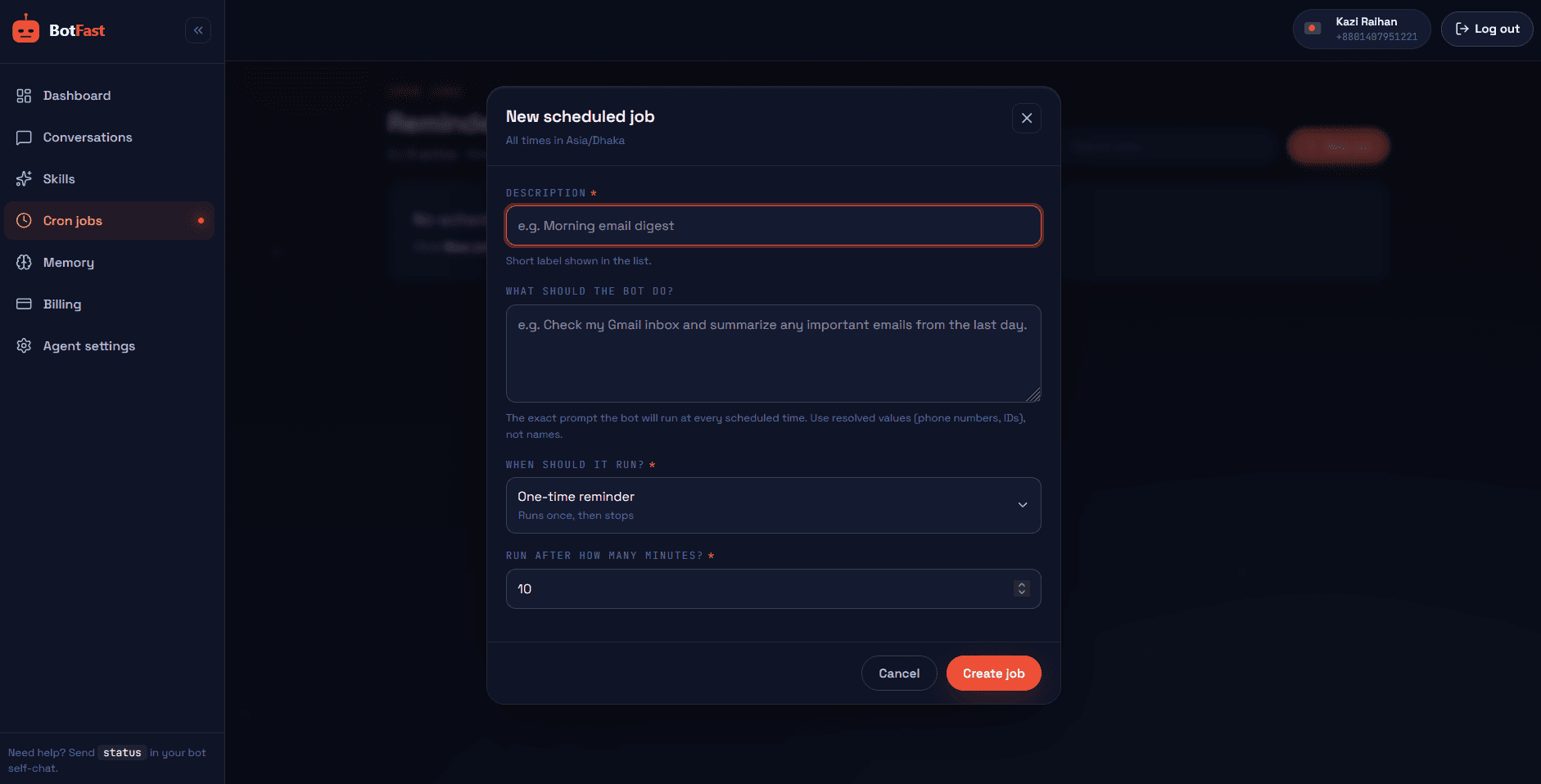
Dashboard → Schedule → New — describe the digest once; it fires daily at your local time
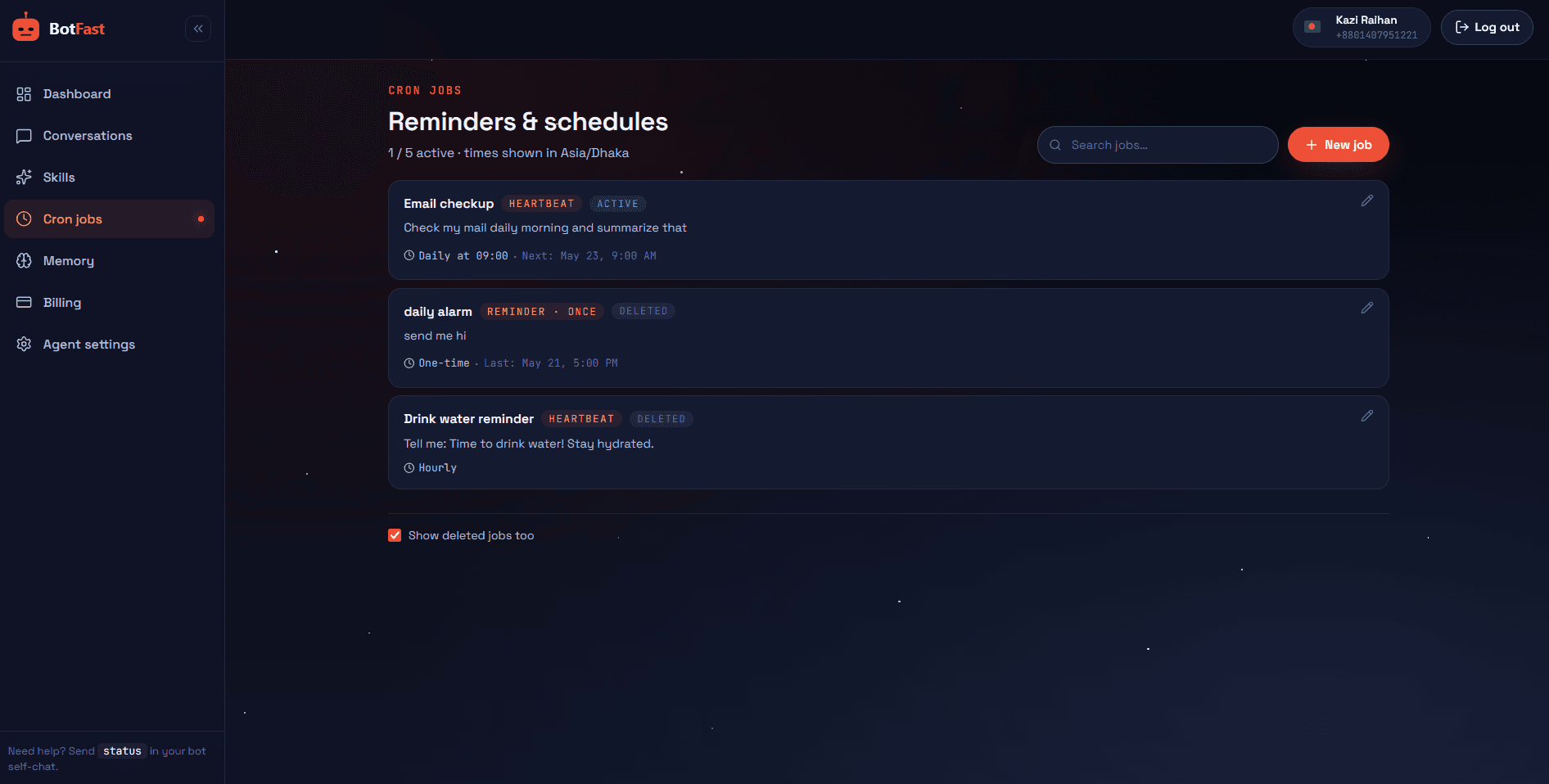
All your digest jobs at a glance — pause one without touching the others
Copy-paste summary skills
Skill 1 goes in the group (on-demand summaries). Skills 2–4 are scheduled jobs — paste them as jobs, not group skills. Adjust names, times, and line limits to taste.
1. On-demand “what did I miss?”
For the group "Product Team":
When anyone @mentions you asking for a summary/catch-up/recap (e.g. "what did I miss", "summarize", "catch me up"):
- Read the recent conversation and produce a digest with these sections, max 12 lines total:
  📌 Topics — the 2-4 things discussed, one line each
  ✅ Decisions — what was actually decided, with who decided
  📋 Actions — "NAME — task (deadline if mentioned)"
  🔗 Links — every link shared, one line each (skip if none)
- Never include greetings, jokes, or reactions in the summary.
- If nothing meaningful happened, say exactly that: "Quiet day — nothing to catch up on 😌" plus any links.
2. Morning digest (scheduled job)
Every day at 9:00am: post to the group "Product Team" a digest titled "☀️ Yesterday in 30 seconds" with sections: Topics (2-4 lines), Decisions, Actions (NAME — task), Links. Max 12 lines total. If the group was quiet, post "☀️ Yesterday: quiet — N messages, nothing needing action." Never exceed the limit; compress instead.3. End-of-day action items (scheduled job)
Every weekday at 6:30pm: post to the group "Product Team" a message titled "📋 Today's open loops" listing every commitment made today in the format "NAME — task (due)". Max 10 lines; if more, prioritize items with deadlines. If none, post "📋 No open loops today. Clean slate 🎉"4. Weekly narrative recap (scheduled job)
Every Friday at 5:00pm: post to the group "Product Team" a weekly recap titled "🗓️ The week that was": 3 short paragraphs max — (1) what we focused on, (2) what got decided/changed, (3) what's still open going into next week. Plain prose, no bullet spam, warm but brief tone. Under 15 lines total.Every group gets its own digest
You do not need one bot per group. The same BotFast assistant — the same linked number, the same subscription — works in every WhatsApp group you are a member of, at the same time: your team group, your customer community, your class group, your family chat.
One bot, every group. Each group gets its own reply mode and its own set of skills, so the very same bot can be a task manager in your team group, a moderator in your community, a receipt logger in your finance group, and a quiet encyclopedia in your class group — all at once, all from your one number. Turn it off in one group and the others are untouched.
| Group | Reply mode | What the same bot does there |
|---|---|---|
| Engineering Team | Skills + mention | Standups, task tracking, deadline reminders |
| Acme Customers | Always reply | FAQ answers, onboarding, escalation to you |
| Finance & Ops | Skills + media analysis | Receipt and bank statement extraction into Sheets |
| Family | Off | Nothing — the bot stays completely silent here |
The full walkthrough of per-group modes, per-group skills, and global group skills is in one AI bot for all your WhatsApp groups.
How to get a WhatsApp group bot (5 steps)
The whole setup takes about two minutes and needs no coding, no Meta business verification, and no group admin approval — your linked number is just a regular member. Here is the exact path from zero to a working group bot.
Step 1 — Enter your phone number at botfast.co
Go to botfast.co and enter the WhatsApp number the bot should run on. This is the number members will see talking in the group — for most people, their own personal or business number.
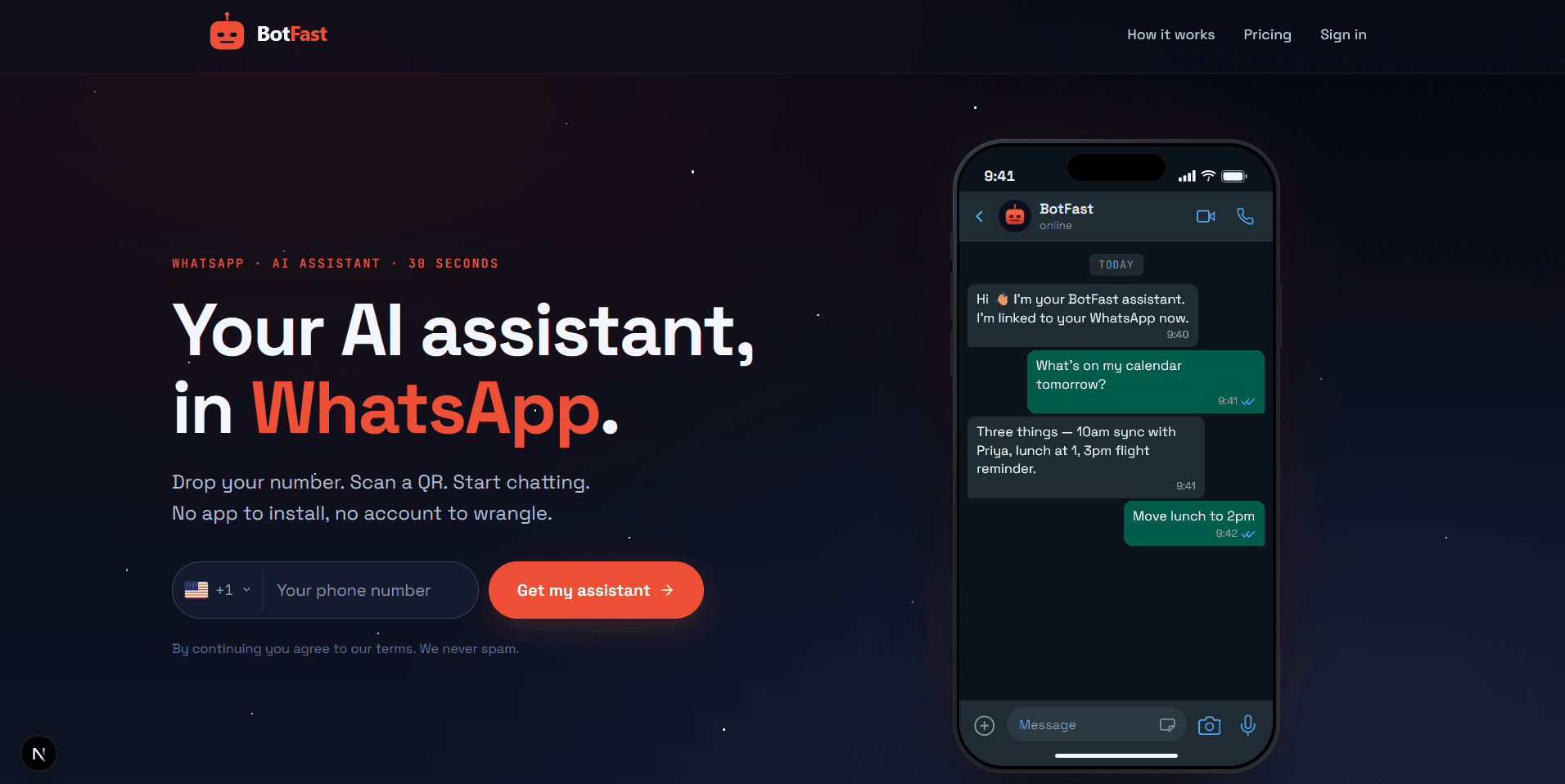
Enter your number on the BotFast homepage — this becomes the number your group bot speaks from
Step 2 — Scan the QR code from WhatsApp Linked Devices
On your phone, open WhatsApp → Settings → Linked Devices → Link a device, and scan the QR code BotFast shows you. That links the bot to your number — the same mechanism WhatsApp Web uses, nothing is installed on your phone and your phone keeps working normally.
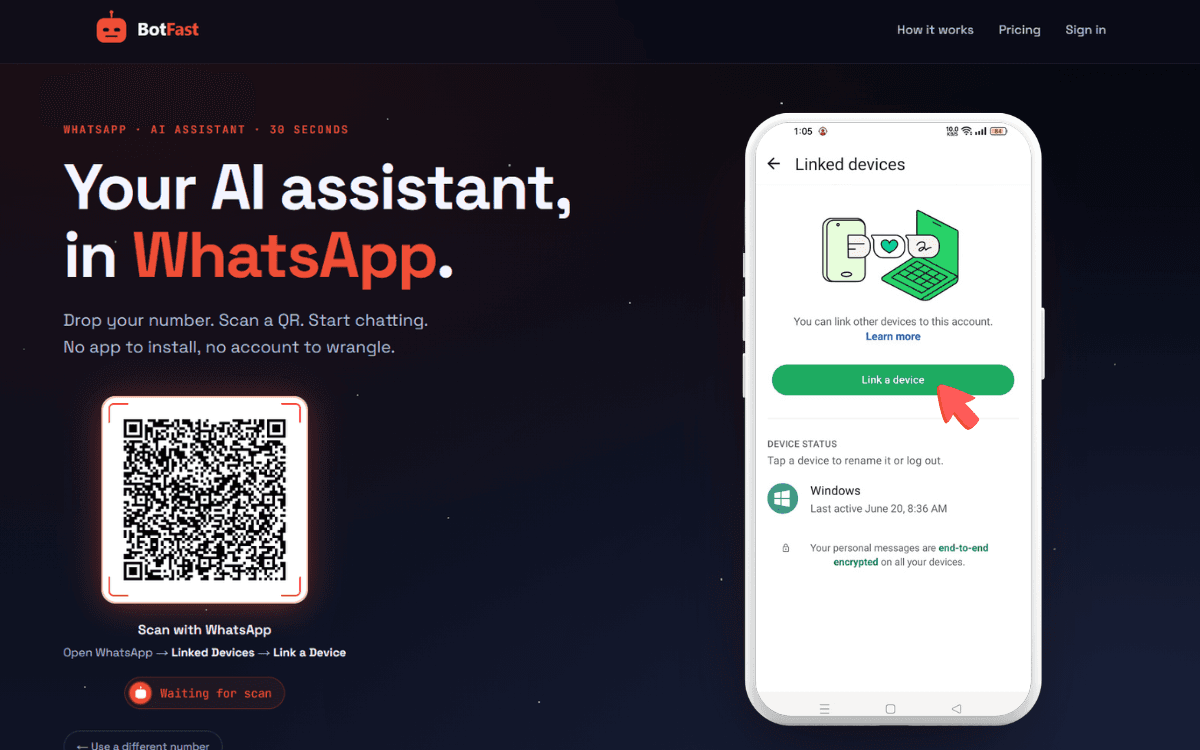
Scan one QR code and the bot is linked to your number — same flow as WhatsApp Web
Step 3 — Send a message in the group
Add your number to the group you want the bot in (via the normal “Add participant” flow — or use a group you are already in), then send any message in that group. The moment a message lands, the group appears on your BotFast dashboard, ready to configure. No admin rights are required.
Step 4 — Enable AI reply for that group
Open the dashboard, go to Conversations, find the group, and open its settings. Switch on AI reply — the default behavior is reply when mentioned: the bot answers only when someone @mentions it or replies to one of its messages. In the same panel you can optionally turn on always reply (for support-style groups) and media analysis (so the bot can read images and documents posted in the group).
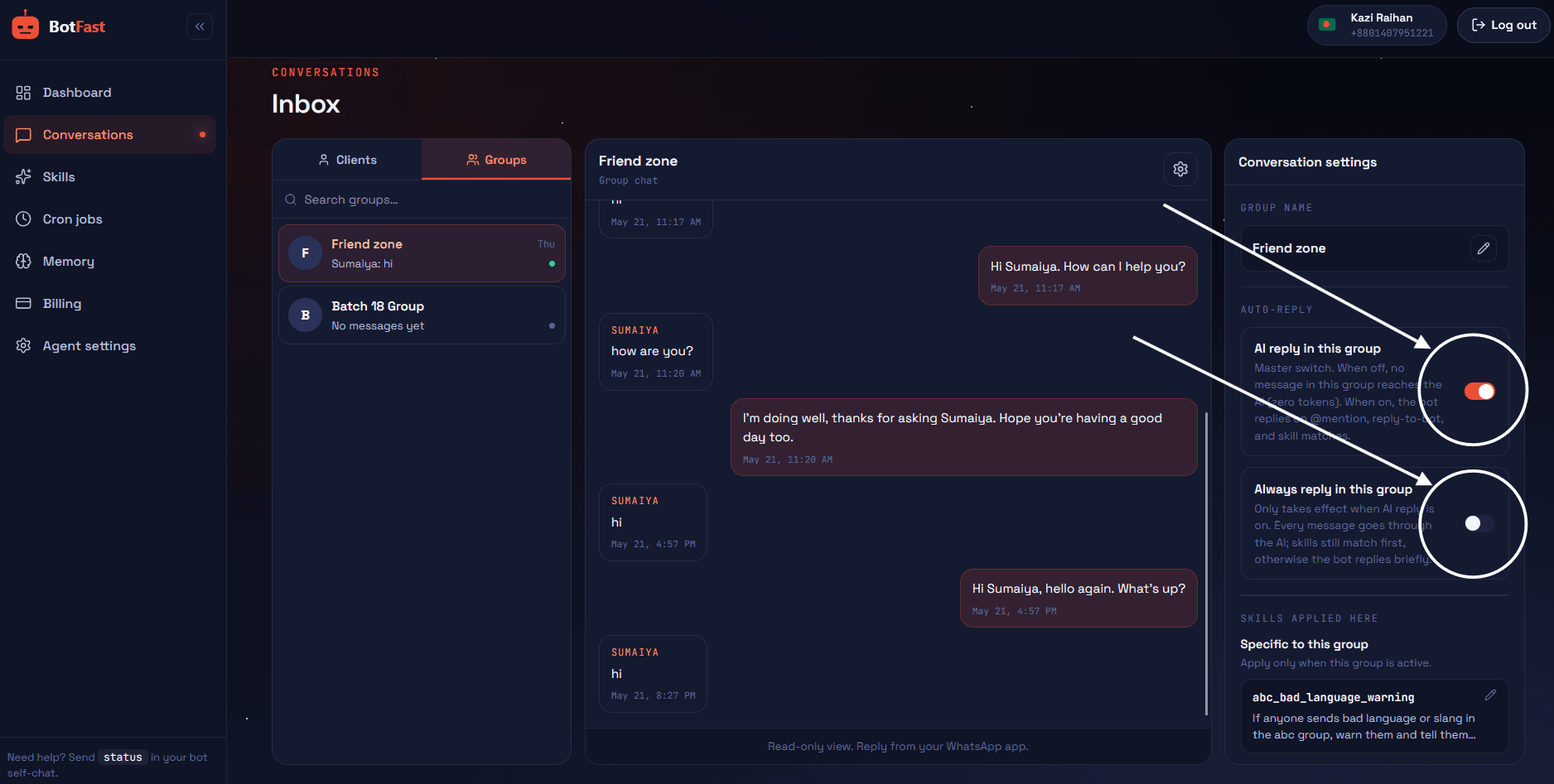
Dashboard → Conversations → your group — enable AI reply (mention mode by default), always-reply, and media analysis here
Step 5 — Create the skill and paste it
For summaries you do step 5 twice: paste skill 1 scoped to the group (on-demand catch-ups), then create the scheduled jobs from skills 2–4 on the dashboard Schedule page (daily/weekly digests). The two mechanisms are independent — you can run either alone.
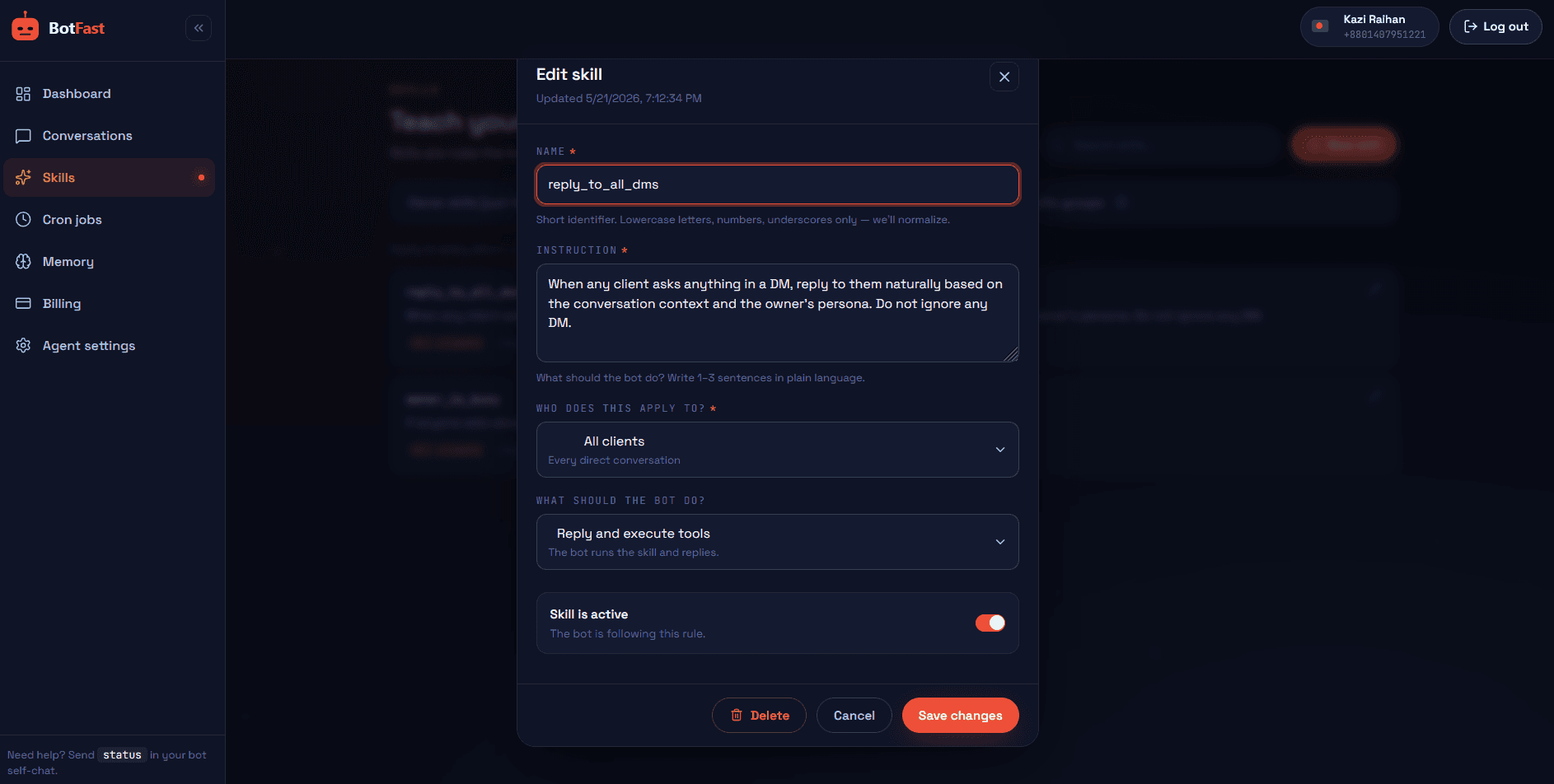
Dashboard → Skills → New — paste the skill, scope it to your group, save. Done
That’s the whole pipeline: number → QR → message → toggle → skill. The bot is now live in the group, from your number, following your instructions.
Choosing the right format per group
| Group type | Recommended digest | Schedule | Why |
|---|---|---|---|
| Small team (<10) | Action items + decisions | Daily 6:30pm | Teams need the loop closed, not the news retold |
| Customer community | Topics + top Q&A | Daily 10am | New members self-serve from the digest; repeat questions drop |
| Learning cohort | Links + session reminders | Daily 9am + pre-session | Resources stop getting lost; attendance rises |
| Family / friends | On-demand only | — | Nobody wants a scheduled newsletter from grandma’s group |
| Client / stakeholder | Weekly narrative | Friday 5pm | Clients want the arc, not the noise — and one message, not thirty |
Notice the pattern: the more the group is “work”, the more structured the digest; the more it’s “social”, the more the bot should wait to be asked. Pair digests with task tracking and the action items stop being a summary and start being a system.
Digests people actually read
- Hard line limits, always. “Max 12 lines” in the skill is what keeps the digest a digest. Without it you’ll get essays.
- Fixed time, same time. A digest that arrives at 9:00:00 daily becomes a habit in a week; one that drifts gets ignored.
- Sections with emoji labels. 📌 ✅ 📋 🔗 scan fast on mobile — perfect for WhatsApp.
- Name owners. “Actions” without names is trivia; “Nadia — invoice (Fri)” is a commitment.
- Let quiet days be quiet. The “nothing to catch up on” branch in the skill keeps the bot honest and the group un-annoyed.
- Announce it once. Tell members they can @mention the bot for a catch-up anytime — that’s the feature they’ll love you for.
Frequently asked questions
Can it summarize voice notes?
Voice notes in groups stay unrouted by default — the digest covers text and captions. Ask members to type decisions and action items (most groups already do once they know the bot is listening).
Can I get the digest as a DM instead of in the group?
Yes — schedule the job to send to your self-chat instead of the group. Some owners run both: a public digest for members, a private one with extra detail.
Does the digest include who said what?
Yes — the bot sees sender names, so action items and quotes carry the right person. Tell it in the skill if you prefer anonymous summaries.
What if the summary is wrong?
Members reply in-thread and the bot corrects itself in one line. A wrong digest is rare, but a correctable one is the difference between a tool and a nuisance.
Can it also translate the digest?
Yes — add “write the digest in English” (or any language) to the skill. Mixed-language groups get a consistent-language digest for free.