
WhatsApp Group Task Management Bot: Assign, Track & Remind Tasks
Run tasks inside WhatsApp groups — assign to members, track done/undone/due, and auto-remind deadlines. Copy-paste skills included. Live in 2 minutes.
Somewhere right now a team lead is scrolling back through 300 WhatsApp messages trying to remember who promised what by Friday. Tasks in WhatsApp groups die in the scroll: someone types “I’ll send the invoice today”, two jokes bury it, and it’s gone.
A WhatsApp group task management bot fixes that. It lives in your team group on your own number, catches every task that gets assigned in conversation, writes it down, nags the right person at the right time, and posts a clean board of done / undone / due whenever anyone asks — or on a schedule, automatically.
Watch the bot in action
What this WhatsApp group bot is capable of
This whole page is built on eight things the BotFast group bot can already do. Every task-management behavior below — assignment, reminders, status boards — is a combination of these primitives with a skill (a standing instruction) on top:
| # | Capability | What it means inside your group |
|---|---|---|
| 1 | Sends from the owner’s number | The bot is linked to your WhatsApp number as a device, so every message it posts comes from your number — not from a foreign bot number or a faceless business account. Members already know and trust the sender. |
| 2 | Replies when mentioned | @mention the bot (or reply to one of its messages) and it answers within seconds — with full context of the conversation around the mention. Everything else, it ignores. |
| 3 | Analyzes images and documents | Turn on media analysis for the group and the bot reads whatever is posted — receipts, invoices, bank statement PDFs, DOCX files, screenshots, photos — then answers questions about it or extracts the data into a table or Google Sheet. |
| 4 | Views every message and reacts | The bot sees the whole conversation, so it follows context instead of answering blind — and it can react to messages with an emoji, like a ✅ on a finished task or a 👍 on a good update. |
| 5 | Keeps quiet in the group | Silence is the default. Unless mentioned, replied to, or tripped by a skill you wrote, the bot says nothing — it never injects itself into conversations uninvited. |
| 6 | Notifies the owner in any case | When something needs a human — an angry member, an overdue task, a spam wave, a question it can’t answer — the bot sends you a private DM instead of cluttering the group. |
| 7 | Add and removes members (if the owner is admin) | If your number is an admin of the group, the bot can add and remove participants on your behalf — ideal for paid communities and team groups where membership changes constantly. |
| 8 | Does anything the owner can do | The bot operates your number, so whatever you can do in a WhatsApp group — send, reply, react, add members, share files — the bot can do too, on your instruction, around the clock. |
Everything else on this page — task boards, deadline reminders, receipt extraction, daily digests — is built from these eight primitives plus group skills: plain-English standing instructions that tell the bot what to watch for and what to do.
What is a WhatsApp group task management bot?
It is an AI assistant linked to your WhatsApp number that behaves like the most reliable project coordinator you know: it never sleeps, never forgets a deadline, and never embarrasses anyone in public. It works entirely inside the group your team already uses — no new app to install, no Trello board nobody opens, no “please also update the tracker”.
Under the hood the bot keeps a real task table (BotFast’s built-in table store, or your Google Sheet if you prefer), and every conversation in the group flows through a skill you wrote — the bot’s standing orders for how tasks are captured, tracked, and reported.
| Who says what | What the bot does | What the group sees |
|---|---|---|
| “@bot assign the pitch deck to Rahim, due Thursday 6pm” | Creates a task row: task, assignee, due date, status=open | “Got it — pitch deck → Rahim, due Thu 6pm ✅” |
| Rahim: “deck done, review please” | Updates the row status → done, notes the review request | “Marked done. Nida, review requested 👀” |
| “@bot what’s due?” | Reads the table, groups by status | A short board: done / in progress / overdue |
| (9:00am, scheduled) | Scans the table for due + overdue | “Today: 2 due, 1 overdue (Rahim — invoice)” |
How task tracking works inside a chat
Chat is messy, so the bot’s job is to translate mess into structure. Every task lives as one row with five fields, and group chatter updates those fields in plain language:
| Field | Example | How it gets filled |
|---|---|---|
| Task | “Send Q3 invoice to Nexus” | From the assignment message |
| Assignee | Rahim | Named in the message; defaults to the sender |
| Due | Thu 18 Sep, 6:00pm | Any human phrasing — “tonight”, “Friday EOD”, “in 3 days” |
| Status | open / in progress / done / overdue | Bot sets open; members flip it by saying done / stuck / started |
| Notes | “waiting on finance for GST number” | Follow-up messages the bot attaches to the task |
Because statuses are just words in the table, the bot can answer status questions the way a person would — “what did Nadia finish this week?” gets a real answer, not a link to a dashboard.
The task lifecycle
| Stage | Trigger | Bot action |
|---|---|---|
| Created | Assignment message or scheduled prompt | Row appended, confirmation posted, assignee tagged |
| In progress | “started”, “on it”, a question about the task | Status updated; questions answered in-thread |
| Blocked | “stuck”, “waiting on…” | Status updated + you get a private DM if it stays blocked |
| Done | “done”, “sent”, ✅ from the assignee | Status flipped, bot reacts ✅ to the message |
| Overdue | Deadline passes with status ≠ done | Appears in the daily due-list post; owner notified |
Deadline reminders that actually fire
A task list nobody reads is just a slower way of forgetting. The bot closes the loop with scheduled posts, in your timezone:
| Schedule | What the bot posts | Why it works |
|---|---|---|
| Every weekday, 9:00am | Due today + overdue, with assignee names | The morning board — nobody has to ask |
| Daily, 6:00pm | What got done today (a real accomplishment list) | Closes the day; great input for standups |
| Friday, 5:00pm | Week status: done count, open count, blockers | Weekly report without anyone writing it |
| On demand | “@bot board” → full status board | Instant answer mid-conversation |
Reminders respect your timezone, so “9am” means 9am where you actually are — not server time. And because the bot reads its own task table right before posting, the reminder is always current, never a stale cron message.
Copy-paste task management skills
Below are the exact skills teams use to turn the bot into a task manager. Skill 1 is the core — start there. Create the tasks table first (dashboard → Tables → New, name it tasks, columns: task, assignee, due, status, notes), then paste the skill scoped to your group.
1. The core task manager
For the group "Project Falcon":
You are the task manager for this group. Watch every message.
- When someone assigns work (e.g. "assign X to NAME by DATE", "NAME please do X by DATE", or "I'll do X by DATE"), append a row to the table "tasks" with task, assignee, due (resolve relative dates like today/tomorrow/Friday to real dates), status "open", and notes empty. Confirm in one short line: task → assignee, due date.
- When the assignee says done/finished/sent/completed about a task, update that row's status to "done" and react to their message with a ✅ emoji. Reply only "Nice, marked done." or similar — never a paragraph.
- When someone says started/on it/working on it, set status to "in progress". When someone says stuck/blocked/waiting on, set status to "blocked" and note what they are waiting for.
- When anyone asks "what's due", "board", "status", or "what's left": read the tasks table and post a compact board with three sections — DONE (last 7 days), IN PROGRESS / UNDONE, OVERDUE (due date passed, not done) — each item as "task — assignee (due date)". Keep the whole board under 15 lines; if longer, show overdue and in progress fully and summarize done as a count.
- A task whose due date has passed and status is not "done" counts as OVERDUE. List it every day until it is done.
- Never invent tasks. If it is unclear who is assigned, ask one short question.
- Outside task duties, stay quiet unless mentioned.
2. The morning deadline reminder (scheduled)
Paste this as a scheduled job (dashboard → Schedule → New, daily 9:00am) — not as a group skill:
Every weekday at 9:00am: read the table "tasks". Post to the group "Project Falcon" a message titled "📋 Today" listing (1) OVERDUE tasks and (2) tasks DUE TODAY, each as "task — assignee (due)". If nothing is due or overdue, post "📋 Today: nothing due. N tasks in progress." Keep it under 10 lines.3. Reply control (keep the bot disciplined)
Task bots drift into chattiness. This skill keeps it focused on coordination only — pair it with skill 1:
For the group "Project Falcon":
Reply-control rules, on top of your task duties:
- Only speak to capture, update, or report tasks — or when explicitly @mentioned.
- Confirmations are ONE line. Boards are compact lists, no decoration, no bold markers.
- Never comment on jokes, greetings, or general chat. Never apologize repeatedly.
- If a message is ambiguous ("we should do this sometime"), do not create a task; ask "Task? who + deadline?" in one line, once.
- If two people argue about a task, stay neutral: restate the task, assignee, and due date, and ask the owner to decide.
4. Personal task assistant for the owner
In my self-chat (this is between you and me, not the group):
When I say "remind the group" plus anything, send that message to the group "Project Falcon" from my number.
When I say "task list", show me the current board from the "tasks" table.
When I say "nag NAME about TASK", post in the group: "NAME — status on TASK? It's due DATE." — friendly tone, no shame.
One bot runs all your groups
You do not need one bot per group. The same BotFast assistant — the same linked number, the same subscription — works in every WhatsApp group you are a member of, at the same time: your team group, your customer community, your class group, your family chat.
One bot, every group. Each group gets its own reply mode and its own set of skills, so the very same bot can be a task manager in your team group, a moderator in your community, a receipt logger in your finance group, and a quiet encyclopedia in your class group — all at once, all from your one number. Turn it off in one group and the others are untouched.
| Group | Reply mode | What the same bot does there |
|---|---|---|
| Engineering Team | Skills + mention | Standups, task tracking, deadline reminders |
| Acme Customers | Always reply | FAQ answers, onboarding, escalation to you |
| Finance & Ops | Skills + media analysis | Receipt and bank statement extraction into Sheets |
| Family | Off | Nothing — the bot stays completely silent here |
The full walkthrough of per-group modes, per-group skills, and global group skills is in one AI bot for all your WhatsApp groups.
How to get a WhatsApp group bot (5 steps)
The whole setup takes about two minutes and needs no coding, no Meta business verification, and no group admin approval — your linked number is just a regular member. Here is the exact path from zero to a working group bot.
Step 1 — Enter your phone number at botfast.co
Go to botfast.co and enter the WhatsApp number the bot should run on. This is the number members will see talking in the group — for most people, their own personal or business number.
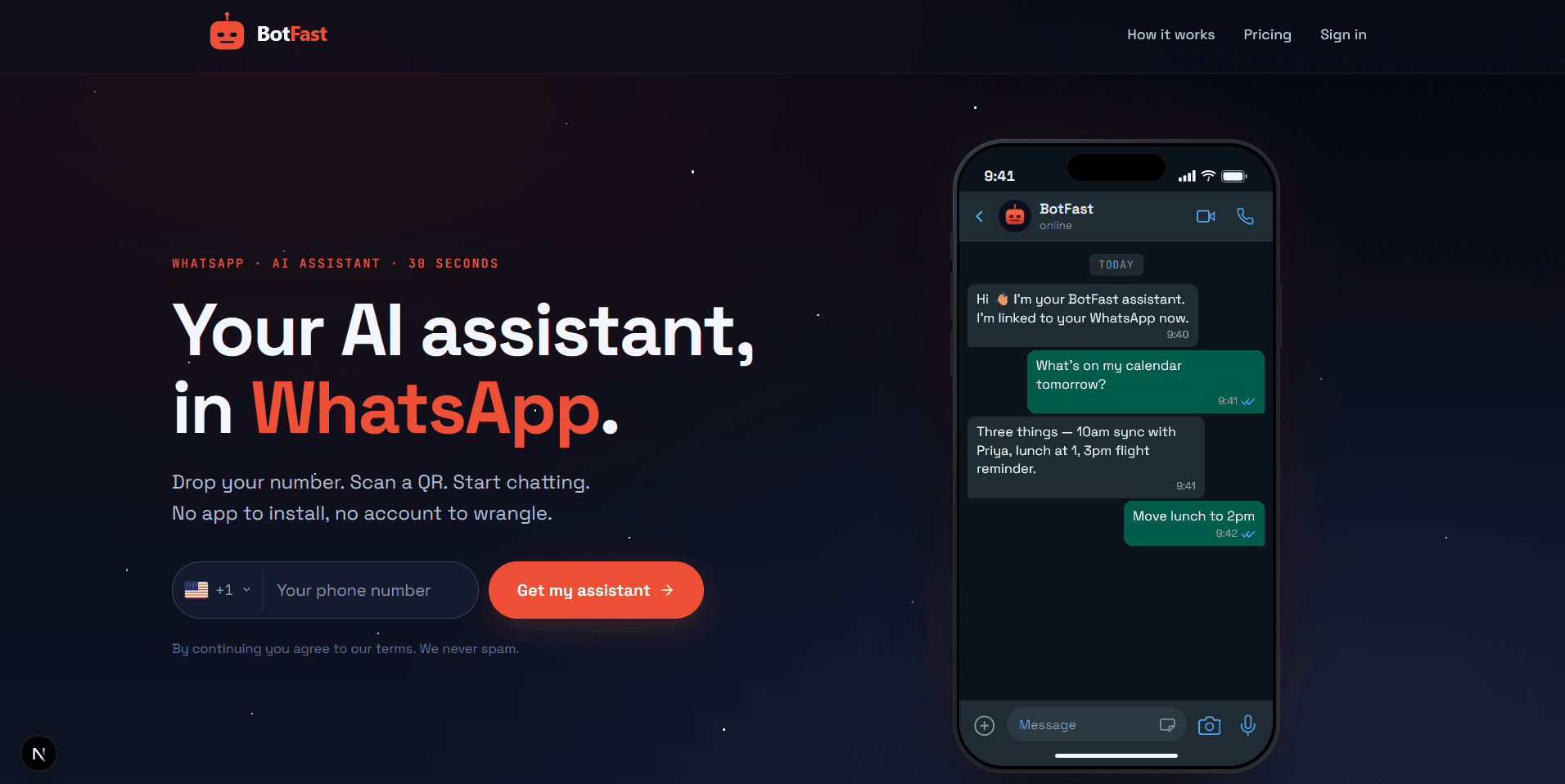
Enter your number on the BotFast homepage — this becomes the number your group bot speaks from
Step 2 — Scan the QR code from WhatsApp Linked Devices
On your phone, open WhatsApp → Settings → Linked Devices → Link a device, and scan the QR code BotFast shows you. That links the bot to your number — the same mechanism WhatsApp Web uses, nothing is installed on your phone and your phone keeps working normally.
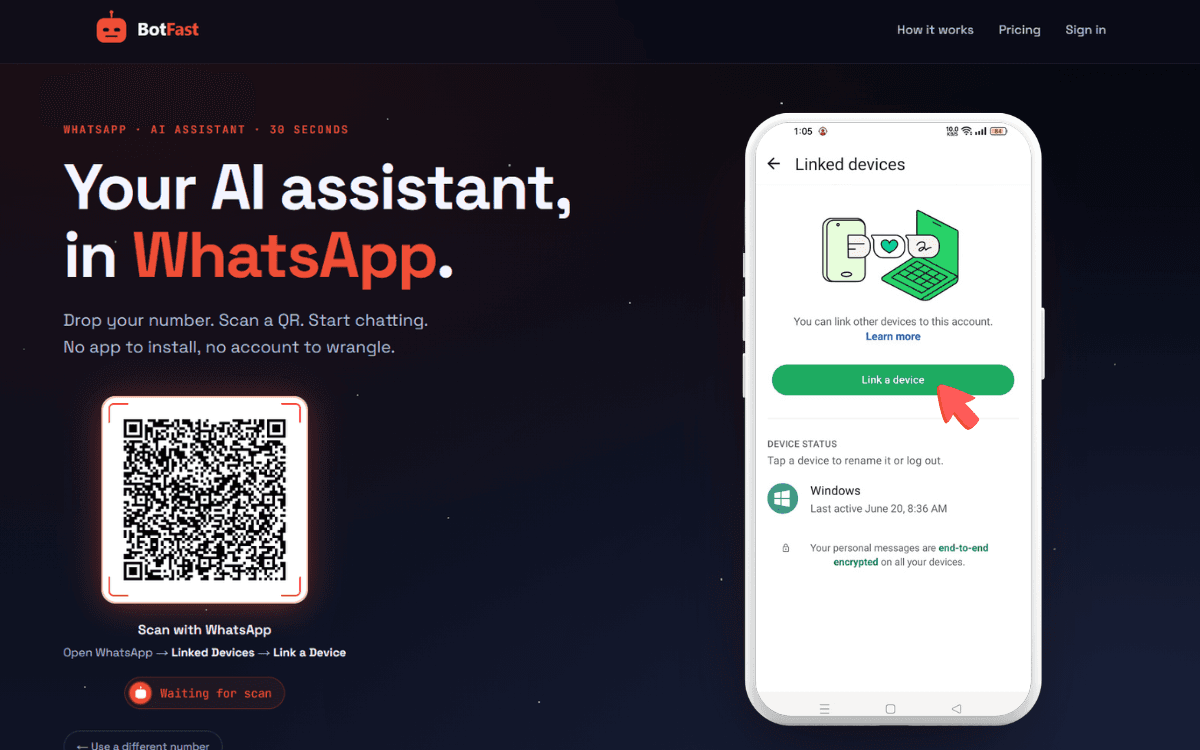
Scan one QR code and the bot is linked to your number — same flow as WhatsApp Web
Step 3 — Send a message in the group
Add your number to the group you want the bot in (via the normal “Add participant” flow — or use a group you are already in), then send any message in that group. The moment a message lands, the group appears on your BotFast dashboard, ready to configure. No admin rights are required.
Step 4 — Enable AI reply for that group
Open the dashboard, go to Conversations, find the group, and open its settings. Switch on AI reply — the default behavior is reply when mentioned: the bot answers only when someone @mentions it or replies to one of its messages. In the same panel you can optionally turn on always reply (for support-style groups) and media analysis (so the bot can read images and documents posted in the group).
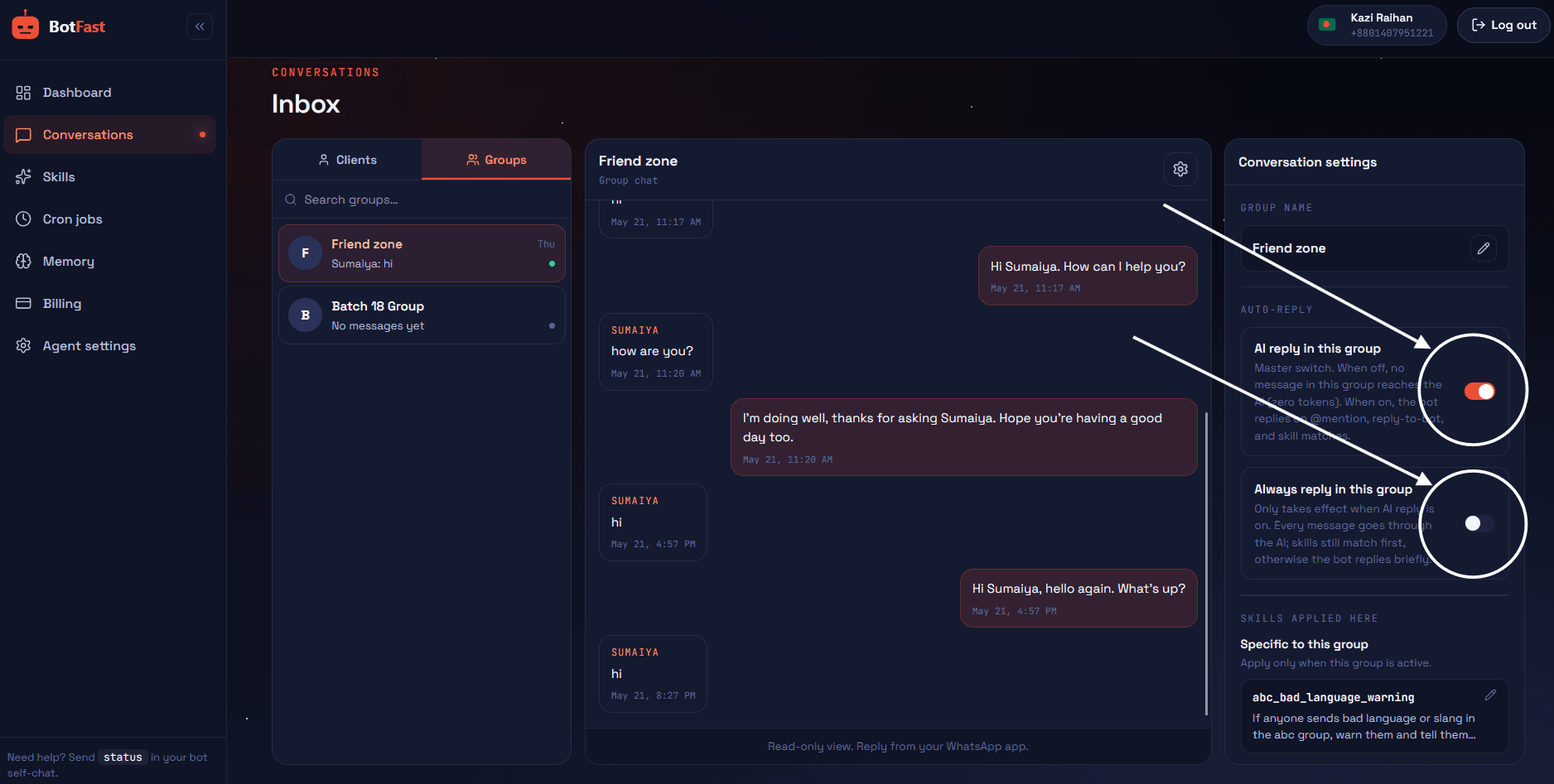
Dashboard → Conversations → your group — enable AI reply (mention mode by default), always-reply, and media analysis here
Step 5 — Create the skill and paste it
For task management specifically, do step 5 twice: first create the "tasks" table on the dashboard Tables page, then paste skill 1 above scoped to your team's group — and add the scheduled reminder from skill 2. After that, assignments in normal chat start landing in the table immediately.
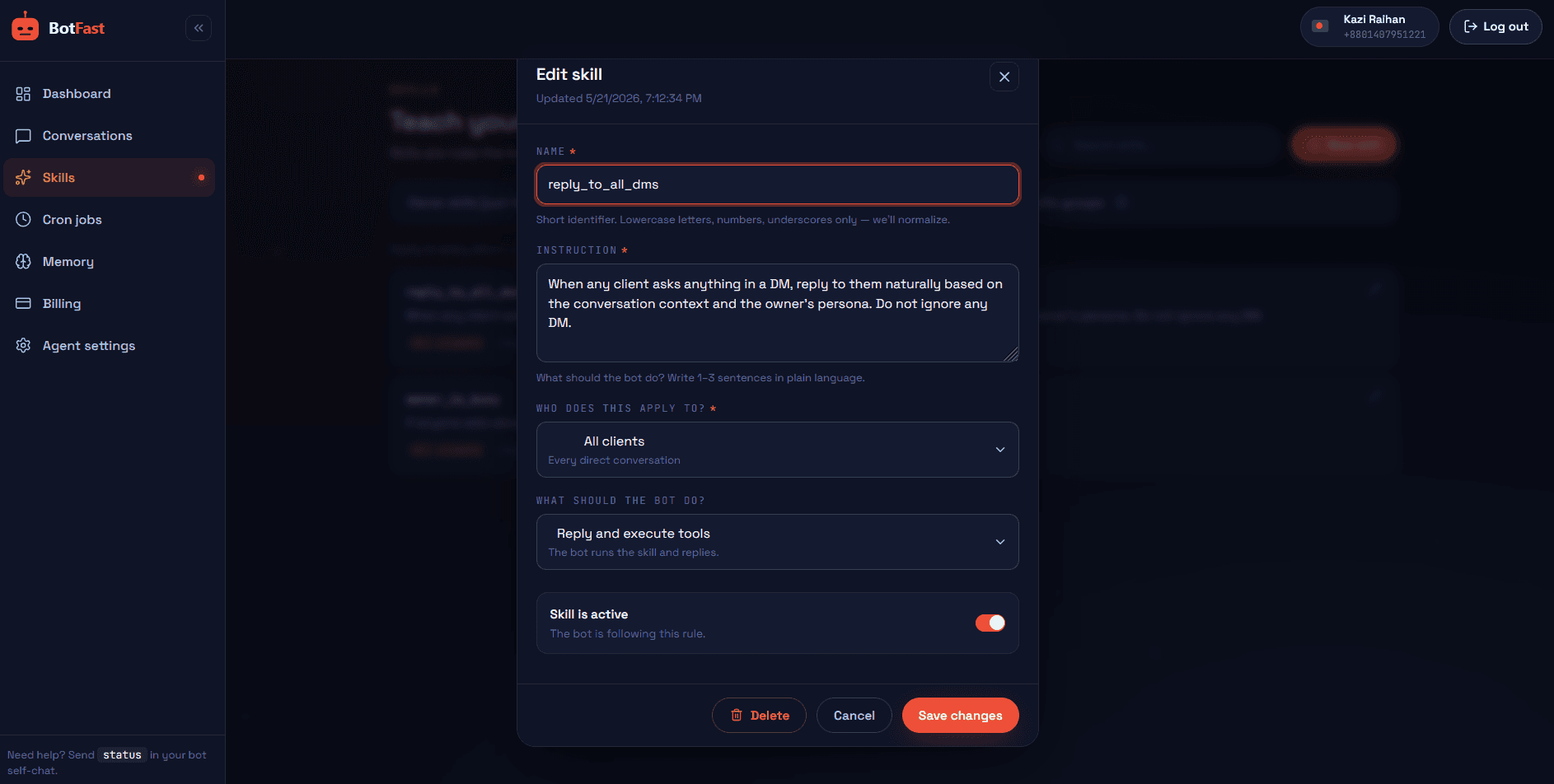
Dashboard → Skills → New — paste the skill, scope it to your group, save. Done
That’s the whole pipeline: number → QR → message → toggle → skill. The bot is now live in the group, from your number, following your instructions.
Group bot vs the usual task tools
| WhatsApp group bot | Spreadsheet in group files | Trello / Asana / ClickUp | |
|---|---|---|---|
| Where work happens | Same chat the team already uses | Chat talks, sheet tracks — two places | Separate app nobody opens daily |
| Capture effort | Zero — just talk, bot listens | Manual row entry | Manual card creation |
| Deadline reminders | Automatic, in-thread, per-person | None (unless someone remembers) | Email/app notifications, often ignored |
| Status questions | Ask in chat, get an answer | Open the file, scroll | Open the board, filter |
| Member onboarding | None — they’re already in the group | Share the file, explain the format | Invite, account, permissions, training |
| Monthly cost | From $9 | Free (and worthless if stale) | $5–$15 per user |
The pattern to notice: every other tool asks the team to change behavior. The group bot changes nothing — it just refuses to forget. For heavier project management you may still keep a real PM tool; the bot becomes the layer that feeds it and nags humans inside WhatsApp. Pair it with automated standups and daily summaries and the group practically runs itself.
Making the tracker stick
- Announce the bot once. Post: “From today the assistant tracks tasks here. Say ‘done’ when you finish — that’s all you have to do.” Adoption doubles when the rule is one sentence.
- One task per message. “Send invoice, chase payment, update CRM” as three lines, not one — the bot records each cleanly.
- Say dates like a human. “by Friday 5pm” works; the bot resolves it. Avoid “soon” — it can’t be tracked.
- Keep the morning post sacred. The 9am due-list is the heartbeat — resist the urge to turn it into a newsletter.
- Let it DM you. Blocked tasks escalate privately; the group stays positive and the bot never publicly shames anyone.
- Review weekly, prune weekly. Ask the bot for the week board every Friday and close zombie tasks — a tracker with 40 stale rows loses trust fast.
Frequently asked questions
Can it manage tasks for multiple groups separately?
Yes — each group gets its own skill and its own task table, and the same bot keeps them strictly separate. Your design team’s board never leaks into the ops group.
What if a member reports “done” but the work is bad?
The bot tracks status, not quality. You (or a reviewer skill) reopen the task by saying “reopen task X — needs fixes” and the status flips back with a note.
Can it assign tasks to people who aren’t in the group?
It can record the name, but reminders only make sense for members. For outsiders, have the bot DM you the handoff — or add them to the group.
Does it work in other languages?
Yes — write the skill in your language and the bot tracks tasks in that language. Date phrasing like “শুক্রবার” or “viernes” resolves the same way.
What happens to the task history?
Every row stays in the table with its full change history available from the dashboard — exportable anytime, and usable for weekly reports and retros.