
WhatsApp Community Bot: Run a Customer Community on Autopilot
Run a customer community on WhatsApp on autopilot — instant FAQ answers, onboarding, feedback collection, and private escalation to you. Skills included.
Customer communities are the best retention channel a small business has — and the most demanding. The group that answers customers at 11pm, explains the same pricing question forty times, and celebrates every win is the group people stay in. But a 400-member community asks 40 questions a day, and you have a business to run.
A WhatsApp community botis the community manager you can’t hire yet. It lives in the group on your number, answers the repeat questions from your actual docs and policies, welcomes every newcomer by name, collects feedback while it’s fresh, and puts the rare sensitive case in your DM instead of on the public timeline. You show up for the human moments; the bot does the other 39 answers.
Watch the setup walkthrough
What this WhatsApp group bot is capable of
A community bot is the group bot at full power — all eight capabilities pull weight here, from always-on answers to private escalation to member management for paid tiers:
| # | Capability | What it means inside your group |
|---|---|---|
| 1 | Sends from the owner’s number | The bot is linked to your WhatsApp number as a device, so every message it posts comes from your number — not from a foreign bot number or a faceless business account. Members already know and trust the sender. |
| 2 | Replies when mentioned | @mention the bot (or reply to one of its messages) and it answers within seconds — with full context of the conversation around the mention. Everything else, it ignores. |
| 3 | Analyzes images and documents | Turn on media analysis for the group and the bot reads whatever is posted — receipts, invoices, bank statement PDFs, DOCX files, screenshots, photos — then answers questions about it or extracts the data into a table or Google Sheet. |
| 4 | Views every message and reacts | The bot sees the whole conversation, so it follows context instead of answering blind — and it can react to messages with an emoji, like a ✅ on a finished task or a 👍 on a good update. |
| 5 | Keeps quiet in the group | Silence is the default. Unless mentioned, replied to, or tripped by a skill you wrote, the bot says nothing — it never injects itself into conversations uninvited. |
| 6 | Notifies the owner in any case | When something needs a human — an angry member, an overdue task, a spam wave, a question it can’t answer — the bot sends you a private DM instead of cluttering the group. |
| 7 | Add and removes members (if the owner is admin) | If your number is an admin of the group, the bot can add and remove participants on your behalf — ideal for paid communities and team groups where membership changes constantly. |
| 8 | Does anything the owner can do | The bot operates your number, so whatever you can do in a WhatsApp group — send, reply, react, add members, share files — the bot can do too, on your instruction, around the clock. |
Everything else on this page — task boards, deadline reminders, receipt extraction, daily digests — is built from these eight primitives plus group skills: plain-English standing instructions that tell the bot what to watch for and what to do.
The five jobs of a community bot
| Job | What it looks like | Why members care |
|---|---|---|
| Answer repeat questions | Pricing, refund policy, “where’s the recording” — answered in seconds, every time, consistently | No waiting for the founder to wake up |
| Welcome & onboard | Every new member greeted, oriented, prompted to intro | Day-one belonging — lurkers never engage |
| Collect feedback | “What’s blocking you?” threads logged to a sheet/table | Members see their input turn into roadmap items |
| Announce | Scheduled posts: events, releases, weekly wins | The group has a pulse even on your busy weeks |
| Escalate | Complaints, bugs, refunds → your DM with context | Sensitive stuff gets a human, fast, privately |
The triage matrix: bot vs you
The single most important design decision for a community bot is what it answers versus what it escalates. A good starting matrix:
| Member message | Bot action | You do |
|---|---|---|
| “How much is the pro plan?” | Answer from FAQ + link | Nothing |
| “Is feature X included?” | Answer if in docs; otherwise say “checking” + DM you | Reply once; bot learns if you update the skill |
| “This is broken!!” | Empathize, ask for one detail, DM you the thread | Pick it up privately same day |
| “I want a refund” | Never negotiates publicly — DMs you with the case | Handle per policy |
| “Anyone else love this?” | Stays out of it (or reacts ❤️) | Be the human voice in your own community |
| Spam / promo links | Warns once, DMs you | Remove if repeated (see moderation) |
The 80/20 of community bots: the bot handles the questions whose answers never change; you handle everything where judgment, empathy, or policy discretion matters. When members feel the bot knows its lane, they trust both voices.
Copy-paste community skills
Skill 1 is the FAQ engine — replace the placeholder answers with your real ones (the more real answers you paste, the better it gets). Skills 2–4 cover feedback, announcements, and tone. All scoped to the community group.
1. Community FAQ engine
For the group "Acme Customers":
Answer member questions from this knowledge base:
- Pricing: starter $9 (5k credits), pro $30 (25k), business $99 (100k). Annual discounts: none currently.
- Refunds: 14-day money-back, no questions asked. Refund requests are escalated to the owner — never discuss specifics publicly.
- Recordings: all live sessions are posted within 24h in the pinned message; ask me "recordings" for the link.
- Setup help: the getting-started guide is at docs.acme.co/start; common fixes: reinstall the app, re-scan the QR.
- Feature requests: log them (see below), never promise dates.
Rules:
- Reply in under 5 lines, always include the exact link if one exists.
- If a question is not covered above: say "Good question — flagging to the team 👍" and DM the owner the question + who asked.
- Never guess prices, dates, or policies. Never say "I think".
- Complaints or refund talk: one empathetic line publicly ("sorry about that — the team is on it"), then DM the owner the full context. Do not negotiate publicly.
2. Feedback collector
For the group "Acme Customers":
When a member shares feedback, a feature request, or a pain point (e.g. "I wish it could...", "the export is slow", "love the new X"):
- Append a row to the table "feedback" (columns: date, member, type [request/pain/praise], text).
- React to their message with 👂 and reply ONE line: "Logged — the team reviews these weekly."
- Do not debate the feedback or promise anything.
- Every Friday, if the owner says "feedback digest", post the week's feedback grouped by type with counts (no member names for pain points).
3. Announcement ritual
For the group "Acme Customers":
- Every Monday 10am: post "☀️ This week in Acme" — one line on what's shipping, one line on the live session (day/time), one question to the group to spark chat.
- Never invent roadmap items: Monday's post content comes from what the owner DM'd you during the week (if nothing, post a light community question instead and skip the shipping line).
- 15 minutes before live sessions: post the link + today's topic.
4. Voice & tone guard
For the group "Acme Customers":
Tone rules for everything you post:
- Warm, plain, short. No corporate voice, no "valued customer", no bold-marked lists.
- You're a friendly teammate who knows everything about the product — not support staff.
- Celebrate wins: when a member shares a success, react with 🎉 and say one genuine line.
- When you don't know: say it. "Not sure — I'll ask the team" builds more trust than a confident wrong answer.
- Never @mention members who didn't ask. Never DM members unless they asked you to.
Free, paid, and beta groups — one bot
You do not need one bot per group. The same BotFast assistant — the same linked number, the same subscription — works in every WhatsApp group you are a member of, at the same time: your team group, your customer community, your class group, your family chat.
One bot, every group. Each group gets its own reply mode and its own set of skills, so the very same bot can be a task manager in your team group, a moderator in your community, a receipt logger in your finance group, and a quiet encyclopedia in your class group — all at once, all from your one number. Turn it off in one group and the others are untouched.
| Group | Reply mode | What the same bot does there |
|---|---|---|
| Engineering Team | Skills + mention | Standups, task tracking, deadline reminders |
| Acme Customers | Always reply | FAQ answers, onboarding, escalation to you |
| Finance & Ops | Skills + media analysis | Receipt and bank statement extraction into Sheets |
| Family | Off | Nothing — the bot stays completely silent here |
The full walkthrough of per-group modes, per-group skills, and global group skills is in one AI bot for all your WhatsApp groups.
How to get a WhatsApp group bot (5 steps)
The whole setup takes about two minutes and needs no coding, no Meta business verification, and no group admin approval — your linked number is just a regular member. Here is the exact path from zero to a working group bot.
Step 1 — Enter your phone number at botfast.co
Go to botfast.co and enter the WhatsApp number the bot should run on. This is the number members will see talking in the group — for most people, their own personal or business number.
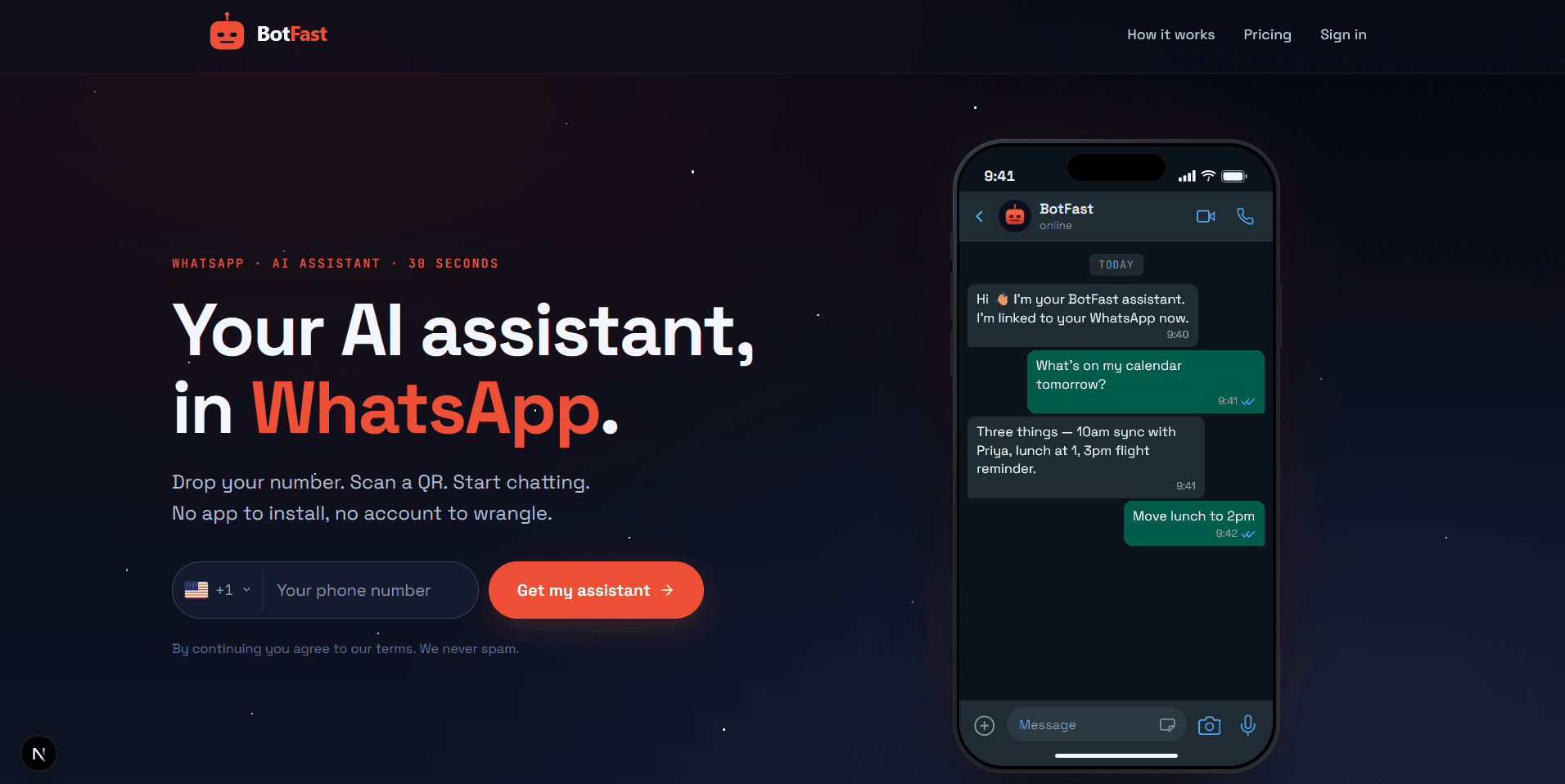
Enter your number on the BotFast homepage — this becomes the number your group bot speaks from
Step 2 — Scan the QR code from WhatsApp Linked Devices
On your phone, open WhatsApp → Settings → Linked Devices → Link a device, and scan the QR code BotFast shows you. That links the bot to your number — the same mechanism WhatsApp Web uses, nothing is installed on your phone and your phone keeps working normally.
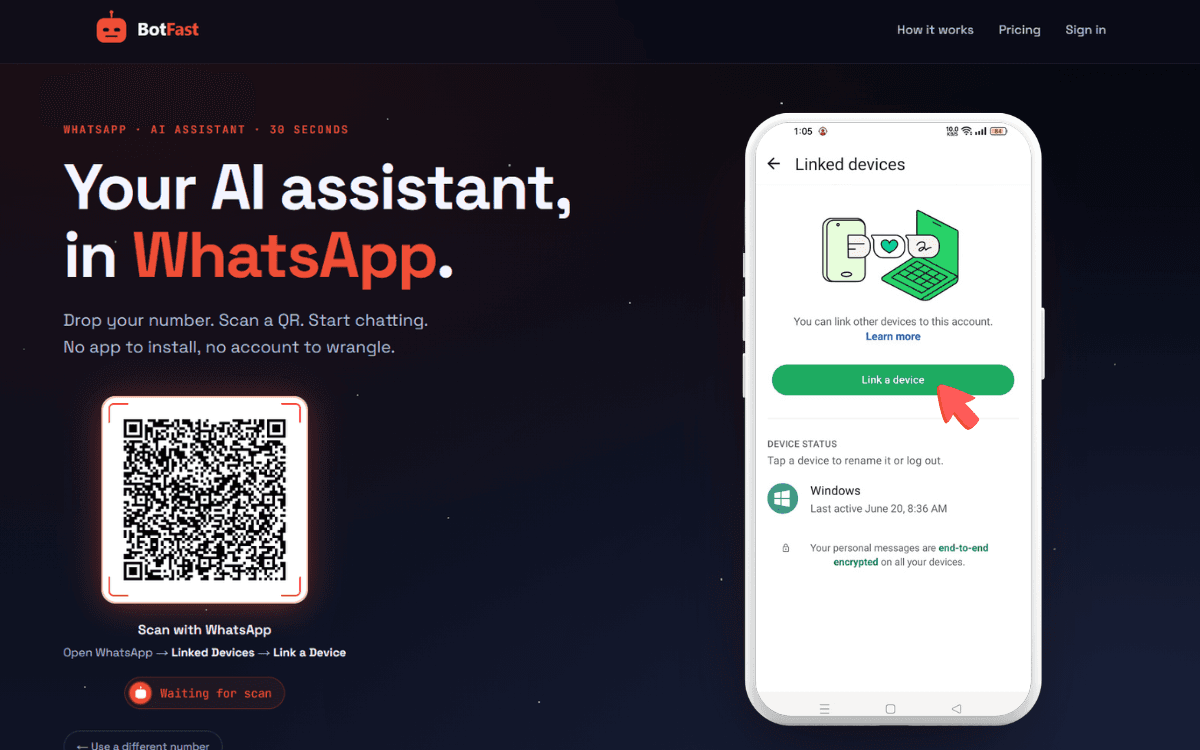
Scan one QR code and the bot is linked to your number — same flow as WhatsApp Web
Step 3 — Send a message in the group
Add your number to the group you want the bot in (via the normal “Add participant” flow — or use a group you are already in), then send any message in that group. The moment a message lands, the group appears on your BotFast dashboard, ready to configure. No admin rights are required.
Step 4 — Enable AI reply for that group
Open the dashboard, go to Conversations, find the group, and open its settings. Switch on AI reply — the default behavior is reply when mentioned: the bot answers only when someone @mentions it or replies to one of its messages. In the same panel you can optionally turn on always reply (for support-style groups) and media analysis (so the bot can read images and documents posted in the group).
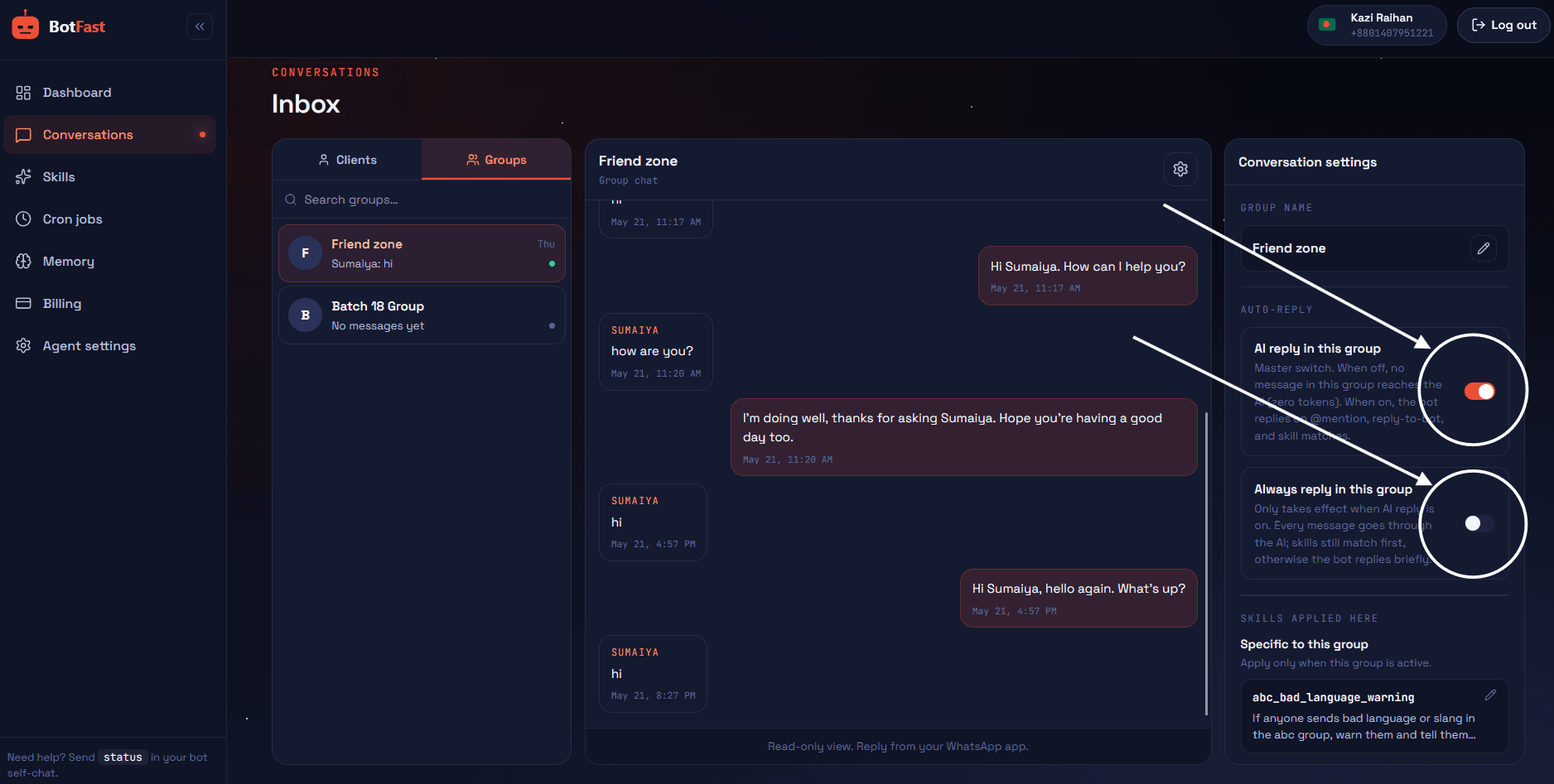
Dashboard → Conversations → your group — enable AI reply (mention mode by default), always-reply, and media analysis here
Step 5 — Create the skill and paste it
For communities, choose your reply mode deliberately in step 4: support-style groups often do best in "always reply" mode so every question gets an instant answer — quieter communities prefer mention mode. Then paste skill 1 with YOUR real answers filled in.
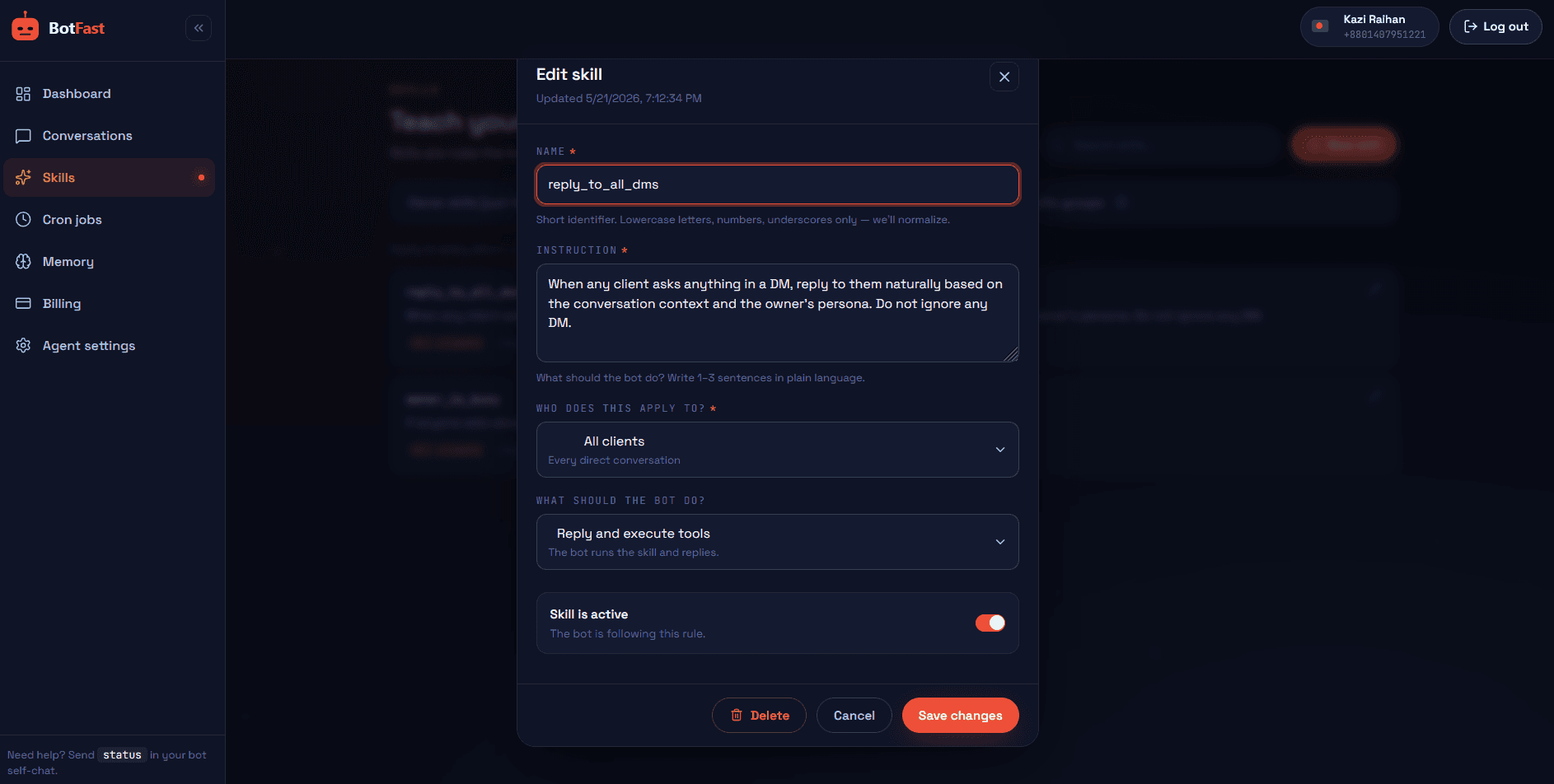
Dashboard → Skills → New — paste the skill, scope it to your group, save. Done
That’s the whole pipeline: number → QR → message → toggle → skill. The bot is now live in the group, from your number, following your instructions.
Measuring whether it’s working
| Metric | How to get it | Healthy signal |
|---|---|---|
| Questions answered by bot | Ask the bot weekly: “count FAQs answered this week” (log them to a table in the skill) | Rising — and your DMs falling |
| Response time | Bot replies in seconds, 24/7 — compare to your old human median | Minutes → seconds |
| Escalation rate | Escalations ÷ total questions | 10–20%; higher means the FAQ skill needs more answers |
| New-member intros | Count via the welcome skill’s follow-up | >50% of joiners post within 48h |
| Feedback volume | Rows in the feedback table | Steady — drops when the welcome flow breaks |
| Retention proxy | Weekly active members vs member count | More actives than before the bot |
The compounding effect to watch: every escalation you answer becomes a new FAQ entry in the skill, so the same question never needs you twice. Communities that maintain this loop report the bot answering 80%+ of routine questions within a couple of months.
Community rules that hold up at scale
- Introduce the bot in your own voice. One founder post: “My assistant answers common questions here instantly — I still read everything and jump in on the hard stuff.” Sets expectations for both voices.
- Keep the FAQ skill alive. Spend 10 minutes a week moving DM’d answers into the skill — it’s the difference between a bot that plateaus and one that compounds.
- Pin the essentials. Recording links, schedule, and “ask the bot anything” in the welcome — the bot’s answers and the pinned info must agree.
- Stay the celebrant-in-chief. Wins, welcomes, and Monday posts should still feel like you. Let the bot be the encyclopedia, not the personality.
- Gate paid tiers with membership skills. With admin rights the bot can add paying members and remove refunds automatically — the group management guide covers the exact pattern.
Frequently asked questions
Should the bot reply to every message in a community?
For dedicated support communities, yes — always-reply mode works. For mixed social/support groups, keep mention mode and give the FAQ skill permission to answer matching questions even without a mention.
How does it know my product’s answers?
Because you pasted them into the FAQ skill. The bot never invents policy — it answers from your knowledge base or escalates. That’s deliberate: a wrong refund promise costs more than a slow answer.
Can it post images and files?
Yes — it can share links, docs, and media from your Drive on request (“send the setup guide”), which covers most community resource needs.
What about DMs to the bot from members?
Members chat with your number — configure a DM skill for simple intake, but sensitive DMs (refunds, complaints) still route to you. Most communities do everything in-group for the shared-knowledge effect.
Does this replace a support desk?
For a small business, mostly. For 1:1 ticketing outside the group, pair it with the customer support bot patterns — same bot, DM side.