
WhatsApp Standup Bot: Async Daily Standups in Your Team Group
Run async daily standups in your team's WhatsApp group — the bot posts the prompt, collects updates, and summarizes. No meeting, no app. Skills included.
Remote teams that live in WhatsApp have a standup problem. The meeting version wastes everyone’s morning; the “type your update” version dies in a week because nobody wants to be the person who formats a three-part status message into a group chat — and nobody wants to read nine of them either.
A WhatsApp standup bot runs the ritual for you. It posts the prompt every morning, quietly collects the updates as they arrive, nudges the people who went quiet, and at cutoff posts oneconsolidated standup — everyone’s yesterday, today, and blockers in a single scannable message. Async, automatic, in the chat your team already has open.
Watch the setup walkthrough
What this WhatsApp group bot is capable of
A standup bot is the group bot wearing its coordination hat — capabilities 2, 4, 5 and 6 do the work: it watches every reply, answers when addressed, never rambles, and escalates blockers to you privately:
| # | Capability | What it means inside your group |
|---|---|---|
| 1 | Sends from the owner’s number | The bot is linked to your WhatsApp number as a device, so every message it posts comes from your number — not from a foreign bot number or a faceless business account. Members already know and trust the sender. |
| 2 | Replies when mentioned | @mention the bot (or reply to one of its messages) and it answers within seconds — with full context of the conversation around the mention. Everything else, it ignores. |
| 3 | Analyzes images and documents | Turn on media analysis for the group and the bot reads whatever is posted — receipts, invoices, bank statement PDFs, DOCX files, screenshots, photos — then answers questions about it or extracts the data into a table or Google Sheet. |
| 4 | Views every message and reacts | The bot sees the whole conversation, so it follows context instead of answering blind — and it can react to messages with an emoji, like a ✅ on a finished task or a 👍 on a good update. |
| 5 | Keeps quiet in the group | Silence is the default. Unless mentioned, replied to, or tripped by a skill you wrote, the bot says nothing — it never injects itself into conversations uninvited. |
| 6 | Notifies the owner in any case | When something needs a human — an angry member, an overdue task, a spam wave, a question it can’t answer — the bot sends you a private DM instead of cluttering the group. |
| 7 | Add and removes members (if the owner is admin) | If your number is an admin of the group, the bot can add and remove participants on your behalf — ideal for paid communities and team groups where membership changes constantly. |
| 8 | Does anything the owner can do | The bot operates your number, so whatever you can do in a WhatsApp group — send, reply, react, add members, share files — the bot can do too, on your instruction, around the clock. |
Everything else on this page — task boards, deadline reminders, receipt extraction, daily digests — is built from these eight primitives plus group skills: plain-English standing instructions that tell the bot what to watch for and what to do.
The anatomy of a bot-run standup
The whole flow fits in a table — this is literally what your group will look like at 10:02am:
| Time | Who | Message |
|---|---|---|
| 9:30 | Bot | “Morning! ☀️ Drop your standup: yesterday / today / blockers. I’ll summarize at 10:30.” |
| 9:38 | Nadia | “finished the pricing page, today: checkout API, no blockers” |
| 9:41 | Rahim | “shipped v1.2 yesterday, today: bug hunt, waiting on staging creds” |
| 10:25 | Bot | “Still waiting on: Karim 👀” (one gentle nudge) |
| 10:30 | Bot | Today’s standup — Nadia: pricing ✅ → checkout API. Rahim: v1.2 ✅ → bug hunt, 🚧 staging creds. Karim: —. One blocker open (see DM, owner). |
| 10:31 | Bot → you (DM) | “Rahim blocked on staging creds — 2nd day. Karim skipped standup (3rd time this week).” |
Notice what the bot did notdo: it didn’t reply to each update, didn’t comment on the work, didn’t post nine acknowledgments. Collect, nudge once, summarize once, escalate privately. That’s the entire job.
Why async standups beat the meeting
| Live standup meeting | Manual “type it” | Bot-run async | |
|---|---|---|---|
| Time cost / person | 15 min, same slot for all | 5 min + reading 9 updates | 2 min, whenever you start your day |
| Timezone friendly | No | Sort of | Yes — answers roll in as people wake |
| Accountability | Social pressure | Fades by week 2 | Skips tracked, nudge automated |
| Who reads it all | Everyone listens | Nobody (9 walls of text) | One summary, 10 lines |
| Blockers surfaced | Mentioned, then forgotten | Buried | Escalated to owner same morning |
| Paper trail | None | Chat scroll | Standup table + daily summaries |
Copy-paste standup skills
Skill 1 is the collector (group skill). Skills 2–3 are scheduled jobs. Skill 4 adds the tracking layer for teams that want the data, not just the ritual. Adjust names, times, and cutoffs to your team.
1. The standup collector
For the group "Engineering":
You run the team's async standup.
- Every day between 9:30am and 10:30am, when members post updates (in any format — "did X, doing Y, blocked on Z"), ACKNOWLEDGE NOTHING individually. Silently note each person's: done-yesterday, doing-today, blockers.
- If someone posts a blocker, do not solve it in the group unless asked; add it to the summary and DM the owner with "BLOCKER: name — detail".
- At 10:30am (cutoff), post ONE consolidated message titled "📋 Today's standup": one line per member in the format "Name: yesterday-result → today-focus" and a "🚧 Blockers" section at the end (or "No blockers 🎉"). Max 12 lines; if more members, compress to name + today-focus only.
- People who posted nothing get "—" as their line and appear in the owner's DM as "no update: names".
- After the summary, go quiet until tomorrow. Answer questions only if @mentioned.
2. Morning prompt (scheduled job)
Every weekday at 9:30am: send to the group "Engineering": "Morning! ☀️ Drop your standup — yesterday / today / blockers. Summary at 10:30." Vary the emoji occasionally so it doesn't feel robotic. Nothing else.3. Cutoff nudge + summary (scheduled job)
Every weekday at 10:25am: send to the group "Engineering" one line: "Standup closing in 5 — still waiting on: [names who haven't posted today]". If everyone has posted, send nothing.4. Standup tracking (add-on)
For the group "Engineering":
Also log standups: each member's update appends a row to the table "standups" (columns: date, name, yesterday, today, blockers). When the owner says "standup report", show the last 2 weeks: updates per member, skips per member, and all blockers that stayed open more than a day. Present it as a compact table, most-recent first.
Teams running skill 4 for a month get something no standup meeting ever produced: evidence. Who’s consistently blocked, which blocker has lived for a week, whose estimates match their yesterdays. Feed the same table into your task tracking and the standup becomes the intake, not a second system.
Standups for every squad, one bot
You do not need one bot per group. The same BotFast assistant — the same linked number, the same subscription — works in every WhatsApp group you are a member of, at the same time: your team group, your customer community, your class group, your family chat.
One bot, every group. Each group gets its own reply mode and its own set of skills, so the very same bot can be a task manager in your team group, a moderator in your community, a receipt logger in your finance group, and a quiet encyclopedia in your class group — all at once, all from your one number. Turn it off in one group and the others are untouched.
| Group | Reply mode | What the same bot does there |
|---|---|---|
| Engineering Team | Skills + mention | Standups, task tracking, deadline reminders |
| Acme Customers | Always reply | FAQ answers, onboarding, escalation to you |
| Finance & Ops | Skills + media analysis | Receipt and bank statement extraction into Sheets |
| Family | Off | Nothing — the bot stays completely silent here |
The full walkthrough of per-group modes, per-group skills, and global group skills is in one AI bot for all your WhatsApp groups.
How to get a WhatsApp group bot (5 steps)
The whole setup takes about two minutes and needs no coding, no Meta business verification, and no group admin approval — your linked number is just a regular member. Here is the exact path from zero to a working group bot.
Step 1 — Enter your phone number at botfast.co
Go to botfast.co and enter the WhatsApp number the bot should run on. This is the number members will see talking in the group — for most people, their own personal or business number.
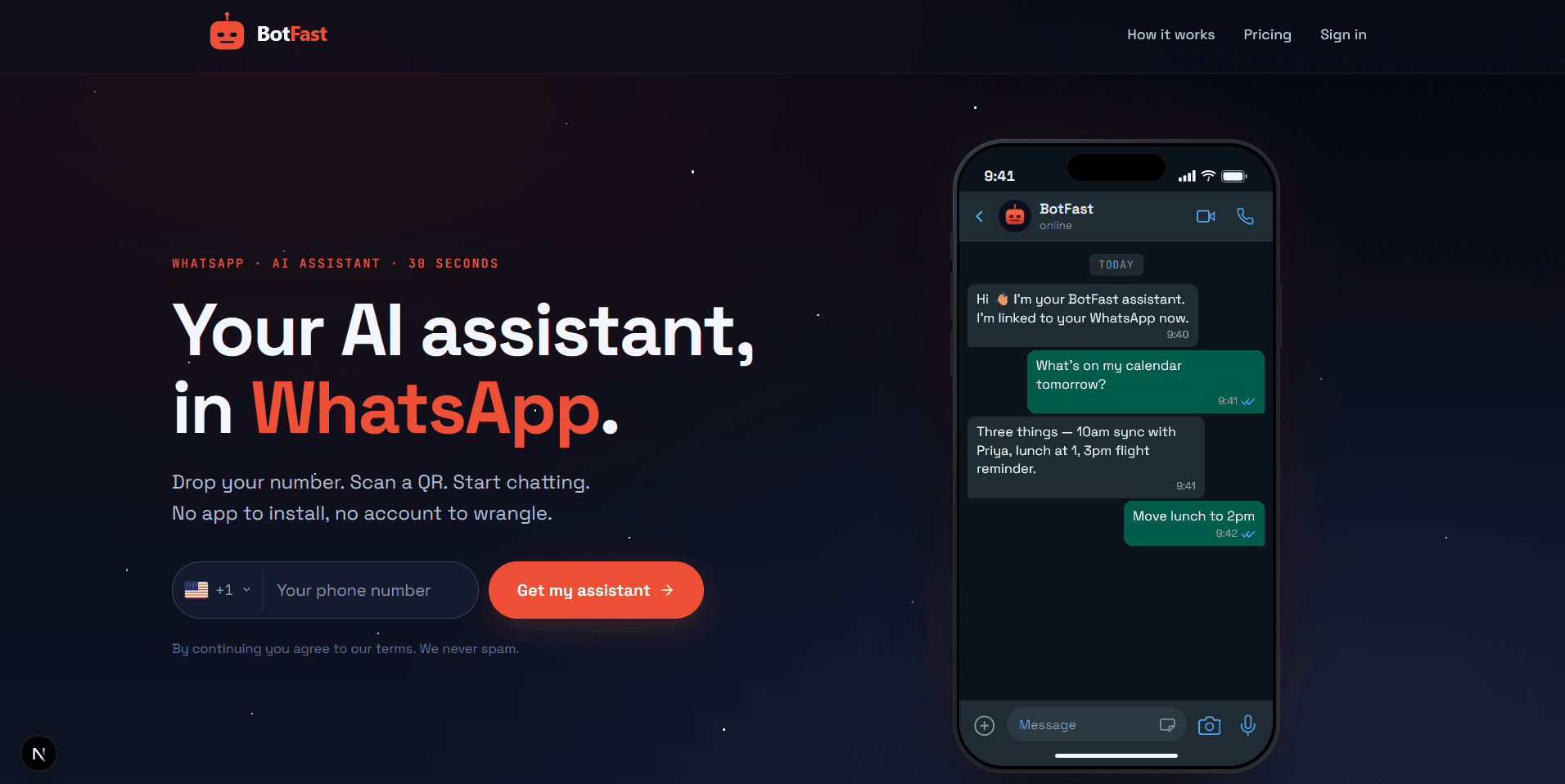
Enter your number on the BotFast homepage — this becomes the number your group bot speaks from
Step 2 — Scan the QR code from WhatsApp Linked Devices
On your phone, open WhatsApp → Settings → Linked Devices → Link a device, and scan the QR code BotFast shows you. That links the bot to your number — the same mechanism WhatsApp Web uses, nothing is installed on your phone and your phone keeps working normally.
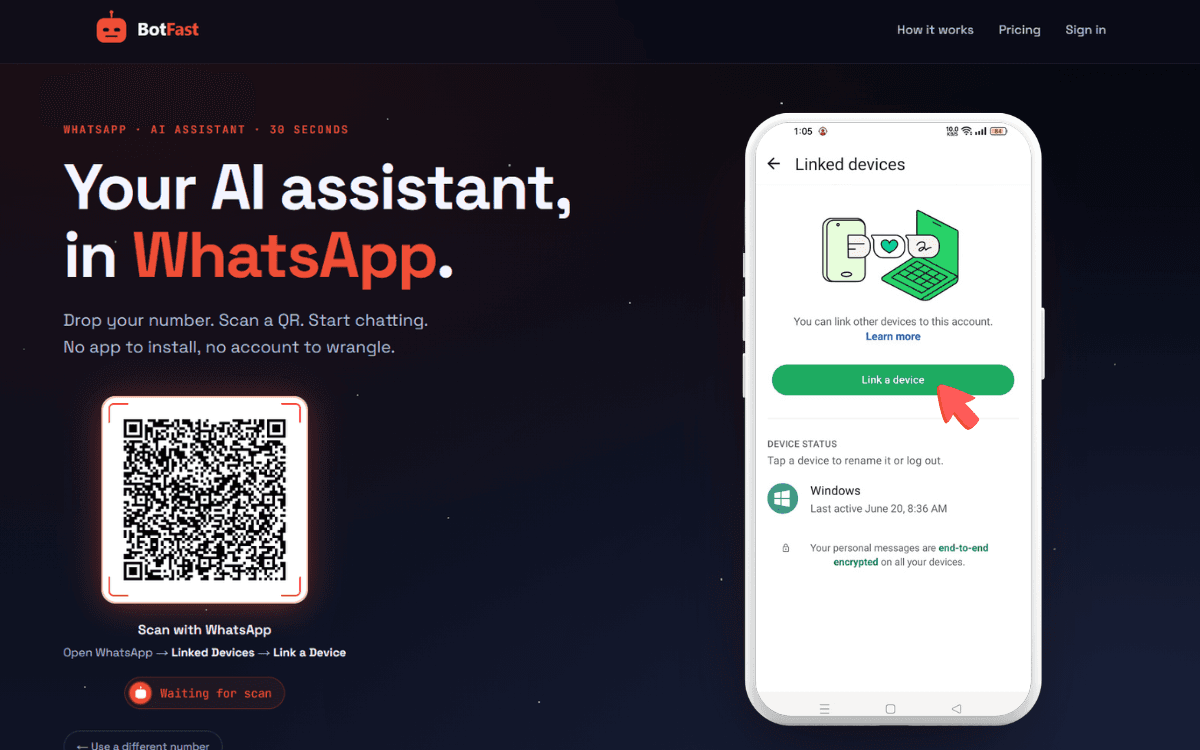
Scan one QR code and the bot is linked to your number — same flow as WhatsApp Web
Step 3 — Send a message in the group
Add your number to the group you want the bot in (via the normal “Add participant” flow — or use a group you are already in), then send any message in that group. The moment a message lands, the group appears on your BotFast dashboard, ready to configure. No admin rights are required.
Step 4 — Enable AI reply for that group
Open the dashboard, go to Conversations, find the group, and open its settings. Switch on AI reply — the default behavior is reply when mentioned: the bot answers only when someone @mentions it or replies to one of its messages. In the same panel you can optionally turn on always reply (for support-style groups) and media analysis (so the bot can read images and documents posted in the group).
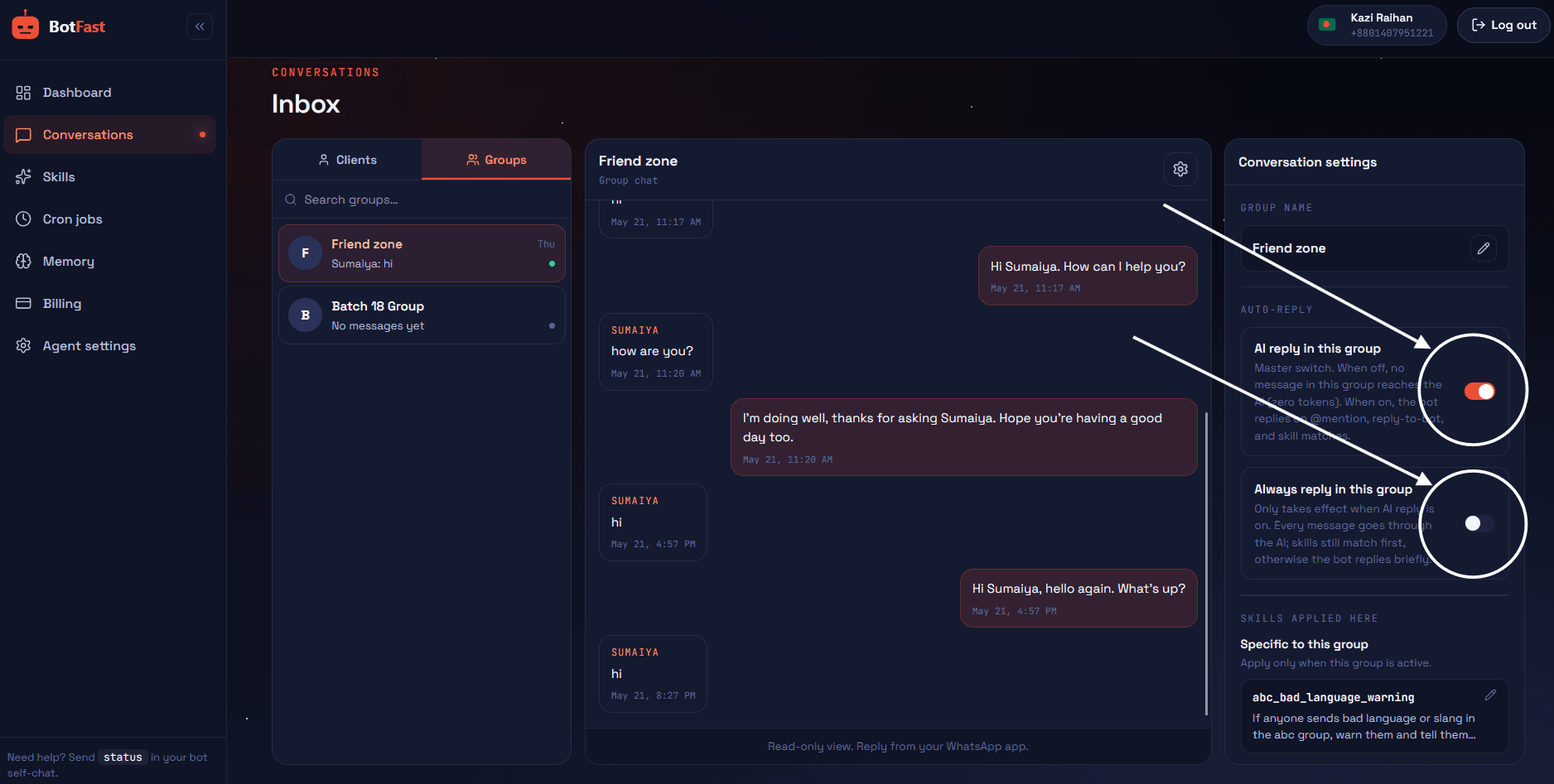
Dashboard → Conversations → your group — enable AI reply (mention mode by default), always-reply, and media analysis here
Step 5 — Create the skill and paste it
For standups: paste skill 1 scoped to the team group, then create the two scheduled jobs (skills 2 and 3) on the Schedule page. The prompt fires at 9:30, the nudge at 10:25 — adjust both to your team's rhythm.
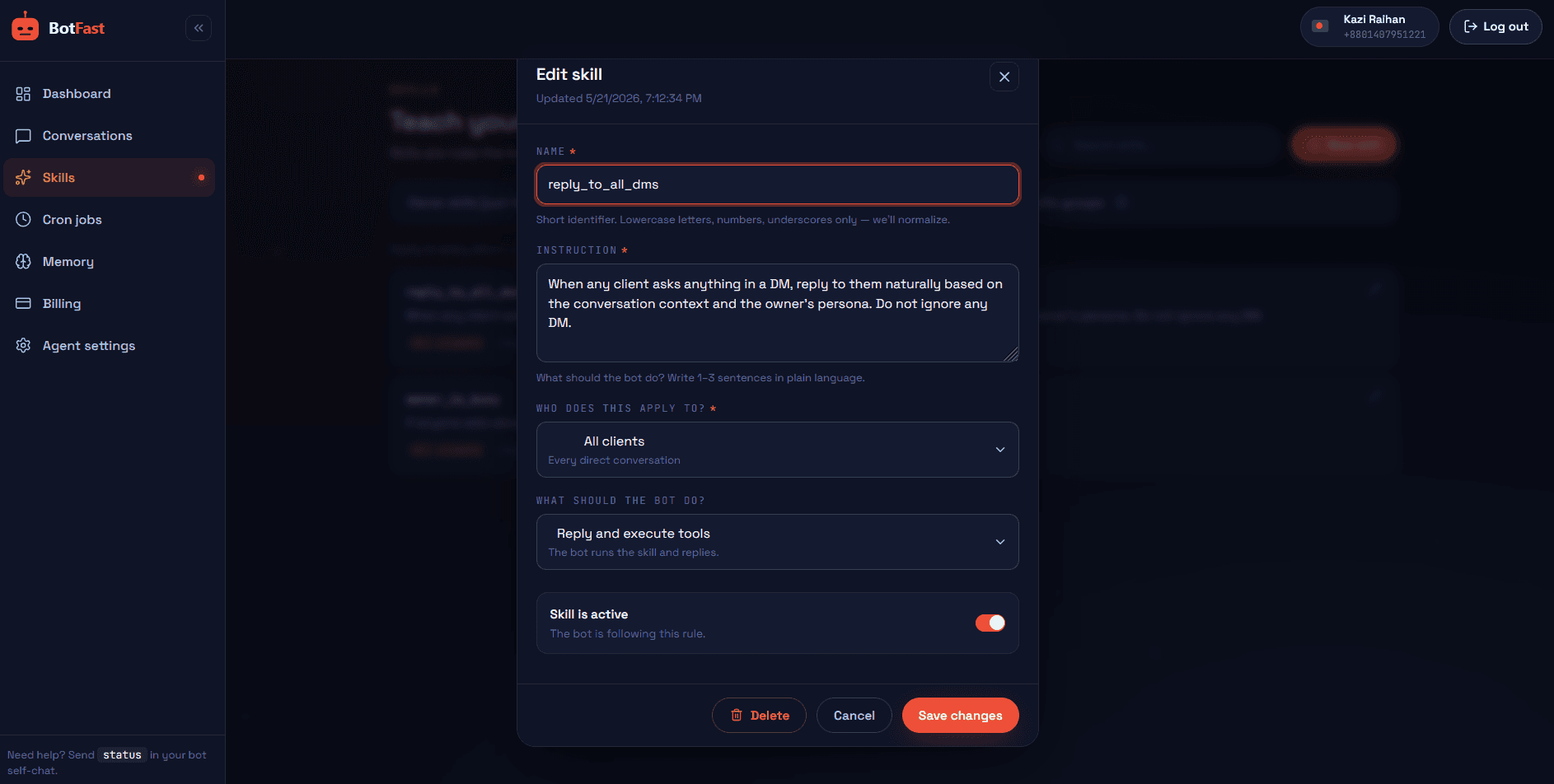
Dashboard → Skills → New — paste the skill, scope it to your group, save. Done
That’s the whole pipeline: number → QR → message → toggle → skill. The bot is now live in the group, from your number, following your instructions.
Tuning the rhythm
| Team shape | Prompt | Cutoff | Notes |
|---|---|---|---|
| Same timezone, 5–10 people | 9:30 | 10:30 | The classic — one clean hour window |
| Split across 2 timezones | Per-group: each squad its own group + time | +60 min | Or one group, two prompts (9:30 + 14:00) |
| Follow-the-sun team | 9:30 local per squad group | Rolling | Summary lands as each region starts |
| Freelancers / part-timers | 10:00, weekdays only | Next morning | 24h window; summary leads the next day’s prompt |
Standups that survive month three
- Keep the format forgiving. Members write “did pricing, today checkout, no blocks” — the bot structures it. Never demand a template from humans.
- One nudge, ever. The 10:25 reminder is helpful; a second one is nagging. The skip list in your DM does the accountability work.
- Summaries under 12 lines. If the team outgrows that, split into squads — long standups get skimmed exactly like chat scroll.
- Blockers go to your DM. Public blocker discussions turn into standup theater; private escalation gets them solved.
- Let the bot stay boring. Vary the morning emoji, not the structure. Rituals work because they’re identical every day.
- End the week big. Swap Friday’s standup for the weekly recap from the summary bot setup — same data, better format for a Friday.
Frequently asked questions
What if someone posts their standup late?
After cutoff the bot says nothing publicly; the late update still gets logged (with skill 4) and included in tomorrow’s summary context. Repeated lateness shows up in your DM skip-report.
Can members update in their own language?
Yes — the bot understands multilingual groups and writes the consolidated summary in the language you set in the skill (default: the group’s dominant language).
Does it replace a project tracker?
It replaces the meeting. For full task tracking with due dates and boards, add the task management skill — the standup feeds it naturally.
Can we do weekly instead of daily?
Yes — schedule the prompt weekly (e.g. Monday 10am) and drop the cutoff job. Small teams and agencies often run Mon/Wed/Fri.
Who can see the skip report?
Only you — it’s a DM to the owner. What the group sees is the consolidated summary; accountability data stays with management.