
WhatsApp Group Management Bot: Automate Admin Work in Any Group
Automate WhatsApp group admin work — add/remove members, welcome newcomers, schedule announcements. One bot on your own number. Setup + skills included.
Nobody starts a WhatsApp group to do admin work. They start it to sell a course, run a team, host a community — and then discover that “admin” is a second job: adding the ten people who paid last night, removing the two who refunded, welcoming every newcomer, re-posting the rules, pinning the link, announcing the session.
A WhatsApp group management bot takes that job. It runs on your number as a linked device, so it can do everything you could do — including adding and removing members when your number is a group admin — and it does it instantly, around the clock, exactly the way your skills instruct it.
Watch the setup walkthrough
What this WhatsApp group bot is capable of
Group management leans hardest on capabilities 1, 6, 7 and 8 — the bot speaks as your number, escalates to you privately when judgment is needed, and holds the same admin powers your number holds:
| # | Capability | What it means inside your group |
|---|---|---|
| 1 | Sends from the owner’s number | The bot is linked to your WhatsApp number as a device, so every message it posts comes from your number — not from a foreign bot number or a faceless business account. Members already know and trust the sender. |
| 2 | Replies when mentioned | @mention the bot (or reply to one of its messages) and it answers within seconds — with full context of the conversation around the mention. Everything else, it ignores. |
| 3 | Analyzes images and documents | Turn on media analysis for the group and the bot reads whatever is posted — receipts, invoices, bank statement PDFs, DOCX files, screenshots, photos — then answers questions about it or extracts the data into a table or Google Sheet. |
| 4 | Views every message and reacts | The bot sees the whole conversation, so it follows context instead of answering blind — and it can react to messages with an emoji, like a ✅ on a finished task or a 👍 on a good update. |
| 5 | Keeps quiet in the group | Silence is the default. Unless mentioned, replied to, or tripped by a skill you wrote, the bot says nothing — it never injects itself into conversations uninvited. |
| 6 | Notifies the owner in any case | When something needs a human — an angry member, an overdue task, a spam wave, a question it can’t answer — the bot sends you a private DM instead of cluttering the group. |
| 7 | Add and removes members (if the owner is admin) | If your number is an admin of the group, the bot can add and remove participants on your behalf — ideal for paid communities and team groups where membership changes constantly. |
| 8 | Does anything the owner can do | The bot operates your number, so whatever you can do in a WhatsApp group — send, reply, react, add members, share files — the bot can do too, on your instruction, around the clock. |
Everything else on this page — task boards, deadline reminders, receipt extraction, daily digests — is built from these eight primitives plus group skills: plain-English standing instructions that tell the bot what to watch for and what to do.
What is a WhatsApp group management bot?
It is your BotFast assistant wearing the admin hat. You keep making the decisions — the bot does the clicking. The split of labor:
| Admin task | How you do it today | With the bot |
|---|---|---|
| Add members | Open group → Add → find each contact → repeat ×20 | “Add these 12 numbers to Course Group” — or a skill that adds whoever you DM it |
| Remove members | Long-press → Remove, with an awkward notification | “Remove 8801… they refunded” — done in seconds, no phone |
| Welcome newcomers | Whenever you happen to see the join notice | Auto-welcome + rules + intro prompt on every join, instantly |
| Announcements | Type at 9am… if you remember | Scheduled posts: session links, daily threads, weekly recaps |
| Answering “where is the link?” | Repeat yourself 5×/day | Bot answers from a skill, every time, same answer |
| Keeping the group on-topic | Manual policing | Bot nudges off-topic threads and escalates repeat cases to your DM |
Member management, done by chat
The flagship capability: if your linked number is an admin of the group, the bot can add and remove participants on your behalf. Three patterns cover almost everyone:
| Pattern | You say / do | Bot does |
|---|---|---|
| Direct command | “Add 8801712345678 to VIP Group” | Adds the number, confirms in one line |
| DM-triggered | A customer DMs you proof of payment | Skill checks it, adds them to the paid group, DMs them the welcome |
| Removal on trigger | “Remove everyone tagged #refund” or refund notice | Removes quietly; optional goodbye DM (never a public shaming) |
Admin powers follow your number, not the bot.If your number is a regular member, the bot can still talk, react, welcome, and answer — it just can’t change membership or group settings. Promote your number to admin and the management tools start working. Nothing else changes.
To use member-management tools from the group side, enable the WhatsApp group managementtool group for clients and groups on your dashboard Tools page — it’s off by default so a group skill can never silently manage membership until you allow it.
Onboarding that runs itself
The first two minutes decide whether a newcomer participates or lurks forever. Let the bot run that window:
- Instant welcome. The join notice triggers your welcome — name, what the group is, the one rule that matters.
- Rules on arrival. Pinned-style rules message follows the welcome, so “I didn’t know” dies as an excuse.
- Intro prompt. “Tell us your name + what you do — the group is friendly, promise.” Intros double the chance a member posts within a week.
- FAQ handoff. “Ask me anything about the course — or @mention me anytime.”
- Human escalation. Anything that smells like a complaint or refund request goes to your DM, not the public timeline.
Copy-paste group management skills
These four cover the core admin loop: welcomes, member add/remove, announcements, and topic control. Adjust group names and rules to yours — the bot resolves group names automatically, you never paste IDs.
1. Auto-welcome + rules
For the group "Growth Marketing Cohort":
When you see a "X joined" or "X was added" notice:
1. Wait 30 seconds, then post a warm welcome: greet them by name, one line on what the group is, and ask them to introduce themselves (name, city, what they're working on).
2. In the same message include the 3 group rules: stay on topic, no DMs to members without asking, links only from admins.
3. Never welcome bots or people who left and rejoined within a day (they got the message).
4. Keep the whole welcome under 8 lines, friendly, no walls of text.
2. Member add/remove (owner self-chat)
In my self-chat:
When I send phone numbers with a group name (e.g. "add to VIP Group: 8801712345678, 8801811222333"):
- Add each number to that group and confirm with one line per number: added / failed (with reason).
When I say "remove NAME or NUMBER from GROUP":
- Remove them, confirm in one line, and never announce the removal inside the group.
When a payment screenshot is DM'd to me by a customer, remind me with "Add to paid group? reply yes/no" — never add without my confirmation.
3. Scheduled announcements
For the group "Growth Marketing Cohort":
- Every Tuesday at 10:00am post this week's schedule from the pinned syllabus (module name, live session day/time, link placeholder "link Friday").
- Every Friday at 9:00am post the live session link with a one-line agenda.
- 10 minutes before any live session, post "Starting in 10 minutes ⏰" plus the link.
- Never post anything else on schedule; ad-hoc replies only when mentioned.
4. Topic guard (gentle moderation)
For the group "Growth Marketing Cohort":
- If a conversation goes clearly off-topic (politics, religion, unrelated promos) for more than 3 messages, post ONE gentle nudge: "Let's keep this thread for growth marketing 🙏 — moving on!" and nothing more.
- If the same person goes off-topic again the same day, do not post publicly; DM the owner with their name and a one-line summary.
- If someone asks a question covered by the FAQ (pricing, schedule, recordings), answer it from the FAQ skill instantly, even without a mention.
- Never argue. One nudge, then escalation.
Manage every group from one bot
You do not need one bot per group. The same BotFast assistant — the same linked number, the same subscription — works in every WhatsApp group you are a member of, at the same time: your team group, your customer community, your class group, your family chat.
One bot, every group. Each group gets its own reply mode and its own set of skills, so the very same bot can be a task manager in your team group, a moderator in your community, a receipt logger in your finance group, and a quiet encyclopedia in your class group — all at once, all from your one number. Turn it off in one group and the others are untouched.
| Group | Reply mode | What the same bot does there |
|---|---|---|
| Engineering Team | Skills + mention | Standups, task tracking, deadline reminders |
| Acme Customers | Always reply | FAQ answers, onboarding, escalation to you |
| Finance & Ops | Skills + media analysis | Receipt and bank statement extraction into Sheets |
| Family | Off | Nothing — the bot stays completely silent here |
The full walkthrough of per-group modes, per-group skills, and global group skills is in one AI bot for all your WhatsApp groups.
How to get a WhatsApp group bot (5 steps)
The whole setup takes about two minutes and needs no coding, no Meta business verification, and no group admin approval — your linked number is just a regular member. Here is the exact path from zero to a working group bot.
Step 1 — Enter your phone number at botfast.co
Go to botfast.co and enter the WhatsApp number the bot should run on. This is the number members will see talking in the group — for most people, their own personal or business number.
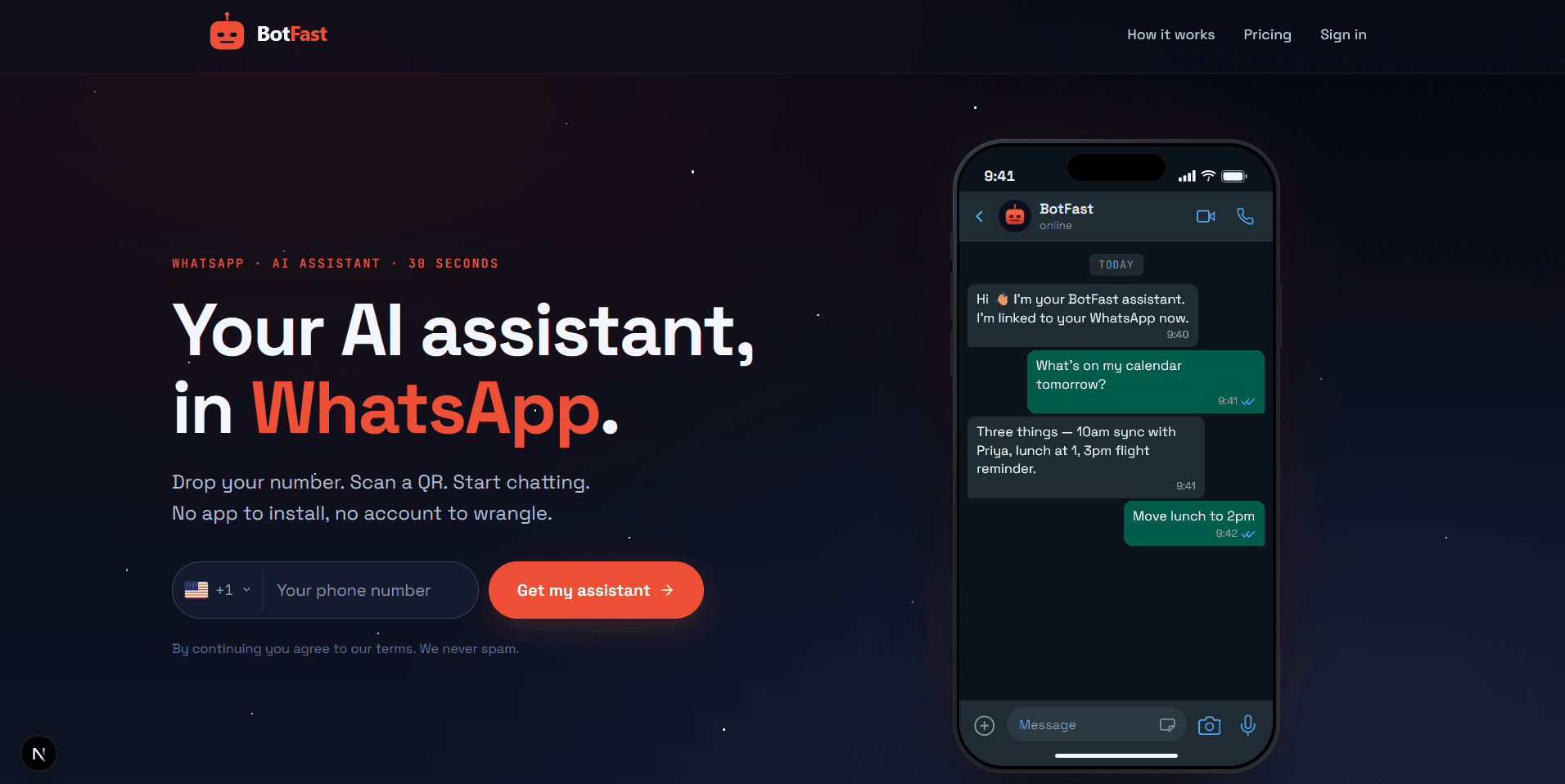
Enter your number on the BotFast homepage — this becomes the number your group bot speaks from
Step 2 — Scan the QR code from WhatsApp Linked Devices
On your phone, open WhatsApp → Settings → Linked Devices → Link a device, and scan the QR code BotFast shows you. That links the bot to your number — the same mechanism WhatsApp Web uses, nothing is installed on your phone and your phone keeps working normally.
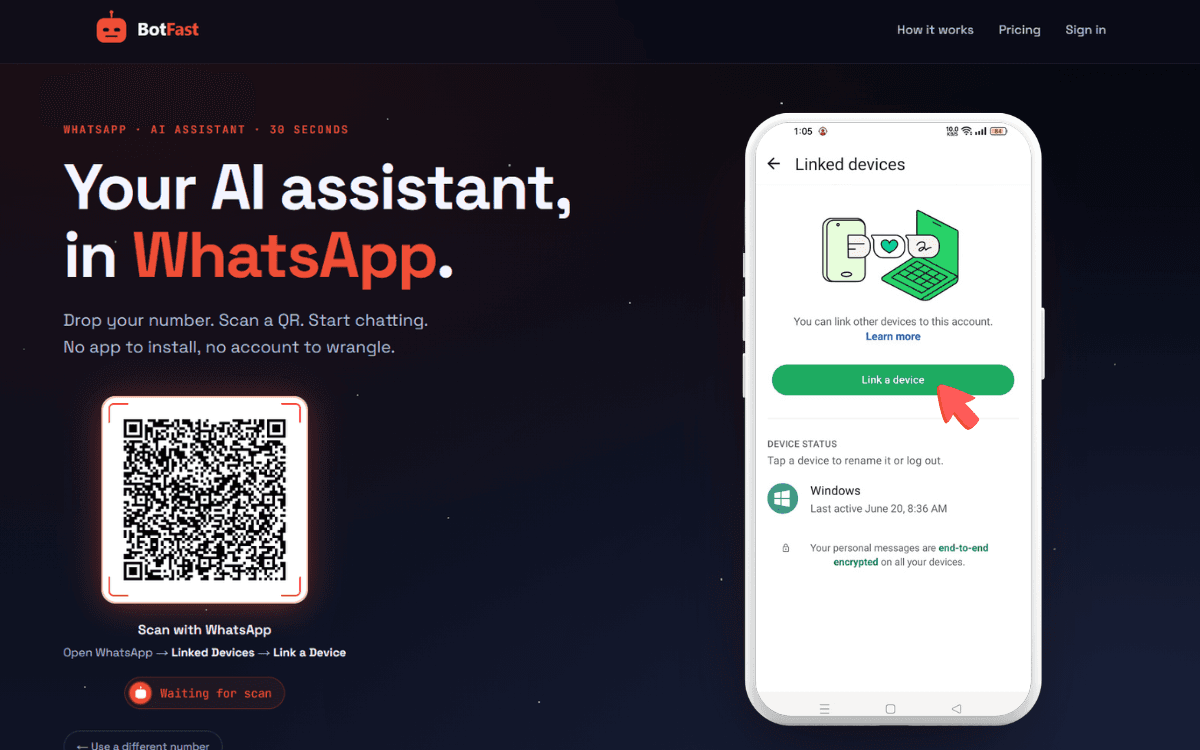
Scan one QR code and the bot is linked to your number — same flow as WhatsApp Web
Step 3 — Send a message in the group
Add your number to the group you want the bot in (via the normal “Add participant” flow — or use a group you are already in), then send any message in that group. The moment a message lands, the group appears on your BotFast dashboard, ready to configure. No admin rights are required.
Step 4 — Enable AI reply for that group
Open the dashboard, go to Conversations, find the group, and open its settings. Switch on AI reply — the default behavior is reply when mentioned: the bot answers only when someone @mentions it or replies to one of its messages. In the same panel you can optionally turn on always reply (for support-style groups) and media analysis (so the bot can read images and documents posted in the group).
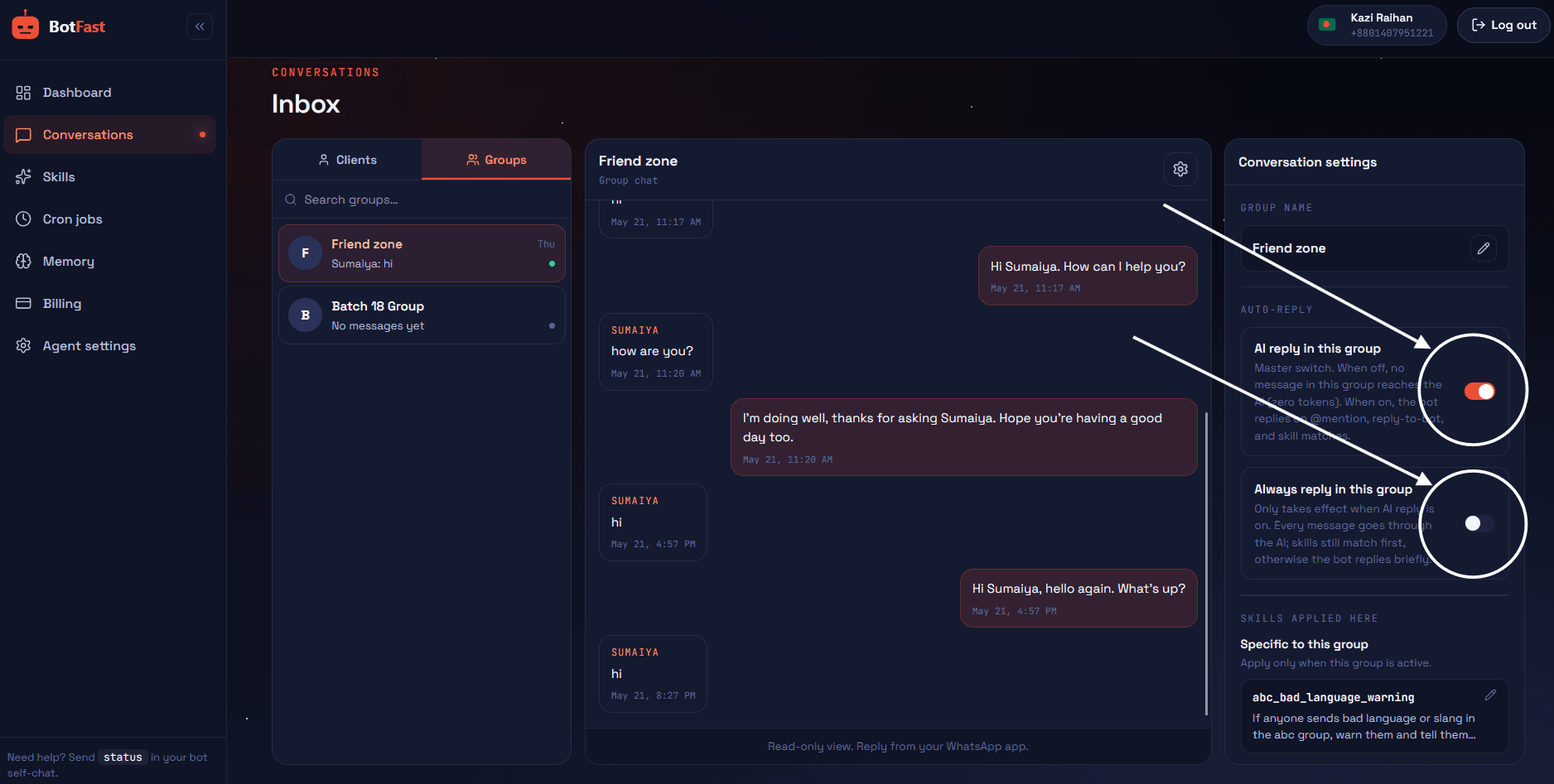
Dashboard → Conversations → your group — enable AI reply (mention mode by default), always-reply, and media analysis here
Step 5 — Create the skill and paste it
For management duties specifically: make sure your number is a group admin (so the add/remove tools work), and turn on the WhatsApp group management tools on the Tools page. Then paste skills 1 and 2 from this page — the welcome skill scoped to the group, the add/remove skill in your self-chat.
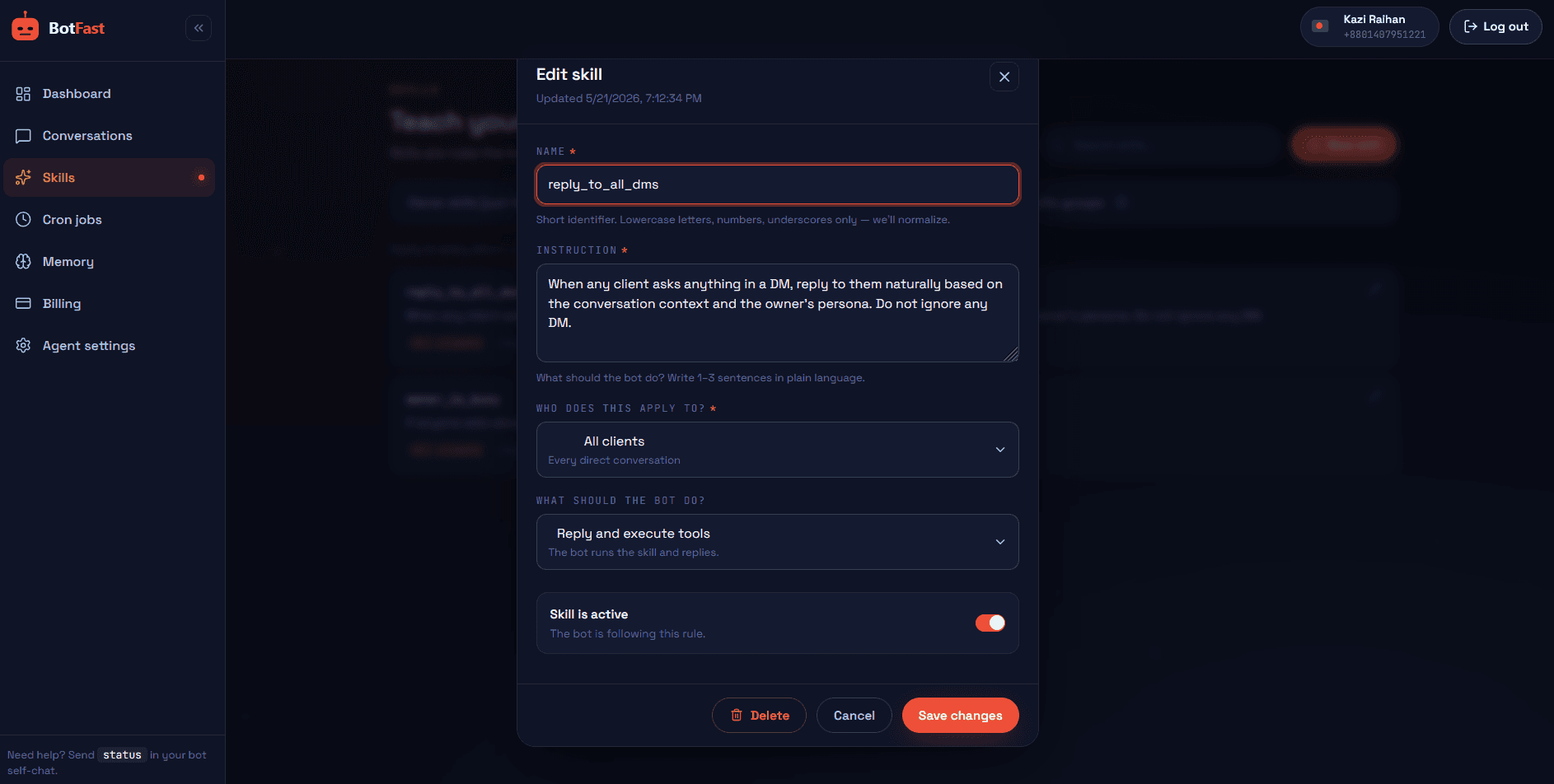
Dashboard → Skills → New — paste the skill, scope it to your group, save. Done
That’s the whole pipeline: number → QR → message → toggle → skill. The bot is now live in the group, from your number, following your instructions.
What this actually saves you
Admin work is death by ten seconds. It adds up:
| Task | Per week (manual) | With the bot |
|---|---|---|
| Welcoming ~20 newcomers | ~40 min + bad timing | 0 min, instant, consistent |
| Adding ~15 paying members | ~30 min of contact-adding | ~2 min of pasting numbers |
| Posting announcements (3/wk) | ~15 min + remembering | 0 min, scheduled |
| Re-answering “where’s the link?” | ~30 min, at dinner | 0 min — bot answers |
| Total | ~2 hrs/week, badly timed | ~5 min/week, on your schedule |
The bigger win is consistency: every newcomer gets the same welcome, every paying customer gets added the night they pay, every session link goes out on time — whether you’re at your desk, on a flight, or asleep. For heavier policing (spam, scammers, link floods) pair this with the group moderation bot setup, and for multi-group operations read one bot for all your groups.
Admin automation ground rules
- Confirm before removals. A skill that removes humans on fuzzy triggers will eventually remove the wrong one. Require your explicit yes for removals, automate everything else.
- Never announce removals publicly. Goodbyes in-group create drama; silent removals (plus an optional private DM) don’t.
- Keep welcomes short. Under 8 lines. A welcome that scrolls the screen gets skimmed exactly like no welcome.
- Schedule around your members. Announcements at times your group is actually active — the bot posts in your timezone, so use real local times.
- Log the membership ledger. Have add/remove actions appended to a “members” table — after six months you’ll want the history when someone asks “why was I removed?”
Frequently asked questions
Will members know a bot is managing the group?
Only if you tell them. Everything happens from your own number — there’s no bot badge, no foreign number. Most owners post one message: “My assistant handles welcomes and links from my number.”
Can it manage groups it was added to later?
Yes — the moment your number is in a group and a message lands there, the group appears on the dashboard and can get its own skills and reply mode.
Can it create new groups?
Yes — the same group tools include creating groups and adding participants, so a skill can spin up a project group on your instruction and seed it with members.
What if two admins disagree with the bot?
The bot only acts on yourinstructions and skills — the number it’s linked to. Other admins’ messages are just messages to it (though you can allow it to take commands from specific admins via a skill if you want).
Does removing someone notify the group?
WhatsApp shows the standard system line for any removal — that’s WhatsApp itself. The bot never adds commentary on top of it.