
WhatsApp Event Planning Bot: RSVPs, Reminders & Expenses
Plan events in WhatsApp groups — RSVP collection, checklist tracking, reminders, and expense splitting from receipt photos. Copy-paste skills included.
Every event lives in a WhatsApp group now — the trip with friends, the college reunion, the community meetup, the wedding where 40 cousins must coordinate. And every event group dies the same death: RSVPs scattered across replies, the venue decision buried under memes, three people who bought food and never got paid back, and a day-of schedule nobody can find at 8am.
A WhatsApp event planning botis the organized friend the group deserves. It counts RSVPs as they happen, keeps the planning checklist visible, fires reminders before every deadline, logs expenses from receipt photos, and posts the day-of rundown right when it’s needed. You bring the people; the bot brings the spreadsheet energy — without ever making anyone open a spreadsheet.
Watch the setup walkthrough
What this WhatsApp group bot is capable of
Event planning exercises almost every capability at once — mention-mode coordination, receipt analysis for expenses, quiet default with loud reminders, and private nudges to you when things slip:
| # | Capability | What it means inside your group |
|---|---|---|
| 1 | Sends from the owner’s number | The bot is linked to your WhatsApp number as a device, so every message it posts comes from your number — not from a foreign bot number or a faceless business account. Members already know and trust the sender. |
| 2 | Replies when mentioned | @mention the bot (or reply to one of its messages) and it answers within seconds — with full context of the conversation around the mention. Everything else, it ignores. |
| 3 | Analyzes images and documents | Turn on media analysis for the group and the bot reads whatever is posted — receipts, invoices, bank statement PDFs, DOCX files, screenshots, photos — then answers questions about it or extracts the data into a table or Google Sheet. |
| 4 | Views every message and reacts | The bot sees the whole conversation, so it follows context instead of answering blind — and it can react to messages with an emoji, like a ✅ on a finished task or a 👍 on a good update. |
| 5 | Keeps quiet in the group | Silence is the default. Unless mentioned, replied to, or tripped by a skill you wrote, the bot says nothing — it never injects itself into conversations uninvited. |
| 6 | Notifies the owner in any case | When something needs a human — an angry member, an overdue task, a spam wave, a question it can’t answer — the bot sends you a private DM instead of cluttering the group. |
| 7 | Add and removes members (if the owner is admin) | If your number is an admin of the group, the bot can add and remove participants on your behalf — ideal for paid communities and team groups where membership changes constantly. |
| 8 | Does anything the owner can do | The bot operates your number, so whatever you can do in a WhatsApp group — send, reply, react, add members, share files — the bot can do too, on your instruction, around the clock. |
Everything else on this page — task boards, deadline reminders, receipt extraction, daily digests — is built from these eight primitives plus group skills: plain-English standing instructions that tell the bot what to watch for and what to do.
The four jobs of an event bot
| Job | How it works in chat | What you stop doing |
|---|---|---|
| RSVP collection | “Reply GO or NO” — every reply logged, changes of mind handled, count posted daily or on demand | Counting replies by hand, chasing maybes |
| Checklist tracking | Venue, food, transport, decor — each an item with an owner and deadline; bot posts what’s still open | Re-asking “who’s handling the sound system?” |
| Reminders | Scheduled posts: payment deadline Friday, bus leaves 7:30 sharp, bring your own… | Manually announcing everything 5 times |
| Money tracking | Receipts posted → logged with payer + amount; running total; who-owes-what on demand | The “I paid, you owe me” spreadsheet nobody updates |
The event timeline, bot-run
Here’s what a well-run event group looks like from two weeks out to day-of:
| When | Bot post / action |
|---|---|
| T-14 days | “🎉 It’s happening! Date: 28th. Reply GO or NO. Deadline for RSVP: the 21st.” |
| T-14 → T-7 | Daily RSVP count + gentle “still deciding: names” nudge; checklist items posted with owners |
| T-7 | “Final headcount: 24 GO. Money needed: 4,800 each — send by Friday.” (from expenses table) |
| T-3 | Checklist status: done ✅ / still open ⏳ with owner names; receipts settled so far |
| T-1 | “Tomorrow: bus leaves 7:30 from Gulshan. Bring: ID, jacket, your payment receipt.” |
| Day-of, 7:00 | Day schedule: timings, meeting points, who holds tickets / first-aid / the banner |
| Day-of, rolling | Answers “where / when / who has” questions instantly from the plan |
| T+1 | “That was great ❤️ Final expenses: total, per-head, who owes what” + asks for 3 favorite photos |
RSVP mechanics (the part everyone loves)
The RSVP flow is deliberately friction-free — members reply like humans, the bot keeps books like an accountant:
| Member says | Bot logs | Bot replies |
|---|---|---|
| “GO” | rsvp: name → going | (reacts 👍 — no spam) |
| “can’t make it, work” | rsvp: name → not going | “Missed this time! Next one 🙌” |
| “actually I’m in now” | updates: not going → going | “Updated — GO count: 25 ✅” |
| “+2, bringing my cousins” | going with guests: 2 | “26 + your 2 = 27 🎉” |
| “how many coming?” | — | “27 going, 4 no, 6 undecided” |
The daily count post is the social engine: seeing “27 going” converts the undecided better than any nudge — and the bot still pokes the stragglers by name as the RSVP deadline nears.
Copy-paste event skills
Create two tables first (dashboard → Tables): rsvp (columns: event, member, status, guests) and expenses (columns: item, payer, amount, date). Then paste the skills scoped to the event group. Turn media analysis ON if you want receipt photos read.
1. RSVP collector
For the group "Cox's Bazar Trip":
- When anyone replies GO/IN/COMING (or clearly says they're joining), upsert their row in the "rsvp" table (member, status going, guests count if they mention +N). React 👍, no reply text.
- When anyone says NO/CAN'T/OUT, set status not going. Reply one warm line, never guilt-trip.
- Handle changes: latest message wins. "+2" adds guests to their row.
- When anyone asks "how many / headcount / who's coming": post the count line: "X going (+G guests), Y out, Z undecided" — full name list only when asked "list".
- Daily at 9pm until the RSVP deadline: post the count + "still deciding: first names".
- At the deadline, post the final headcount and lock it (changes after this get a reply "headcount is locked — ping ORGANIZER").
2. Checklist tracker
For the group "Cox's Bazar Trip":
- The planning checklist lives in the table "checklist" (item, owner, deadline, status). I will create/update items by saying "add item X to NAME by DATE".
- When anyone asks "checklist / what's left": post open items as "item — owner (deadline)" and a done count. Under 10 lines.
- When an owner says an item is done, mark it and react ✅ to their message.
- Every morning at 10am until the event: post ONLY the overdue and due-within-48h items, with owners. If none, post nothing.
- If an item is overdue by 2+ days, DM me quietly — never call people out in the group.
3. Expense splitter
For the group "Cox's Bazar Trip":
- When anyone posts a receipt photo (read it with media analysis) or types an amount with what it was for ("bus 4500"), append to "expenses": item, payer, amount, date. Confirm in one line: "Logged: bus — 4,500 (Nadia)".
- When anyone asks "expenses / total / who owes": total all rows, divide by the GO headcount from the rsvp table, and post: "Total: 51,300. Split across 27 = 1,900 each. Paid so far: names + amounts. Balance due: names + amounts."
- "Nadia paid 6000 for me" → record a payment and adjust that person's balance.
- Never guess amounts from blurry receipts — ask for the number.
4. Day-of coordinator
For the group "Cox's Bazar Trip" (day of event):
- At 7:00am post the day schedule: timings, meeting points, ticket holder, first-aid holder, rain plan — from the plan I DM you the night before.
- All day: answer "where/when/who has" questions instantly from that plan, in one line. You know the plan; never improvise new times.
- If something changes (delay, new meeting point), only post it if I say "announce: ..." — otherwise DM me the situation first.
Every event gets its own bot behavior
You do not need one bot per group. The same BotFast assistant — the same linked number, the same subscription — works in every WhatsApp group you are a member of, at the same time: your team group, your customer community, your class group, your family chat.
One bot, every group. Each group gets its own reply mode and its own set of skills, so the very same bot can be a task manager in your team group, a moderator in your community, a receipt logger in your finance group, and a quiet encyclopedia in your class group — all at once, all from your one number. Turn it off in one group and the others are untouched.
| Group | Reply mode | What the same bot does there |
|---|---|---|
| Engineering Team | Skills + mention | Standups, task tracking, deadline reminders |
| Acme Customers | Always reply | FAQ answers, onboarding, escalation to you |
| Finance & Ops | Skills + media analysis | Receipt and bank statement extraction into Sheets |
| Family | Off | Nothing — the bot stays completely silent here |
The full walkthrough of per-group modes, per-group skills, and global group skills is in one AI bot for all your WhatsApp groups.
How to get a WhatsApp group bot (5 steps)
The whole setup takes about two minutes and needs no coding, no Meta business verification, and no group admin approval — your linked number is just a regular member. Here is the exact path from zero to a working group bot.
Step 1 — Enter your phone number at botfast.co
Go to botfast.co and enter the WhatsApp number the bot should run on. This is the number members will see talking in the group — for most people, their own personal or business number.
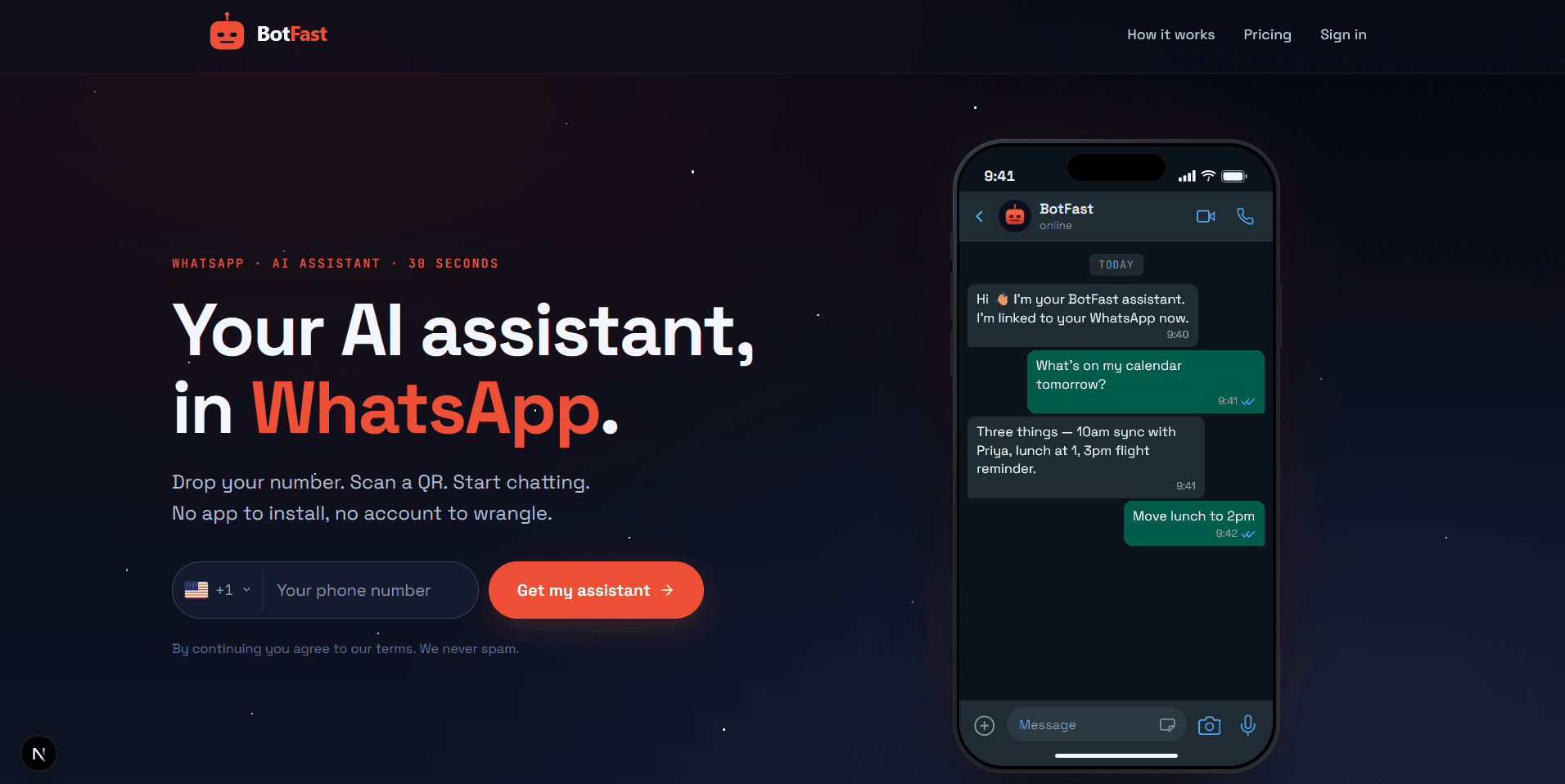
Enter your number on the BotFast homepage — this becomes the number your group bot speaks from
Step 2 — Scan the QR code from WhatsApp Linked Devices
On your phone, open WhatsApp → Settings → Linked Devices → Link a device, and scan the QR code BotFast shows you. That links the bot to your number — the same mechanism WhatsApp Web uses, nothing is installed on your phone and your phone keeps working normally.
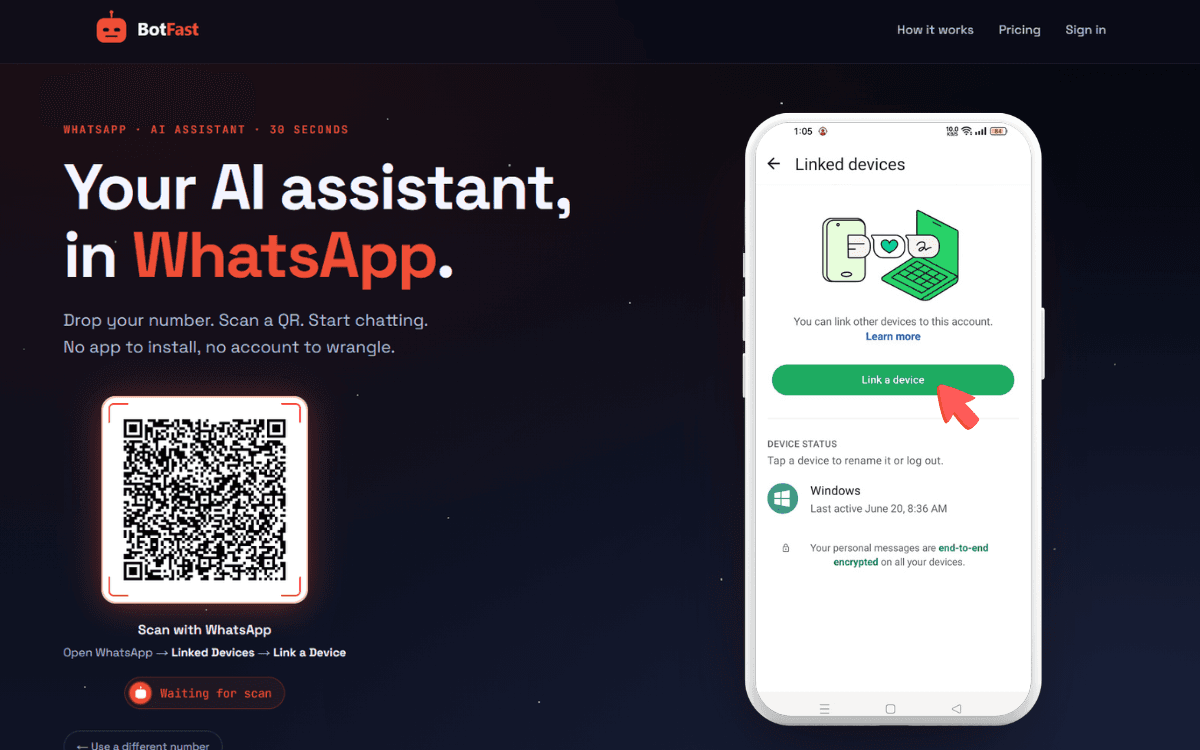
Scan one QR code and the bot is linked to your number — same flow as WhatsApp Web
Step 3 — Send a message in the group
Add your number to the group you want the bot in (via the normal “Add participant” flow — or use a group you are already in), then send any message in that group. The moment a message lands, the group appears on your BotFast dashboard, ready to configure. No admin rights are required.
Step 4 — Enable AI reply for that group
Open the dashboard, go to Conversations, find the group, and open its settings. Switch on AI reply — the default behavior is reply when mentioned: the bot answers only when someone @mentions it or replies to one of its messages. In the same panel you can optionally turn on always reply (for support-style groups) and media analysis (so the bot can read images and documents posted in the group).
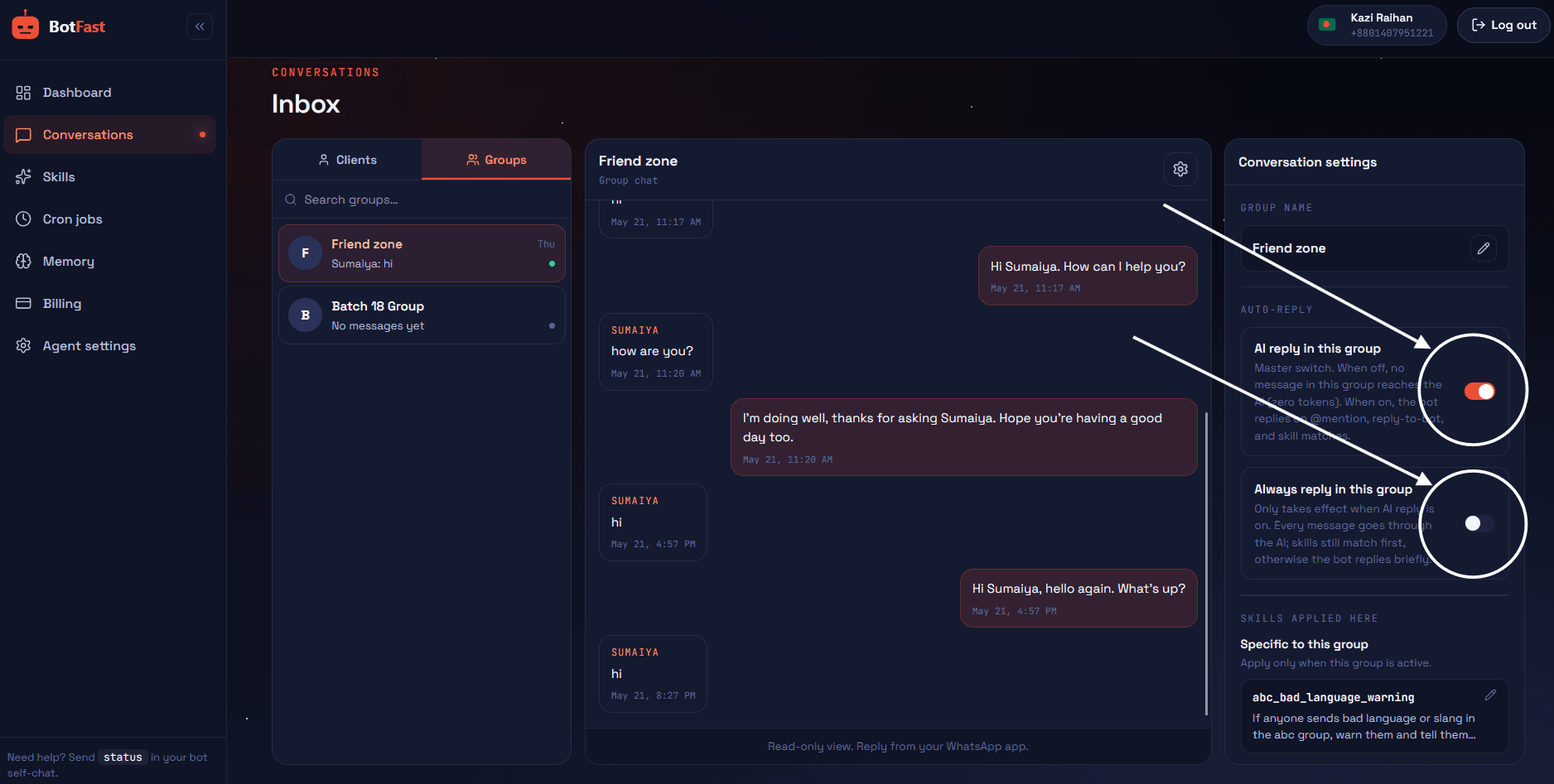
Dashboard → Conversations → your group — enable AI reply (mention mode by default), always-reply, and media analysis here
Step 5 — Create the skill and paste it
For events, enable media analysis too (receipt photos), create the rsvp + expenses tables, and paste skills 1–3 scoped to the event group. Skill 4's plan arrives as a DM from you the night before — the bot handles the rest.
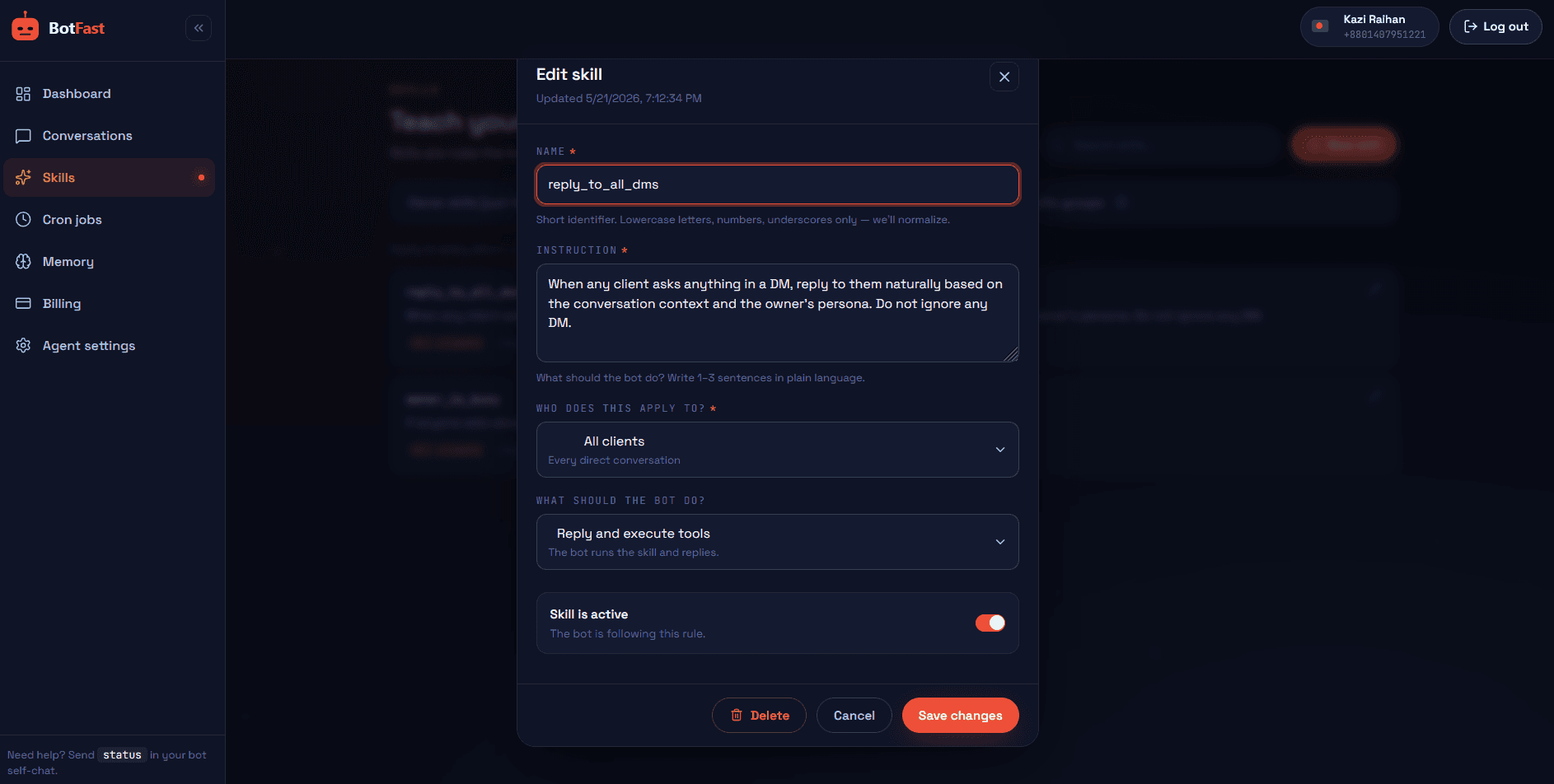
Dashboard → Skills → New — paste the skill, scope it to your group, save. Done
That’s the whole pipeline: number → QR → message → toggle → skill. The bot is now live in the group, from your number, following your instructions.
One pattern, every event type
| Event | RSVP twist | Extra worth adding |
|---|---|---|
| Friends trip | +N guests, lock at deadline | Expense splitter (the killer feature) |
| Community meetup | Capacity cap — waitlist after 60 | Reminder cadence (T-7 / T-1 / day-of) |
| Wedding committee | Roles instead of RSVPs | Checklist tracker with owners + deadlines |
| Weekly club ride | Resets every week — same skill | Weather check + route link in morning post |
| Reunion dinner | Meal choices logged as guests column | Restaurant deposit tracking |
Recurring events reuse everything: the tables reset per event, the reminders repeat on schedule, and the group stays warm between events via the summary bot patterns. Money-heavy events pair perfectly with the receipt extraction guide — same mechanics, deeper expense discipline.
Event-bot ground rules
- One pinned announcement, refreshed by the bot. The bot’s daily count/checklist post becomes the group’s single source of truth — pin the latest one.
- Lock RSVPs at a real deadline. Open-ended RSVPs produce open-ended catering. The bot enforces the lock so you don’t have to.
- Public counts, private chasing. Group posts celebrate who’s in; overdue items and unpaid balances go to your DM or the person’s DM — never public shaming.
- Day-of plan the night before. DM the bot the final schedule; it answers 50 “where/when” questions you’d otherwise field personally.
- Close the loop T+1. The settling-up post (totals, per-head, balances) is why next time’s RSVPs fill in a day — people remember clean money handling.
Frequently asked questions
Can it handle two events at once?
Yes — separate event groups, separate skills and tables, same bot. The reunion committee and the trip group never see each other’s counts.
What if people RSVP in voice notes?
Voice notes in groups stay unrouted — ask members to type GO/NO (the daily count post trains them fast). Typed replies and photo captions are handled automatically.
Can it collect payments?
It tracks who paid what (typed amounts, screenshots, receipts) and computes balances, but money itself moves the usual WhatsApp ways — the bot makes the ledger undeniable, not the transfer.
How do capacity caps work?
In the RSVP skill: “after 60 going, reply ‘waitlist’ and log them as waitlisted” — the count line then shows the waitlist number too.
Does it work for corporate offsites?
Yes — and usually with the task management skill bolted on, since offsites are basically events plus owners plus deadlines.