
WhatsApp Class Group Bot: Attendance, Homework & Deadlines
For teachers: take attendance, post homework, track submissions, and remind deadlines in your class WhatsApp group. One bot, every batch. Skills inside.
Teachers run their classes on WhatsApp — that’s just reality, especially for tutoring and coaching centers. And every teacher runs the same gauntlet: “what’s the homework?” at 11pm, attendance nobody tracks, submission photos buried under 200 student messages, and the same three syllabus questions every single batch.
A WhatsApp class group bot is the teaching assistant who never sleeps. It takes attendance with one prompt, posts and tracks homework with real deadlines, reminds students before each one is due, answers the repeat course questions from your materials, and keeps every record in a table you can pull up anytime — all in the group your students already live in.
Watch the setup walkthrough
What this WhatsApp group bot is capable of
For a class group, the eight capabilities translate directly into teaching operations — mention-mode answers, media analysis for submitted work, private DMs to you about struggling students:
| # | Capability | What it means inside your group |
|---|---|---|
| 1 | Sends from the owner’s number | The bot is linked to your WhatsApp number as a device, so every message it posts comes from your number — not from a foreign bot number or a faceless business account. Members already know and trust the sender. |
| 2 | Replies when mentioned | @mention the bot (or reply to one of its messages) and it answers within seconds — with full context of the conversation around the mention. Everything else, it ignores. |
| 3 | Analyzes images and documents | Turn on media analysis for the group and the bot reads whatever is posted — receipts, invoices, bank statement PDFs, DOCX files, screenshots, photos — then answers questions about it or extracts the data into a table or Google Sheet. |
| 4 | Views every message and reacts | The bot sees the whole conversation, so it follows context instead of answering blind — and it can react to messages with an emoji, like a ✅ on a finished task or a 👍 on a good update. |
| 5 | Keeps quiet in the group | Silence is the default. Unless mentioned, replied to, or tripped by a skill you wrote, the bot says nothing — it never injects itself into conversations uninvited. |
| 6 | Notifies the owner in any case | When something needs a human — an angry member, an overdue task, a spam wave, a question it can’t answer — the bot sends you a private DM instead of cluttering the group. |
| 7 | Add and removes members (if the owner is admin) | If your number is an admin of the group, the bot can add and remove participants on your behalf — ideal for paid communities and team groups where membership changes constantly. |
| 8 | Does anything the owner can do | The bot operates your number, so whatever you can do in a WhatsApp group — send, reply, react, add members, share files — the bot can do too, on your instruction, around the clock. |
Everything else on this page — task boards, deadline reminders, receipt extraction, daily digests — is built from these eight primitives plus group skills: plain-English standing instructions that tell the bot what to watch for and what to do.
What a class group bot does all week
The shape of a bot-run class group, Monday to Saturday:
| When | Bot action | Record written |
|---|---|---|
| Class start (e.g. 5pm) | Posts “Attendance — reply PRESENT” | attendance row per student |
| Class end (+10 min cutoff) | Posts present/late/absent counts | absent list logged |
| After class | Posts today’s homework + due date | homework row (title, due) |
| Anytime | Answers “what’s the homework?” / “when is the exam?” from the syllabus | — |
| Evening before due | “Homework due tomorrow: still waiting on…” | status updates |
| Submission time | Students post photos of work; bot logs submissions (reads them with media analysis on) | submission status per student |
| Weekly (e.g. Friday) | Posts weekly summary: attendance %, homework done/missing | — |
| Quietly, anytime | DMs you about students with 3+ absences or missing work | — (private) |
Attendance that takes itself
Paper attendance dies in a drawer; spreadsheet attendance dies in week two. Prompt-based attendance survives because students do all the work — they reply to the group they’re already in:
- At class start the bot posts the check-in prompt.
- Each “PRESENT” (or local-language equivalent) is logged with name + timestamp.
- Late replies after cutoff are marked late, everyone else absent.
- At any time you can ask: “attendance report this month” — per-student percentages appear.
- Parents’ version: a weekly summary post with each student’s attendance %.
| Ask the bot | You get |
|---|---|
| “@bot attendance today” | Present 24, late 3, absent 5 + names |
| “@bot attendance report October” | Per-student % table, sorted worst-first |
| “@bot who’s below 75%?” | The shortlist (with exact counts) — the students who need a call home |
Homework with real deadlines
Homework tracking is just task management with younger stakeholders (see the group task bot for the full system). The class version:
| Event | Bot action |
|---|---|
| You post / DM the assignment | Creates homework row: title, assigned date, due date; posts it formatted with the deadline |
| Student posts a photo of finished work | With media analysis on: reads it, logs submission, reacts ✅; otherwise logs the message as submitted |
| Evening before due | Posts the “still waiting on” list (first names only, gentle tone) |
| After due date | Marks missing as overdue; DMs you the repeat offenders privately |
| “@bot homework status” | Done / missing counts per current assignment |
The tone rule that makes this work with students: the bot is encouraging in public, honest in private. Missing-work lists use first names and a friendly nudge; the detailed accountability data goes to the teacher’s DM, never the group.
Copy-paste class skills
Create two tables first on the dashboard Tables page:attendance (columns: date, student, status) and homework (columns: title, due, student, status). Then paste these scoped to the class group.
1. Attendance taker
For the group "Physics Batch A":
- At 5:00pm daily (class days), post: "📸 Attendance time — reply PRESENT". Log every PRESENT reply to the table "attendance" (date, student name from WhatsApp, status present).
- At 5:15pm post: "Attendance closed: N present, M late." — log anyone who replied 5:10–5:15 as late.
- When I ask "attendance report", show per-student counts and % for the period I name (this week / this month), sorted lowest first.
- When a student drops below 75% for the month, DM me once: "NAME at X% — N absences." Don't post it in the group.
- Students asking "was I marked present?" get a one-line yes/no from the table.
2. Homework tracker
For the group "Physics Batch A":
- When I post "HW:" followed by a title and due date, append it to "homework" for every student (status: pending) and re-post it formatted: title, what to do, due date+time. One clean message.
- When a student posts a photo of their work (or says "done"/"submitted"), update their row for the current homework to done and react ✅ to their message. Reply publicly only "Got it, NAME ✅" (first time; after that just react).
- At 8pm the day before a due date, post: "📌 HW due tomorrow: still waiting on — names". Friendly, no shame.
- When I say "missing HW", DM me the list of students with overdue work (never post publicly).
- When anyone asks "what's the homework" / "when is it due", answer from the homework table in one line.
3. Course Q&A (syllabus brain)
For the group "Physics Batch A":
Answer student questions from the class facts:
- Syllabus: [paste your syllabus/schedule here]
- Exam dates: [paste]
- Class days/times: [paste]
- Materials: all worksheets are in the pinned Drive folder — say "notes" for the link.
Rules: one-line answers with the exact date/link; if it's an actual physics question, give a SHORT hint (max 3 lines) and say "bring it to class for the full solution" — never write essay answers in the group. If a student asks something not in the facts, say "ask sir/miss in class 👍" and DM me the question.
4. Weekly summary for parents/students
Every Friday at 7pm: post to the group "Physics Batch A" a summary: "📅 This week: N classes, average attendance X%. HW: title — M/N done. Next week: [from syllabus]." Keep it to 6 lines. If I DM you extra notes for the week (exam reminders, holiday), include one line about them.Every batch, every subject — one bot
You do not need one bot per group. The same BotFast assistant — the same linked number, the same subscription — works in every WhatsApp group you are a member of, at the same time: your team group, your customer community, your class group, your family chat.
One bot, every group. Each group gets its own reply mode and its own set of skills, so the very same bot can be a task manager in your team group, a moderator in your community, a receipt logger in your finance group, and a quiet encyclopedia in your class group — all at once, all from your one number. Turn it off in one group and the others are untouched.
| Group | Reply mode | What the same bot does there |
|---|---|---|
| Engineering Team | Skills + mention | Standups, task tracking, deadline reminders |
| Acme Customers | Always reply | FAQ answers, onboarding, escalation to you |
| Finance & Ops | Skills + media analysis | Receipt and bank statement extraction into Sheets |
| Family | Off | Nothing — the bot stays completely silent here |
The full walkthrough of per-group modes, per-group skills, and global group skills is in one AI bot for all your WhatsApp groups.
How to get a WhatsApp group bot (5 steps)
The whole setup takes about two minutes and needs no coding, no Meta business verification, and no group admin approval — your linked number is just a regular member. Here is the exact path from zero to a working group bot.
Step 1 — Enter your phone number at botfast.co
Go to botfast.co and enter the WhatsApp number the bot should run on. This is the number members will see talking in the group — for most people, their own personal or business number.
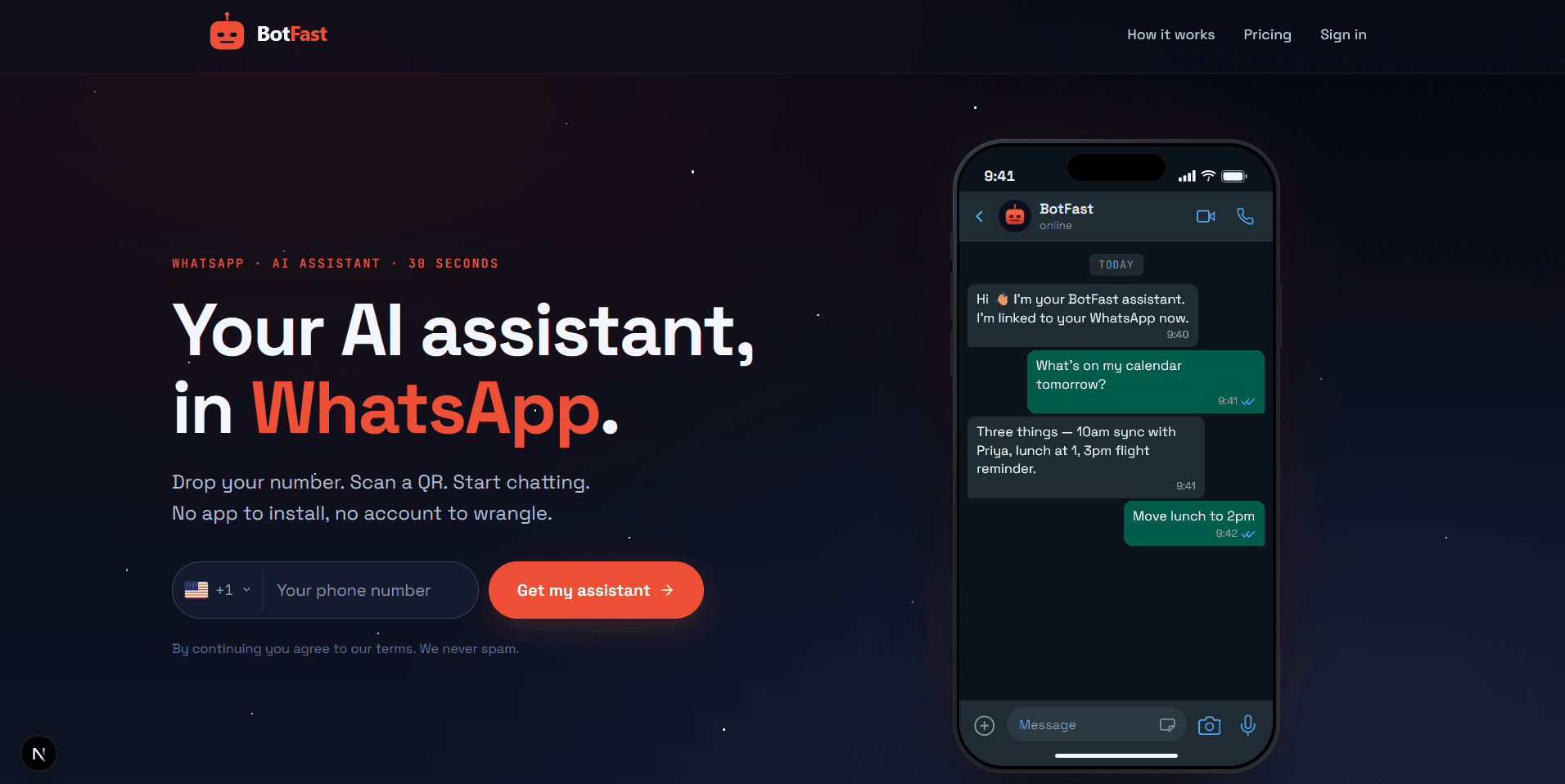
Enter your number on the BotFast homepage — this becomes the number your group bot speaks from
Step 2 — Scan the QR code from WhatsApp Linked Devices
On your phone, open WhatsApp → Settings → Linked Devices → Link a device, and scan the QR code BotFast shows you. That links the bot to your number — the same mechanism WhatsApp Web uses, nothing is installed on your phone and your phone keeps working normally.
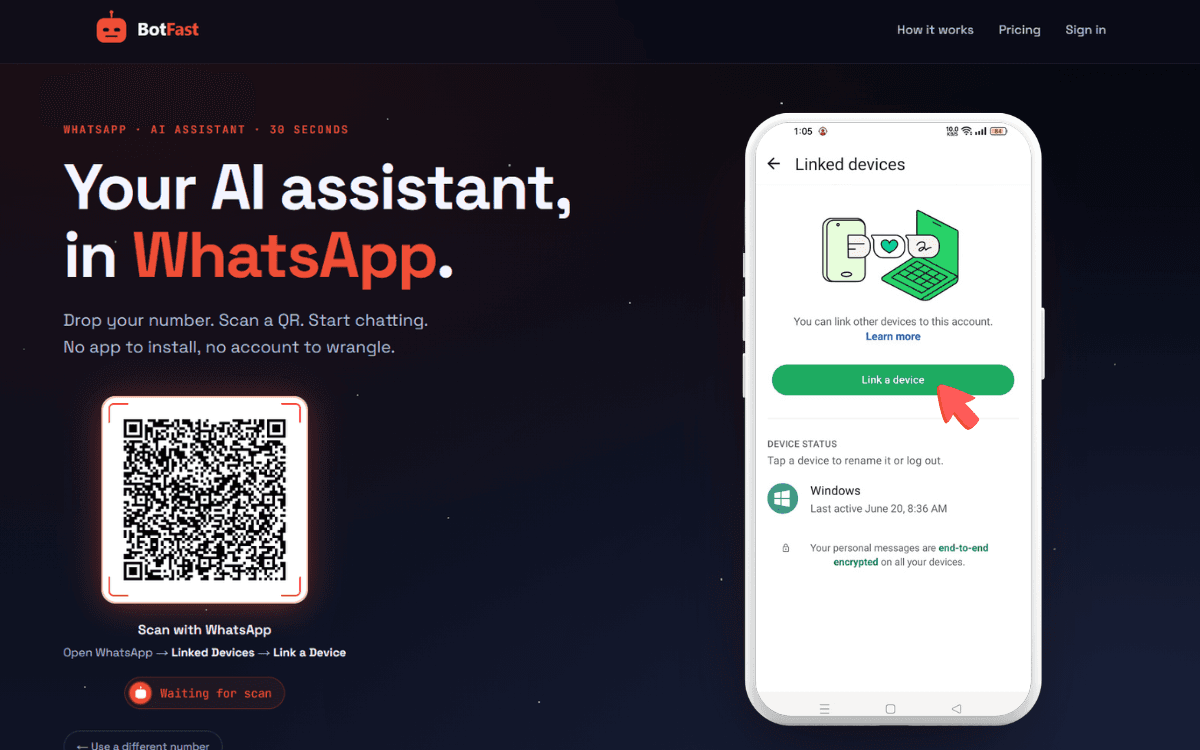
Scan one QR code and the bot is linked to your number — same flow as WhatsApp Web
Step 3 — Send a message in the group
Add your number to the group you want the bot in (via the normal “Add participant” flow — or use a group you are already in), then send any message in that group. The moment a message lands, the group appears on your BotFast dashboard, ready to configure. No admin rights are required.
Step 4 — Enable AI reply for that group
Open the dashboard, go to Conversations, find the group, and open its settings. Switch on AI reply — the default behavior is reply when mentioned: the bot answers only when someone @mentions it or replies to one of its messages. In the same panel you can optionally turn on always reply (for support-style groups) and media analysis (so the bot can read images and documents posted in the group).
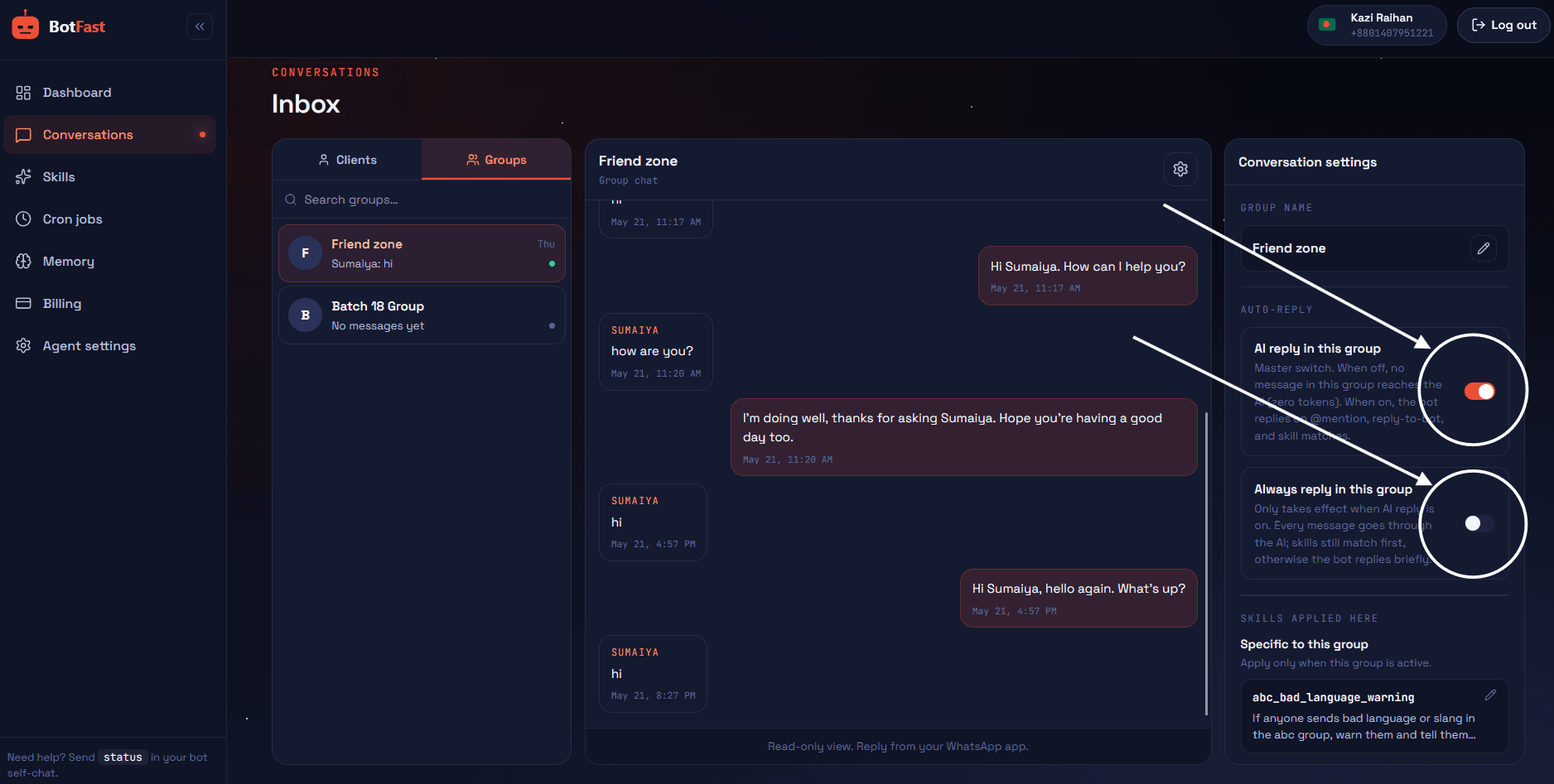
Dashboard → Conversations → your group — enable AI reply (mention mode by default), always-reply, and media analysis here
Step 5 — Create the skill and paste it
Teachers running multiple batches: repeat steps 3–5 per class group — each gets its own attendance table, homework schedule, and syllabus skill. The full multi-class pattern is in the multi-group guide.
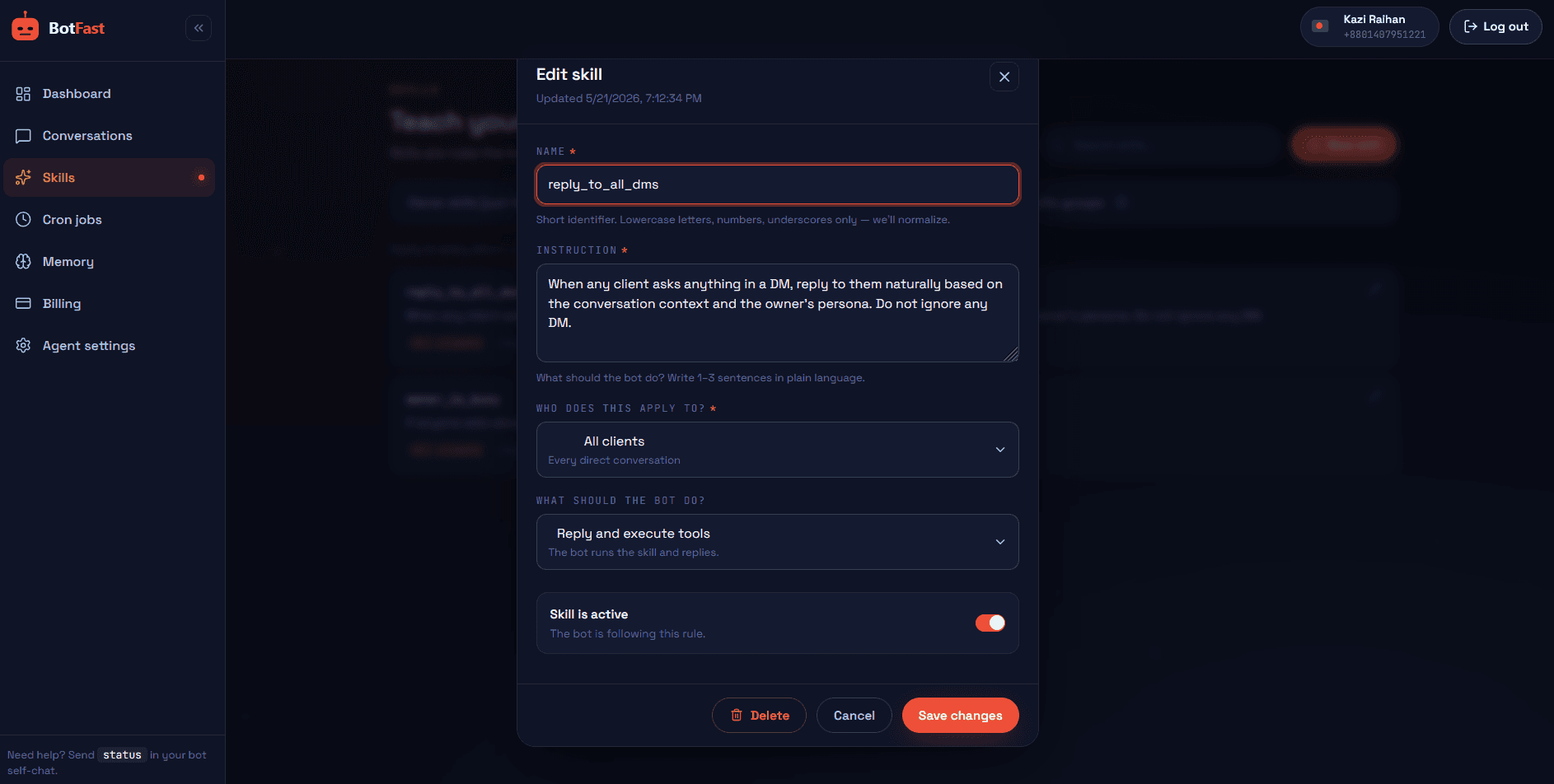
Dashboard → Skills → New — paste the skill, scope it to your group, save. Done
That’s the whole pipeline: number → QR → message → toggle → skill. The bot is now live in the group, from your number, following your instructions.
The records you end up with
| Table | Columns | Use it for |
|---|---|---|
| attendance | date, student, status | Attendance %, parent meetings, truancy patterns |
| homework | title, due, student, status | Submission rates, report cards, effort grades |
| questions | date, student, question | (optional, via Q&A skill) what the batch struggles with — pure teaching gold |
That last one is underrated: every question the bot couldn’t answer and forwarded to your DM is a lesson-planning signal. After a month you know exactly which topics the batch keeps asking about — before the exam tells you.
Making it work with students
- Introduce it as your assistant. “Reply PRESENT to my assistant, it keeps attendance. Ask it what the homework is before you ask me.” Students adapt in a day.
- Public encouragement, private accountability. Missing-work lists use first names; full records go to your DM. Teenagers humiliated in a group chat stop participating — and so do their friends.
- Keep the cutoff honest. If attendance closes at 5:15, close it at 5:15. The bot’s reliability is what makes the records mean something.
- Exam-week mode. Swap the evening posts for a countdown series (“3 days to go — tonight’s revision: chapter 5”). Cheap to set up, loved by students.
- Watch the Q&A DM digest weekly. It’s your free needs-analysis for the next batch of lessons.
Frequently asked questions
Can students trick the attendance bot?
A student can reply for themselves only — attendance is logged by WhatsApp name, and “present for a friend” requires their phone. For high-stakes attendance, pair the prompt with a question only attendees know (“reply PRESENT + the word I wrote on the board”).
Does it work in local languages?
Yes — write the skill in your language, accept replies in any language (“ASEM”, “উপস্থিত”, “presente” — list them in the skill), and the bot logs them all.
What about fee reminders?
Add a fee table and a scheduled job — the bot DMs you (or posts a gentle group reminder without names) on your billing dates. Most centers keep fees out of the student group and let the bot DM the reminder list to the teacher.
Can parents be included?
Best pattern: a separate parents group with the weekly summary skill only — parents get the Friday report, students get the daily interaction. Same bot, two groups, two skill sets.
How long is data kept?
Forever, in your tables — exportable from the dashboard anytime. Attendance disputes at term-end resolve in seconds.